{{item.name}}
Price: {{currency}}{{item.price| numberThousandsCommas | numberDecimalPoint}}
Qty: {{item.amount}}


Projectors

Monitors
Lighting
Interactive Displays & Signage
Remote Work & Learning
Shop
It’s always best to hook up your projector and game consoles with a direct HDMI connection. Here’s a quick guide to the right cables for your consoles.
1. Connect Directly to a Gaming Projector using HDMI
2. What HDMI Cable does the PlayStation and Xbox Need?
3. Considerations for Video and Audio Quality
4. A Guideline to Connecting Consoles to a Gaming Projector
5. What Happens if I Use the Wrong Cable?
Back in the 2000s when HDMI first emerged as a leading connection standard, the thinking was that all HDMI cables were the same, because the demands put on cables by devices were nearly all identical. That’s not the case anymore. If you’re using a BenQ gaming projector that’s capable of 1080p 120Hz or even 4K 60Hz, then you want to make sure you have the right HDMI cable for the job when connecting to a PlayStation or Xbox console.
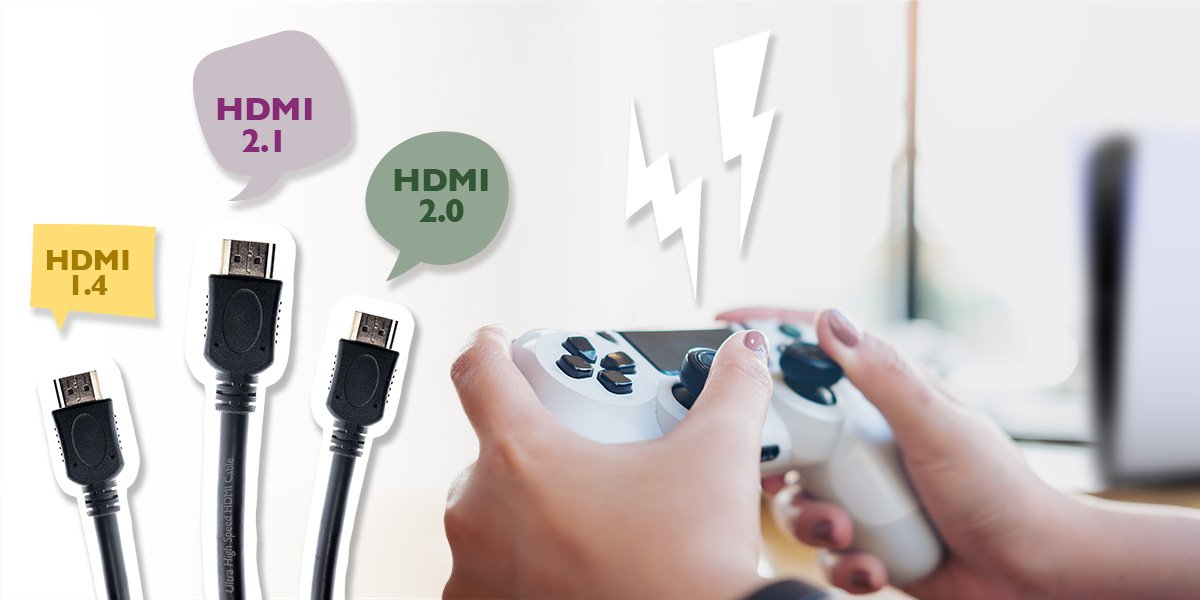
HDMI cables vary by generation and bandwidth. The HDMI organization has renamed versions for easier sorting and improved clarity. There is the standard HDMI, high speed HDMI, premium HDMI, and ultra-high-speed HDMI. Let’s take a look at what kind of HDMI cable you need for each of the three current PlayStation consoles.
As a word of caution, do NOT purchase any cable that states “standard HDMI” on the packaging. Not only is this version quite old by now, it’s not capable of 1080p but rather 1080i, or interlaced. It is similar, but not the same quality and the difference is noticeable.
We strongly advise you to connect your consoles directly to your gaming projector. The same advice applies if you choose to use a smaller form factor display, like a TV or monitor. Avoid routing HDMI connections via sound systems, switches, or any adapters. Any passthrough creates additional input lag, resulting in less responsive gaming and a compromised experience. Having multiple steps along the connection could also reduce image quality in subtle ways. Direct connections are by far the best option for the most responsive gaming and highest image fidelity.
PlayStation4 (PS4) / Xbox One / Xbox One
As the most demanding throughput, a base PS4/Xbox One with an HDMI cable is 1080p 60Hz with HDR, high speed HDMI, or HDMI 1.4 is more than enough. You can even get 4K 30Hz with this cable, but the base PS4 and Xbox One doesn’t support 4K.
PlayStation4 Pro (PS4 Pro) / Xbox One X / Xbox One S
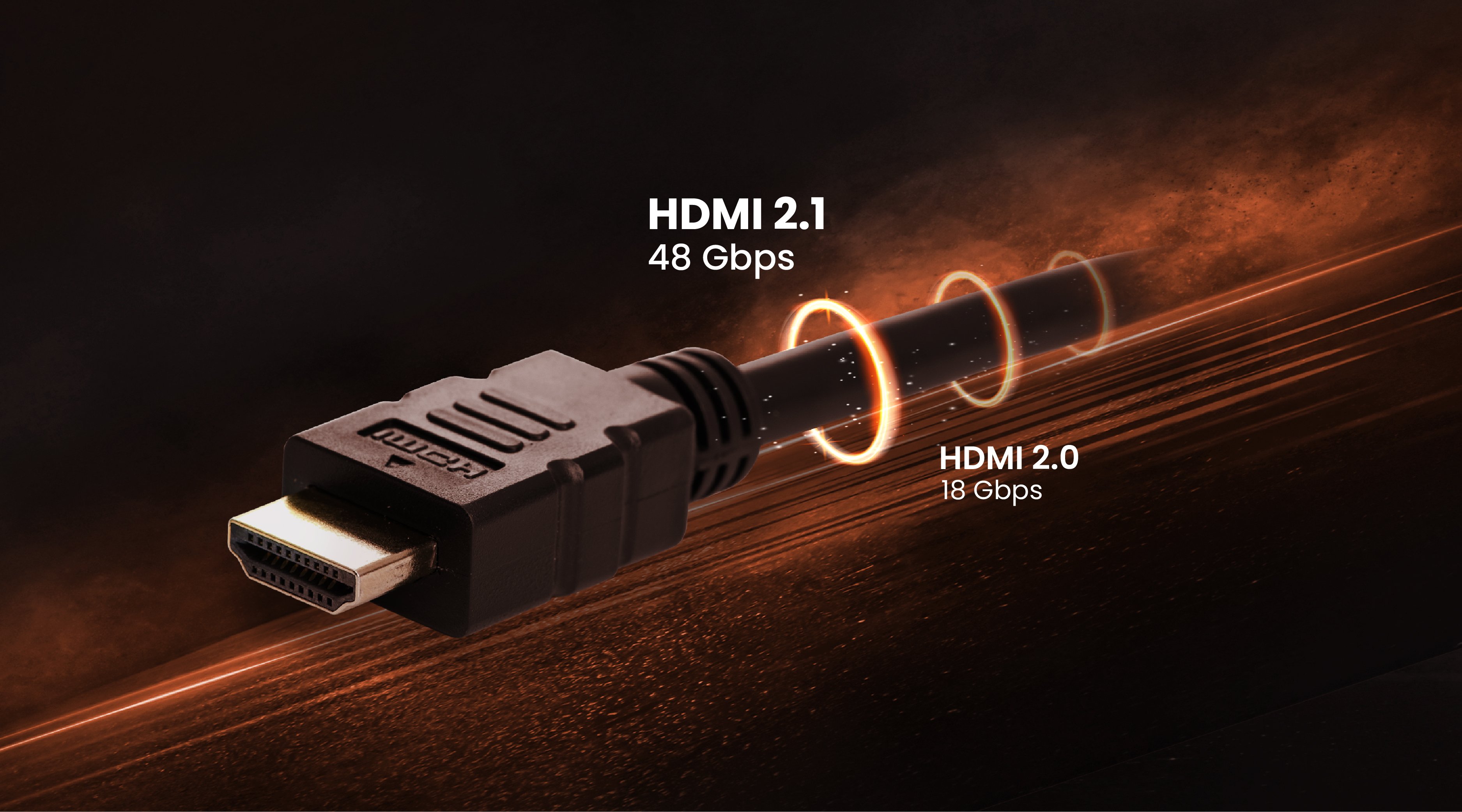
We consider this the entry level console when considering the capabilities of high-end gaming projectors. PS4 Pro and Xbox One X were designed with 4K 30Hz or 1080p 60Hz in mind and offer better HDR implementation than the base PS4. Xbox One S outputs a 4K image, but it’s exclusively upscaled from 1080p. Also, unlike the launch PS4/Xbox One, PS4 Pro/Xbox One X have lots of games running in custom resolutions between 1080p and 4K while maintaining framerates over 30Hz and often close to 60Hz. A high speed HDMI cable may not be enough. We recommend going with a premium HDMI cable, or HDMI 2.0. While HDMI 1.4 (high speed) has a bandwidth of 10Gb/s, HDMI 2.0 (premium) bumps that up to 18Gb/s, nearly twice the speed.
PlayStation5 (PS5) / Xbox Series X|S
Equipped with an ultra-high-speed HDMI port, or HDMI 2.1, the PS5 and Xbox Series X|S aim to deliver 4K 60Hz-120Hz and 1080p 120Hz. Almost two years after launch, only a couple of games have managed to reach 4K 120Hz, while the majority are 4K 60Hz or lower. That means a premium HDMI cable, the same one we recommend for PS4 Pro and Xbox One X, is still just fine for a PS5 and Xbox Series X|S. Premium HDMI even supports 8K 30Hz, and that’s not happening on the PS5 and Xbox Series X|S. Games in 4K 60Hz with HDR work perfectly on premium HDMI (HDMI 2.0). Note that the PS5/Xbox Series X|S ship with an ultra-high-speed HDMI cable (HDMI 2.1), so if you have that, use it. All HDMI versions are backwards compatible.
With the growing popularity of the new generation of consoles, 4K HDR gaming has filly a commonplace for game quality. But gamers everywhere are wondering if the big screen sizes that come with connecting to a gaming projector are intended for their PlayStation and Xbox consoles.
If playing 4K HDR games on a gaming projector, review this guideline:
· Make sure the output of the PlayStation is set to a resolution of 3840x2160
· Make sure to select the correct HDMI color range (full or limited RGB; YUV limited), and check the output of the PlayStation or XBox
· Select a compatible HDMI cable for 4K HDR to connect your console to a gaming projector
The firmware on all three consoles continues to improve and offers smart bandwidth detection. If you force a PS5 or Xbox Series X|S to connect to a fast 1080p 120Hz projector using high speed HDMI (HDMI 1.4), the console will simply not make 1080p 120Hz available and will limit you to 1080p 60Hz. If you use HDMI 1.4 to connect a PS4 Pro/PS5/Xbox One X/XBox Series X|S to a 4K 60Hz gaming projector, the same thing will happen.
You won’t get blank screens, sparkles, or color shifts. If those occur, that’s a sign of a bad cable or that you forced too much bandwidth on the cable, which is unlikely. Visual errors are by this point in HDMI and hardware evolution are nearly always signs of faulty cables or failing GPUs and are very rare.
We hope this quick guide has helped you choose the right cable! Make sure to look at the packaging and read the specs, as those are clearly marked and will help you make the right decision.
Recommended Products
{{item.productWordingTag}}
{{currency}}{{item.finalPrice| numberThousandsCommas | numberDecimalPoint}} Save {{currency}}{{item.saveAmount | numberThousandsCommas | numberDecimalPoint}} Save {{item.savePercent | numberThousandsCommas | numberDecimalPoint}}%
new device price{{currency}}{{item.regularPrice| numberThousandsCommas | numberDecimalPoint}}