
- Topics
- Release Information
- X-Sign Quick guide
-
X-sign User manual
- Account (4)
- Licence (4)
-
Manager (15)
- Pairing the device with X-Sign Manager
- Creating the channel
- Scheduling the content by channel
- Scheduling the content by device
- Editing the device management structure
- Pushing Real-Time Message to your BenQ Smart Signage remotely
- Controlling the device remotely
- Updating device Player remotely
- Managing the calling system
- Creating an API table in X-Sign Manager
- Setting Verification
- Getting the system notification
- Updating device status immediately New
- Player report (proof-of-play) New
- Using Designer Express New
-
Designer (18)
- Creating a new project file in X-Sign Designer
- Uploading your content from Designer
- Creating content in X-Sign Designer
- Creating content from Designed Templates
- Creating a clock widget in X-Sign Designer
- Setting a weather widget
- Creating an Image or Video slideshow
- Rotating an image or video
- Generating a QR Code
- Adding a data connection
- Setting a timer widget
- Creating an API template using the demo kit
- Creating a TV Input source widget in X-Sign Designer
- Setting background music in X-Sign Designer
- Changing the playing order of pages
- Sealing a file in X-Sign Designer
- Opening an X-Sign 1.x project file
- Changing your language in X-Sign Designer
- Player (6)
- Local Delivery (3)
- Report (2)
- Video Wall (3)
- Interactive (Premium) (6)
- API (Premium) (1)
- GPL/LGPL Software Licenses Used by X-Sign
- X-Sign OpenAPI
X-Sign User Manual
In this section, we'll explain how to manage content in X-Sign, control the player, and set up playlists.
X-sign 2.0 / X-sign User manual / Account
Registering an account for X-Sign Manager (Admin)
2020 / 08 / 20
With BenQ IAM (Identify and Access Management), you can manage all of your BenQ services (including X-Sign Manager) in one account. Follow the steps below to register an account and connect to X-Sign Manager. Click here to watch the demonstration video.
1. Go to BenQ Service website https://service-portal.benq.com/login. Suggested browsers are Chrome, Firefox.
2. If you are an administrator, click Register(Admins only) to register an Administrator account for the company.
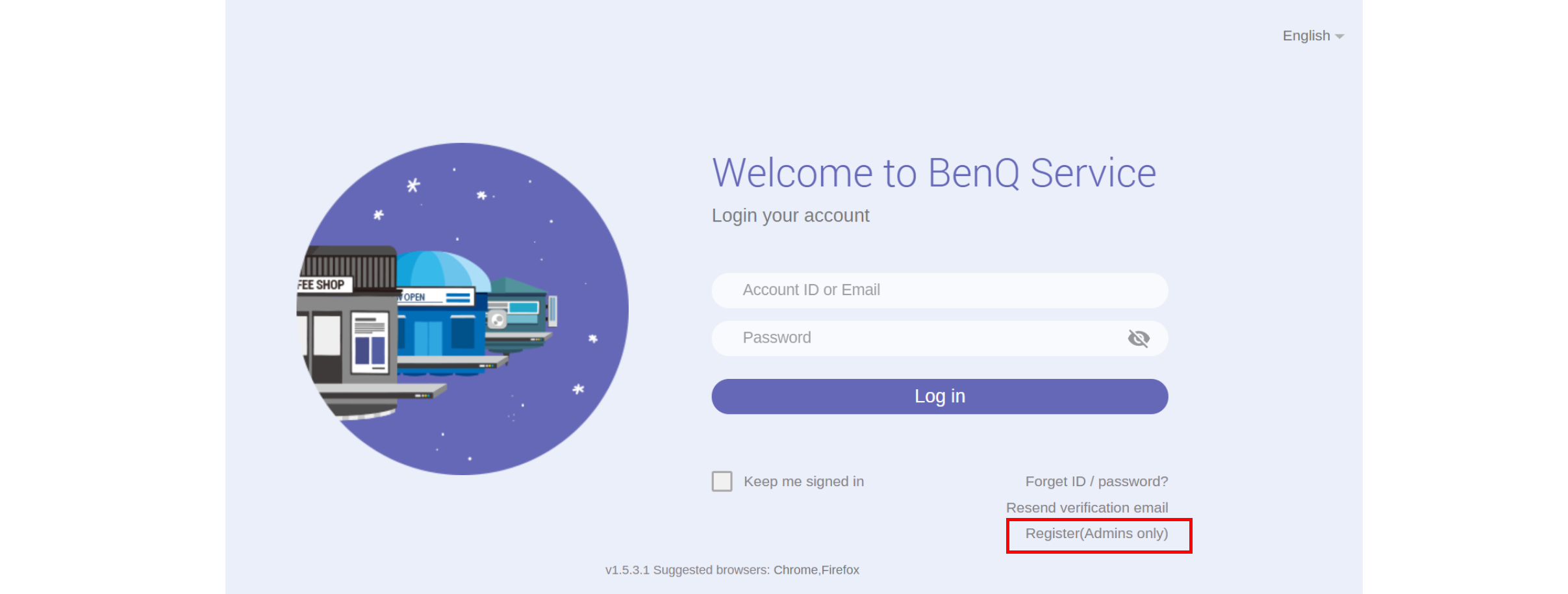
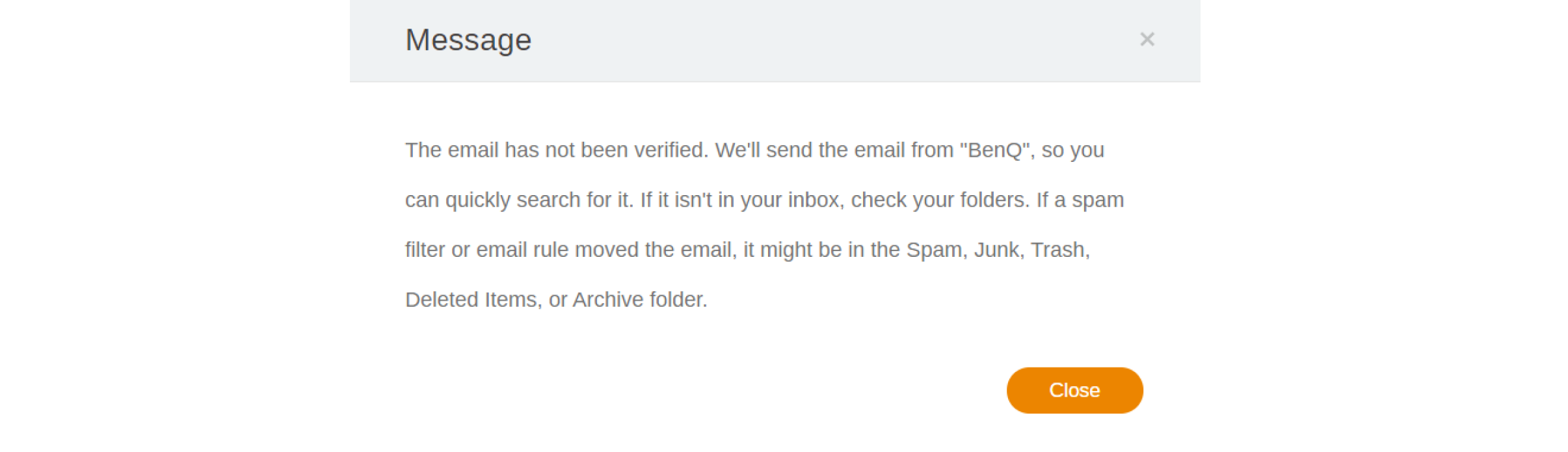
Note: If you are a regular user, ask your company’s administrator to create a user account for you. After you receive the account, click Log in directly after verifying your email.
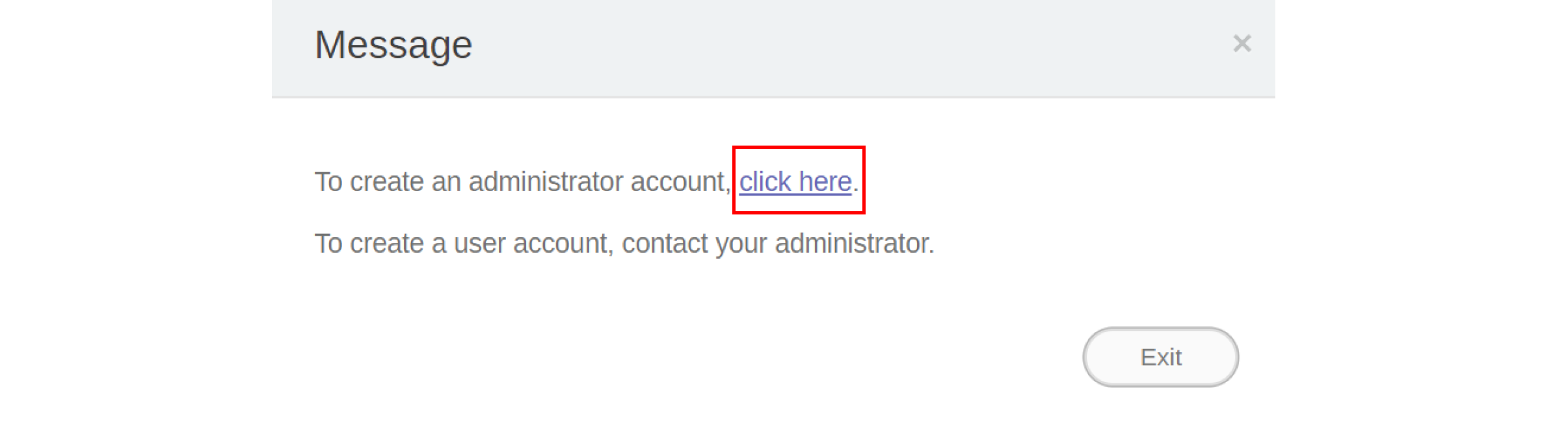
3. After you click Register(Admins only), you will see the following message. Go to Click here to proceed.
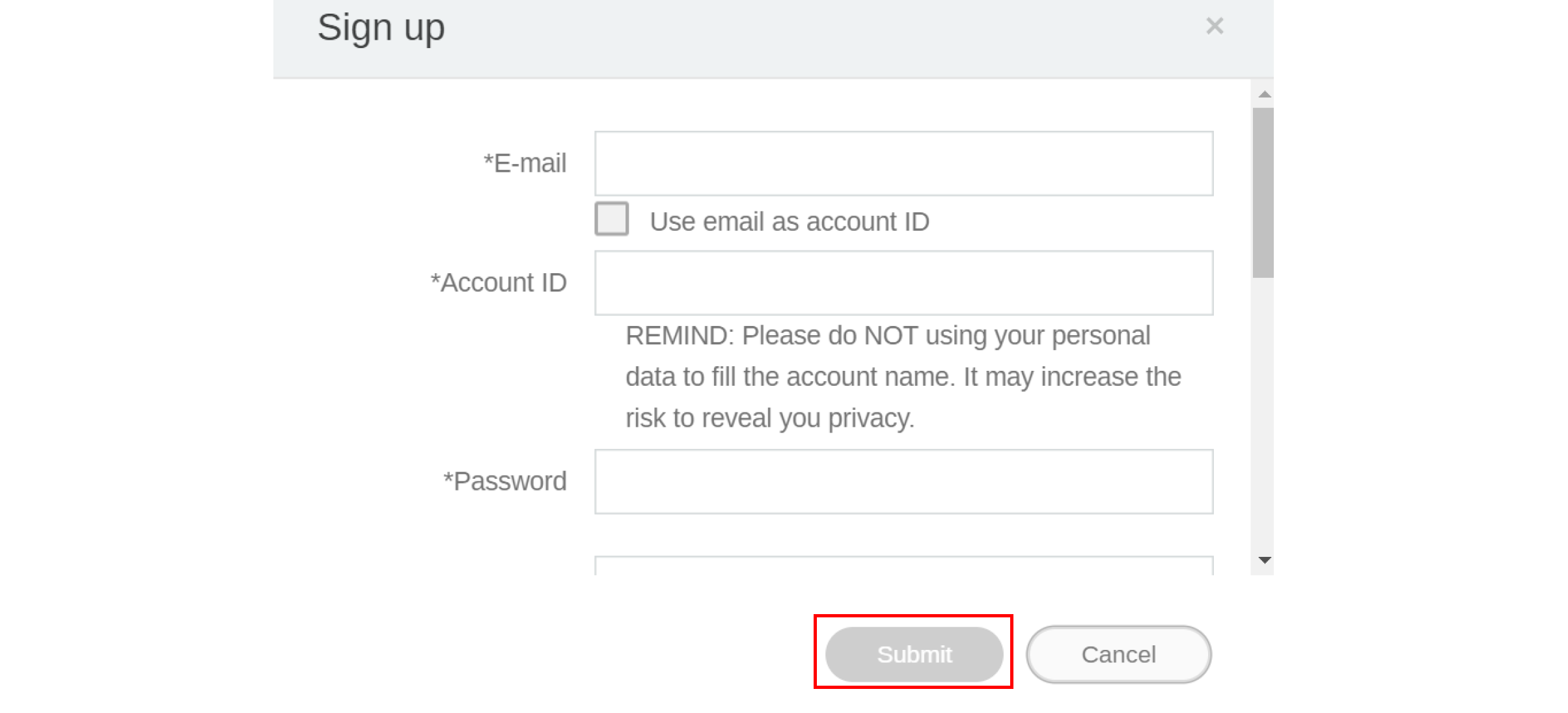
4. Fill in the following fields and click Submit to create a new Administrator account.
Note:
• For the account ID, enter a value between 4 and 20 characters long. Only numbers (0-9), upper and lowercase alphabets (A-Z, a-z), and the following special characters (-)(.)(_) are allowed in the account ID and name.
• The password must be a combination of alphanumeric and must be between 6-12 characters. Passwords like “2945678” (all numbers), “eduabsc” (all alphabets), “12ab” (less than 6 characters), and “12abcd345678efg” (more than 12 characters) are unacceptable.
• Uppercase and lowercase letters don’t need to be typed the same way every time you key in the password.