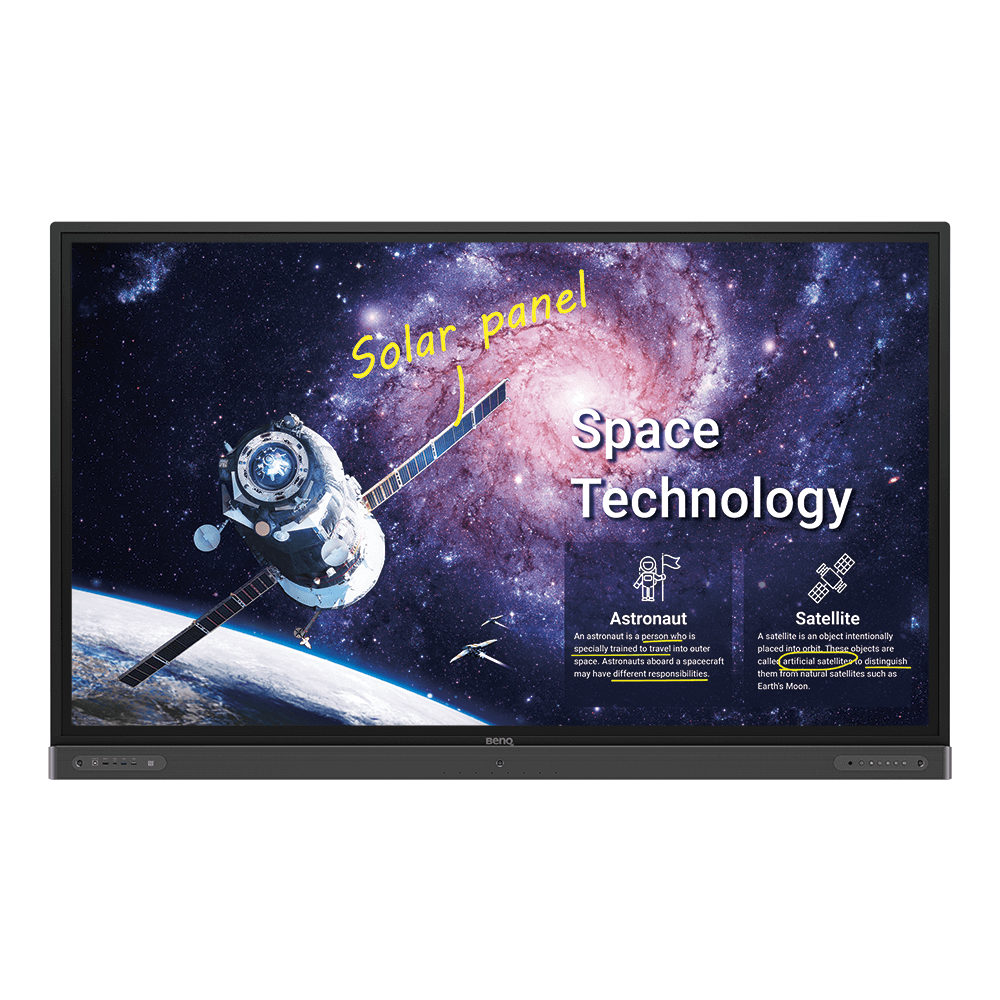
4K UHD 86”Education Interactive Flat Panel Display | RP8602
Boost healthy collaboration through an interactive display loaded with professional productivity tools, an air quality sensor, and a germ-resistant screen.
Application
 How do I connect and start using DMS local?

The DMS Local software allows you to remotely control/monitor your displays via LAN. It’s an effective way to lower TCO (total cost of ownership) and energy consumption for your operation.
This video will guide you to connect and start using DMS Local.
Learn More
What options/functions can be controlled by DMS Local?
The DMS Local software allows you to remotely control/monitor your displays via LAN. It's an effective way to lower TCO (total cost of ownership) and energy consumption for your operation.
This video will show you the function of DMS Local.
Learn More
How do I delete/unbind the device from DMS Cloud?
If you would like to delete/unbind the device from DMS Cloud, please follow the demo video for detailed steps.
Learn More
How do I add a device by using unique ID for DMS Cloud?
A device must be added first in order to remotely monitor, control, and configure devices individually or as groups. Please follow the demo video to add a device using unique ID for DMS Cloud.
Learn More
How do I add a device by using QR code for DMS Cloud?
A device must be added first in order to remotely monitor, control, and configure devices individually or as groups. Please follow the demo video to add device using QR code for DMS Cloud.
Learn More
How do I use DMS Cloud to control the device remotely?
Devices can be controlled remotely in DMS Cloud. Please follow the demo video for detail steps.
Learn More
How do I upgrade apps for EZWrite 5.0 and X-Sign?
Most BenQ apps can be upgraded online. Please refer to the demo video for the upgrade process of EZWrite 5.0 and X-Sign.
Learn More
Why does it show "Display ID is invalid" when I tried to register EasySetting with my device?
Please make sure to check the followings:
(1) Is the network working properly? Make sure to use LAN instead of Wi-Fi for internet access.
(2) Make sure EasySetting whitelist is set up already. Learn More
(1) Is the network working properly? Make sure to use LAN instead of Wi-Fi for internet access.
(2) Make sure EasySetting whitelist is set up already. Learn More
Where can I download InstaShare App for Android/iOS/Windows/MAC OS?
Please refer to the following download sites for the app:
- Android phone/tablet: Search for "InstaShare" in Google Play and download the app.
- iOS phone/tablet: Search for "InstaShare" in the App Store and download the app.
- Windows/MAC: Follow the below steps to download the app from IFP:
(1) Ensure both IFP and PC are connected to the same network.
(2) Open IFP InstaShare app.
(3) Follow InstaShare instructions to download the app. Learn More
- Android phone/tablet: Search for "InstaShare" in Google Play and download the app.
- iOS phone/tablet: Search for "InstaShare" in the App Store and download the app.
- Windows/MAC: Follow the below steps to download the app from IFP:
(1) Ensure both IFP and PC are connected to the same network.
(2) Open IFP InstaShare app.
(3) Follow InstaShare instructions to download the app. Learn More
What should I do when InstaShare displays "machine code" error?
Please connect to the Internet when you use the InstaShare for the first time in order to register to the cloud server.
Learn More
How do I publish messages with X-Sign Broadcast?
Messages can be easily published with X-Sign Broadcast. Please follow the demo video showing how to publish messages:
Learn More
How do I create a group tag and carry out IFP updates with X-Sign Broadcast?
Group tags can be easily set up and an IFP can be conveniently updated through X-Sign Broadcast. Please follow the demo video showing how to do so:
Learn More
How do I add and remove a device with X-Sign Broadcast?
An IFP device must be added to X-Sign Broadcast before use. Please follow the demo video showing how to add or remove a device:
Learn More
How do I register a new account with X-Sign Broadcast?
A new account must be registered with X-Sign Broadcast before use. Please follow the demo video showing how to register:
Learn More
How do I unbind the IFP from AMS?
The IFP must be unbound from AMS first before it can be bound to another account. Please follow the demo video on how to unbind the IFP.
Learn More
How do I bind the IFP to AMS?
The IFP must be bound to the AMS first in order to access a personal account. Please follow the demo video on how to bind the IFP.
Learn More
Does InstaShare support content projection from Chrome OS devices to interactive flat panels (IFPs)?
Yes. InstaShare supports content projection and casting from devices running Chrome OS to IFPs.
Learn More
What is the website to log in IAM/AMS/DMS Cloud/X-Sign Manager/X-Sign Broadcast?
User can log-in to IAM/AMS/DMS Cloud/X-Sign Manager/X-Sign Broadcast from the following website:
https://service-portal.benq.com/login
Learn More
Where can I download the user manual of AMS?
The user manual of AMS can be downloaded from:
https://www.benq.com/en-us/business/ifp/account-management-system.html
Learn More
How can I link/unlink an AMS (Account Management System) account from cloud storage like Google Drive, Dropbox, or One Drive?
With BenQ AMS, users only have to log into their cloud storage accounts once during setup/account creation, and can then start accessing data without having to login ever again on the IFP (Interactive Flat Panel). AMS automatically sets permissions for personal and network folders, providing another way for users to easily find and organize their data. AMS makes accessing various storage spaces more secure and easily accessible.
Please refer to the below tutorial for the setup: Learn More
Please refer to the below tutorial for the setup: Learn More
Why is it required to install the "Eumus Design Sound Cards & Media Devices" during the InstaShare installation process?
"Eumus Design Sound Cards & Media Devices" is a virtual audio card. As there are too many audio cards on the market with support for different Windows versions (Windows 7, Windows 8, Windows 10, and even older versions), in order to avoid compatibility issues with InstaShare, installing a virtual audio driver can solve any audio issues that you may experience while using InstaShare.
Learn More
How can I set authorization for different admins to manage different devices in X-Sign Broadcast?
If you have several admins and would like them to manage different devices, please follow this tutorial to set up X-Sign Broadcast.
For example, Admin A can only manage certain devices and cannot access devices that are assigned to Admin B.
Learn More
How can I delete an account from IAM?
Admin or user accounts can be deleted from the IAM website.
1. Enter BenQ IAM
2. Select the profile icon
Learn More
How do I check the YouTube content that played on Broadcast is copyrighted?
1. Open an incognito tab in browser > link to your YouTube video > click on the "share" button.
Learn More
Why can't I cast to an InstaShare 2 Host?
Please kindly check the following:
1. Make sure the client app/software is for InstaShare 2.
2. Make sure to enable the ports which are needed for InstaShare 2.
3. Make sure the client app/software and the host on BenQ display are connected to the same
network.
4. When the client app/software and the host on BenQ display are in different VLANs, make sure that
the network of the school/enterprise supports inter-vLAN connection.
Does InstaShare 2 support Miracast?
Yes, InstaShare 2 supports Miracast.
Learn More
What languages are available in the InstaShare 2 interface currently?
InstaShare 2 support 28 languages as listed below.
Learn More
What are the main differences between InstaShare and InstaShare 2?
For the InstaShare 2, we added these important features:
1. Smart spliter
2. Remote host mode
3. Improve User Experience
2. Remote host mode
3. Improve User Experience
Where can I download the InstaShare 2 for my client device?
For all client devices, there are two ways to download the InstaShare 2 app:
Mobile users can search for "InstaShare 2" on Google Play or the Apple App store. Laptop and desktop users can download the executable file through our website. Also, you can always find a link that provides the correct version for your OS on the InstaShare 2 on screen instruction of your BenQ device.
How can I use Miracast to cast my Windows screen to a BenQ device?
You need to connect your Windows device to the BenQ device before projecting your screen via Miracast. Follow the below steps, which cover connecting to projecting.
1. Connect to all devices to the same wireless network.
2. Press the Miracast icon in the control window on the IFP.
3. On your Windows PC, navigate to Start -> Settings -> Devices -> Connected Devices.
4. Click on ‘Add a Device’ and wait for the adapter to appear on the list. Select the display device shown as "InstaShare2xxx" (the full name shown on the main page of the projection device).
5. After connecting successfully, press Windows key + P on your keyboard.
6. You will be presented with options on the right of the screen to cast your screen if Miracast is supported.
7. Select Duplicate to start sharing your screen on the projection device.
1. Connect to all devices to the same wireless network.
2. Press the Miracast icon in the control window on the IFP.
3. On your Windows PC, navigate to Start -> Settings -> Devices -> Connected Devices.
4. Click on ‘Add a Device’ and wait for the adapter to appear on the list. Select the display device shown as "InstaShare2xxx" (the full name shown on the main page of the projection device).
5. After connecting successfully, press Windows key + P on your keyboard.
6. You will be presented with options on the right of the screen to cast your screen if Miracast is supported.
7. Select Duplicate to start sharing your screen on the projection device.
How can I bind and unbind BenQ services like DMS, AMS, and Broadcast?
BenQ provides Device Management Solution (DMS), Account Management Solution (AMS) and X-Sign Broadcast for BenQ public display products. This video will guide you how to bind and unbind the service from the device.
Learn More
Why does Wi-Fi turn off automatically after I switch input source?
How can I add a SAMBA server to AMS Files?
Please follow our demo video on how to add a SAMBA server to AMS Files. The video can be found here:
Learn More
How can I copy specific files and upload them to a cloud drive with AMS Files?
We have a demo video explaining how to select files, copy them, and upload these files to the cloud. View the video here:
Learn More
How to install InstaShare 2?
How to access cloud storage files via AMS?
How to access files from a USB storage device?
How to access files from the slot-in PC?
How to access files from a local network drive?
How to access cloud storage files via Firefox?
How to use Duo Windows mode
How to add a network drive to AMS?
The following steps should be performed by an administrator.
Learn More
How to link a cloud storage account to AMS?
1. Go to https://ams.benq.com.
Learn More
How to unlink a cloud storage account from AMS?
1. Go to https://ams.benq.com.
Learn More
How to enable AMS on the display?
How to bind the NFC card to the BenQ Account Management System (AMS) accouont?
To make it more convenient for users to access and manage their files and personal device environment, BenQ releases Account Management System (AMS) to make it easier for users to access and manage files as well as accounts.
This video will guide you on how to bind the NFC card to the AMS account. Learn More
This video will guide you on how to bind the NFC card to the AMS account. Learn More
How to bind your display to the BenQ Account Management System (AMS) account?
To make it more convenient for users to access and manage their files and personal device environment, BenQ releases Account Management System (AMS) to make it easier for users to access and manage files as well as accounts.
This video will guide you on how to bind your displays to the AMS account.
Learn More
How to add a corporate network drive to the BenQ Account Management System (AMS) account?
To make it more convenient for users to access and manage their files and personal device environment, BenQ releases Account Management System (AMS) to make it easier for users to access and manage files as well as accounts.
This video will guide you on how to add a corporate network drive to the AMS account.
Learn More
How to access your cloud storage in BenQ Account Management System (AMS)?
To make it more convenient for users to access and manage their files and personal device environment, BenQ releases Account Management System (AMS) to make it easier for users to access and manage files as well as accounts.
This video will guide you on how to access your cloud storage in AMS.
Learn More
How to use Agent Mode in BenQ DMS (Device Management Solution)?
BenQ DMS (Device Management Solution), combined with DMS Cloud and DMS Local, featuring leading technologies and intuitive interface, is your ultimate solution for device management.
This video will guide you on how to use Agent Mode in DMS.
Learn More
How to install Apps through BenQ DMS (Device Management Solution)?
BenQ DMS (Device Management Solution), combined with DMS Cloud and DMS Local, featuring leading technologies and intuitive interface, is your ultimate solution for device management.
This video will guide you on how to install Apps through DMS.
Learn More
How to bind your display to BenQ DMS (Device Management Solution)?
BenQ DMS (Device Management Solution), combined with DMS Cloud and DMS Local, featuring leading technologies and intuitive interface, is your ultimate solution for device management.
This video will guide you on how to bind your display to DMS.
Learn More
How to manage groups in BenQ DMS (Device Management Solution)?
BenQ DMS (Device Management Solution), combined with DMS Cloud and DMS Local, featuring leading technologies and intuitive interface, is your ultimate solution for device management.
This video will guide you on how to manage groups in DMS.
Learn More
How to push OTA updates through BenQ DMS (Device Management Solution)?
BenQ DMS (Device Management Solution), combined with DMS Cloud and DMS Local, featuring leading technologies and intuitive interface, is your ultimate solution for device management.
This video will guide you on how to push OTA updates through DMS.
Learn More
How to set a power schedule through BenQ DMS (Device Management Solution)?
BenQ DMS (Device Management Solution), combined with DMS Cloud and DMS Local, featuring leading technologies and intuitive interface, is your ultimate solution for device management.
This video will guide you on how to set a power schedule through DMS.
Learn More
How do I delete/unbind the device from DMS Cloud?
BenQ DMS (Device Management Solution), combined with DMS Cloud and DMS Local, featuring leading technologies and intuitive interface, is your ultimate solution for device management.
This video will guide you on how to unbind a display from DMS. Learn More
This video will guide you on how to unbind a display from DMS. Learn More
How to create user accounts in BenQ IAM (Identify and Access Management)?
With BenQ IAM (Identify and Access Management), you can manage all of your BenQ services (X-Sign, AMS, DMS) in one account.
This video will guide you on how to create user accounts in IAM.
Learn More
How to manage user roles in BenQ IAM (Identify and Access Management)?
With BenQ IAM (Identify and Access Management), you can manage all of your BenQ services (X-Sign, AMS, DMS) in one account.
This video will guide you on how to manage user roles in IAM.
Learn More
How to bind your display to X-Sign Broadcast?
X-Sign Broadcast is a wireless broadcast system that can push alerts, messages and announcements during class.
This video will guide you on how to bind your display to X-Sign Broadcast.
Learn More
How to push real-time messages from X-Sign Broadcast?
X-Sign Broadcast is a wireless broadcast system that can push alerts, messages and announcements during class.
This video will guide you on how to push real-time messages from X-Sign Broadcast.
Learn More
How to schedule messages in X-Sign Broadcast?
X-Sign Broadcast is a wireless broadcast system that can push alerts, messages and announcements during class.
This video will guide you on how to schedule messages in X-Sign Broadcast.
Learn More
How to manage tags in X-Sign Broadcast?
X-Sign Broadcast is a wireless broadcast system that can push alerts, messages and announcements during class.
This video will guide you on how to manage tags in X-Sign Broadcast.
Learn More
How to manage users in X-Sign Broadcast?
X-Sign Broadcast is a wireless broadcast system that can push alerts, messages and announcements during class.
This video will guide you on how to manage users in X-Sign Broadcast.
Learn More
Can I use my laptop’s on-screen keyboard on a BenQ interactive display?
BenQ interactive displays support the use of the Windows on-screen keyboard and the macOS accessibility and touch keyboards. Using your laptop’s virtual keyboard is a convenient way to enter text on your display directly from the screen.
How to access the macOS accessibility or touch keyboard on a BenQ interactive display
How to access the Windows on-screen keyboard on a BenQ interactive display
How can I set up the touch function in extended display mode?
Please refer to the video below for detailed instructions for how to set up touch functionality in extended display mode.
Learn More
How can I connect InstaShare 2 with Miracast?
InstaShare 2 works seamlessly with Windows, macOS, iOS, Android, and Chrome OS devices. Screen share on Windows devices works without installing any apps or programs. You can use Miracast to share Windows screens wirelessly on BenQ displays.
This video offers a guide to connecting InstaShare 2 with Miracast.
Learn More
How to auto start apps?
Transform your office or classroom into a truly collaborative space. Discover BenQ Interactive Displays for Corporate and Education applications. The ongoing change in the educational landscape has created opportunities for educators to enhance the learning experience with better tools. At BenQ, we understand that in-class technology must also work with hybrid and distance learning.
This video will guide you on how to auto start apps.
Learn More
How to use the floating tool?
Transform your office or classroom into a truly collaborative space. Discover BenQ Interactive Displays for Corporate and Education applications. The ongoing change in the educational landscape has created opportunities for educators to enhance the learning experience with better tools. At BenQ, we understand that in-class technology must also work with hybrid and distance learning.
This video will guide you on how to use the floating tool.
Learn More
How to take screenshots?
Transform your office or classroom into a truly collaborative space. Discover BenQ Interactive Displays for Corporate and Education applications. The ongoing change in the educational landscape has created opportunities for educators to enhance the learning experience with better tools. At BenQ, we understand that in-class technology must also work with hybrid and distance learning.
This video will guide you on how to take screenshots.
Learn More
Will BenQ continue updating its smart boards running end-of-life Android versions?
BenQ Board customers should experience minimal impact from Google's end of support for their Android versions
Many companies including BenQ offer smart boards that come with older versions of the Android operating system—including Android 8 (Oreo) or Android 9 (Pie). With Google periodically ending support for older Android versions, many customers are concerned about the possibility of no longer receiving bug fixes and security updates and how this may impact the performance and security of their displays.
BenQ customers can rest assured knowing that Google’s move will have minimal impact on their user experience. BenQ Boards running Android use a highly customized version of the OS that includes convenient user-friendly features such as widgets, bookmarks, and other helpful apps. BenQ will continue supporting all Android versions, regardless of Google’s support, by rolling out firmware updates. These will include new features, bug fixes, and security and privacy patches for official apps.
To ensure a smooth user experience, BenQ strongly encourages our smart board customers to consistently install the latest firmware and app updates and to follow best practices for network security. In terms of cloud security, BenQ cloud services and databases are hosted on secure Amazon cloud servers and regularly audited as part of the AWS Compliance Programs.
Through the regular release of firmware updates, BenQ is committed to keeping our customers secure. This means you can continue using our smart boards in your classroom and offices without fear of losing support for years to come.
Learn More
Why does it turn to full screen automatically when I select InstaShare "2-Split Screen" or "4-Split Screen" to play YouTube video with an iPhone?
When YouTube video is played through an iPhone, it will turn to full screen automatically, this is a known behavior for iOS devices.
Learn More
Why doesn't sound come out directly from the IFP speaker when it's connected to an external USB microphone?
If you want microphone sound to come out from the IFP speaker, you need to connect via the 3.5mm mic in port. Otherwise, sound is processed through USB and will not come out from the built-in display speaker.
Learn More
How to install InstaShare2 without the virtual sound driver?
If you wish to install InstaShare 2 without the virtual sound driver (Instashare2Vad), please follow the steps in the video to install without it.
Learn More
How to change picture mode and open website through DMS automation?
Please follow the step-by-step instructions in the video to change picture mode and open the website through DMS automation.
Learn MoreSpecification
Is there any minimum bandwidth requirement when using AMS to access cloud storage?
There's no minimum bandwidth requirement for accessing cloud storage via AMS.
Is there any minimum bandwidth or maximum participant requirement for interacting with hosts on EZwrite Cloud Whiteboard?
There isn't any minimum bandwidth requirement for interacting with hosts on EZwrite Cloud Whiteboard, but do note a maximum of 32 participants is supported.
Further Query
Why isn't "Display ID" shown on the device?
"Display ID" will not be shown if the network is not available. Please make sure your device is successfully connected to the Internet.
Learn More
Why does the device screen turn black when Netflix video is played through InstaShare or HDMI connection from a laptop or Macbook?
This problem is related to HDCP (High-Bandwidth Digital Content Protection) issues.
Netflix does not allow video content to be played though external monitors.
Therefore users won’t be able to view video content via external displays through HDMI or InstaShare mirroring. Learn More
Netflix does not allow video content to be played though external monitors.
Therefore users won’t be able to view video content via external displays through HDMI or InstaShare mirroring. Learn More
Why does my interactive flat panel (IFP) show white stripes onscreen or crash repeatedly when I try to enable iMirror via InstaShare from my iPhone or iPad?
The issue typically occurs due to an out of date iOS version on your iPhone or iPad. Make sure your device runs the latest version of iOS available. For iOS 12 and later, you need to use InstaShare app version 1.5.0 or later to resolve striping and crash issues.
Learn More
A USB device or adapter dongle doesn’t work or interferes with other USB devices randomly. How can I make them work properly?
Why can't I pair my IAM (Identity and Access Management) account with AMS (Account Management System), DMS (Device Management Solution), or X-Sign Broadcast?
Currently, AMS, DMS, and X-Sign Broadcast may all only be paired to one unified IAM admin account. If different IAM admin accounts are used, pairing will fail. For example, if DMS is paired already to an IAM account, you won't be able to pair AMS or X-Sign Broadcast with a new IAM account unless other BenQ services (EX: DMS) are deleted. In essence, AMS, DMS, and X-Sign go together with one IAM account and all need to be unpaired to switch IAM account association.
If you would like to pair software with a new IAM account, please delete the devices in associated BenQ services (DMS, AMS, Broadcast) from the corresponding web site. If other BenQ services are deleted but still encounter a pairing issue, please record the MAC address and contact your local BenQ service center for further assistance.
If you would like to pair software with a new IAM account, please delete the devices in associated BenQ services (DMS, AMS, Broadcast) from the corresponding web site. If other BenQ services are deleted but still encounter a pairing issue, please record the MAC address and contact your local BenQ service center for further assistance.
Why can't my device be bound to another admin account and is still showing as bound to the previous admin account?
What should I do if I added my IFP to the X-Sign broadcast again but X-Sign Broadcast had already been bound?
Why is my device still showing as "offline" after updating to X-Sign Broadcast V2.3?
Why can't YouTube video be played on Broadcast?
1. Please make sure your video is set to “Allow embedding”.
Go to your YouTube Studio, and under video details click “show more”.
Learn More
Why can't I use the YouTube apk to watch videos anymore?
The following error messages may be encountered as YouTube has stopped support for smart devices on some older apps.
Alternatively, you can use a browser to view YouTube videos or try other YouTube TV apps you may have.
Learn More
Troubleshoot a failed connection between InstaShare 2 and Miracast
InstaShare 2 works seamlessly with Windows, macOS, iOS, Android, and Chrome OS devices. Screen share on Windows devices works without installing any apps or programs. You can use Miracast to share Windows screens wirelessly on BenQ displays.
Should any issues arise, this video shows all the steps you need to troubleshoot the connection between InstaShare 2 and Miracast:
Learn More
How do I connect and start using DMS local?
The DMS Local software allows you to remotely control/monitor your displays via LAN. It’s an effective way to lower TCO (total cost of ownership) and energy consumption for your operation.
This video will guide you to connect and start using DMS Local.
Learn More
What options/functions can be controlled by DMS Local?
The DMS Local software allows you to remotely control/monitor your displays via LAN. It's an effective way to lower TCO (total cost of ownership) and energy consumption for your operation.
This video will show you the function of DMS Local.
Learn More
How do I delete/unbind the device from DMS Cloud?
If you would like to delete/unbind the device from DMS Cloud, please follow the demo video for detailed steps.
Learn More
How do I add a device by using unique ID for DMS Cloud?
A device must be added first in order to remotely monitor, control, and configure devices individually or as groups. Please follow the demo video to add a device using unique ID for DMS Cloud.
Learn More
How do I add a device by using QR code for DMS Cloud?
A device must be added first in order to remotely monitor, control, and configure devices individually or as groups. Please follow the demo video to add device using QR code for DMS Cloud.
Learn More
How do I use DMS Cloud to control the device remotely?
Devices can be controlled remotely in DMS Cloud. Please follow the demo video for detail steps.
Learn More
How do I upgrade apps for EZWrite 5.0 and X-Sign?
Most BenQ apps can be upgraded online. Please refer to the demo video for the upgrade process of EZWrite 5.0 and X-Sign.
Learn More
Why does it show "Display ID is invalid" when I tried to register EasySetting with my device?
Please make sure to check the followings:
(1) Is the network working properly? Make sure to use LAN instead of Wi-Fi for internet access.
(2) Make sure EasySetting whitelist is set up already. Learn More
(1) Is the network working properly? Make sure to use LAN instead of Wi-Fi for internet access.
(2) Make sure EasySetting whitelist is set up already. Learn More
Where can I download InstaShare App for Android/iOS/Windows/MAC OS?
Please refer to the following download sites for the app:
- Android phone/tablet: Search for "InstaShare" in Google Play and download the app.
- iOS phone/tablet: Search for "InstaShare" in the App Store and download the app.
- Windows/MAC: Follow the below steps to download the app from IFP:
(1) Ensure both IFP and PC are connected to the same network.
(2) Open IFP InstaShare app.
(3) Follow InstaShare instructions to download the app. Learn More
- Android phone/tablet: Search for "InstaShare" in Google Play and download the app.
- iOS phone/tablet: Search for "InstaShare" in the App Store and download the app.
- Windows/MAC: Follow the below steps to download the app from IFP:
(1) Ensure both IFP and PC are connected to the same network.
(2) Open IFP InstaShare app.
(3) Follow InstaShare instructions to download the app. Learn More
What should I do when InstaShare displays "machine code" error?
Please connect to the Internet when you use the InstaShare for the first time in order to register to the cloud server.
Learn More
How do I publish messages with X-Sign Broadcast?
Messages can be easily published with X-Sign Broadcast. Please follow the demo video showing how to publish messages:
Learn More
How do I create a group tag and carry out IFP updates with X-Sign Broadcast?
Group tags can be easily set up and an IFP can be conveniently updated through X-Sign Broadcast. Please follow the demo video showing how to do so:
Learn More
How do I add and remove a device with X-Sign Broadcast?
An IFP device must be added to X-Sign Broadcast before use. Please follow the demo video showing how to add or remove a device:
Learn More
How do I register a new account with X-Sign Broadcast?
A new account must be registered with X-Sign Broadcast before use. Please follow the demo video showing how to register:
Learn More
How do I unbind the IFP from AMS?
The IFP must be unbound from AMS first before it can be bound to another account. Please follow the demo video on how to unbind the IFP.
Learn More
How do I bind the IFP to AMS?
The IFP must be bound to the AMS first in order to access a personal account. Please follow the demo video on how to bind the IFP.
Learn More
Does InstaShare support content projection from Chrome OS devices to interactive flat panels (IFPs)?
Yes. InstaShare supports content projection and casting from devices running Chrome OS to IFPs.
Learn More
What is the website to log in IAM/AMS/DMS Cloud/X-Sign Manager/X-Sign Broadcast?
User can log-in to IAM/AMS/DMS Cloud/X-Sign Manager/X-Sign Broadcast from the following website:
https://service-portal.benq.com/login
Learn More
Where can I download the user manual of AMS?
The user manual of AMS can be downloaded from:
https://www.benq.com/en-us/business/ifp/account-management-system.html
Learn More
How can I link/unlink an AMS (Account Management System) account from cloud storage like Google Drive, Dropbox, or One Drive?
With BenQ AMS, users only have to log into their cloud storage accounts once during setup/account creation, and can then start accessing data without having to login ever again on the IFP (Interactive Flat Panel). AMS automatically sets permissions for personal and network folders, providing another way for users to easily find and organize their data. AMS makes accessing various storage spaces more secure and easily accessible.
Please refer to the below tutorial for the setup: Learn More
Please refer to the below tutorial for the setup: Learn More
Why is it required to install the "Eumus Design Sound Cards & Media Devices" during the InstaShare installation process?
"Eumus Design Sound Cards & Media Devices" is a virtual audio card. As there are too many audio cards on the market with support for different Windows versions (Windows 7, Windows 8, Windows 10, and even older versions), in order to avoid compatibility issues with InstaShare, installing a virtual audio driver can solve any audio issues that you may experience while using InstaShare.
Learn More
How can I set authorization for different admins to manage different devices in X-Sign Broadcast?
If you have several admins and would like them to manage different devices, please follow this tutorial to set up X-Sign Broadcast.
For example, Admin A can only manage certain devices and cannot access devices that are assigned to Admin B.
Learn More
How can I delete an account from IAM?
Admin or user accounts can be deleted from the IAM website.
1. Enter BenQ IAM
2. Select the profile icon
Learn More
How do I check the YouTube content that played on Broadcast is copyrighted?
1. Open an incognito tab in browser > link to your YouTube video > click on the "share" button.
Learn More
Why can't I cast to an InstaShare 2 Host?
Please kindly check the following:
1. Make sure the client app/software is for InstaShare 2.
2. Make sure to enable the ports which are needed for InstaShare 2.
3. Make sure the client app/software and the host on BenQ display are connected to the same
network.
4. When the client app/software and the host on BenQ display are in different VLANs, make sure that
the network of the school/enterprise supports inter-vLAN connection.
Does InstaShare 2 support Miracast?
Yes, InstaShare 2 supports Miracast.
Learn More
What languages are available in the InstaShare 2 interface currently?
InstaShare 2 support 28 languages as listed below.
Learn More
What are the main differences between InstaShare and InstaShare 2?
For the InstaShare 2, we added these important features:
1. Smart spliter
2. Remote host mode
3. Improve User Experience
2. Remote host mode
3. Improve User Experience
Where can I download the InstaShare 2 for my client device?
For all client devices, there are two ways to download the InstaShare 2 app:
Mobile users can search for "InstaShare 2" on Google Play or the Apple App store. Laptop and desktop users can download the executable file through our website. Also, you can always find a link that provides the correct version for your OS on the InstaShare 2 on screen instruction of your BenQ device.
How can I use Miracast to cast my Windows screen to a BenQ device?
You need to connect your Windows device to the BenQ device before projecting your screen via Miracast. Follow the below steps, which cover connecting to projecting.
1. Connect to all devices to the same wireless network.
2. Press the Miracast icon in the control window on the IFP.
3. On your Windows PC, navigate to Start -> Settings -> Devices -> Connected Devices.
4. Click on ‘Add a Device’ and wait for the adapter to appear on the list. Select the display device shown as "InstaShare2xxx" (the full name shown on the main page of the projection device).
5. After connecting successfully, press Windows key + P on your keyboard.
6. You will be presented with options on the right of the screen to cast your screen if Miracast is supported.
7. Select Duplicate to start sharing your screen on the projection device.
1. Connect to all devices to the same wireless network.
2. Press the Miracast icon in the control window on the IFP.
3. On your Windows PC, navigate to Start -> Settings -> Devices -> Connected Devices.
4. Click on ‘Add a Device’ and wait for the adapter to appear on the list. Select the display device shown as "InstaShare2xxx" (the full name shown on the main page of the projection device).
5. After connecting successfully, press Windows key + P on your keyboard.
6. You will be presented with options on the right of the screen to cast your screen if Miracast is supported.
7. Select Duplicate to start sharing your screen on the projection device.
How can I bind and unbind BenQ services like DMS, AMS, and Broadcast?
BenQ provides Device Management Solution (DMS), Account Management Solution (AMS) and X-Sign Broadcast for BenQ public display products. This video will guide you how to bind and unbind the service from the device.
Learn More
Why does Wi-Fi turn off automatically after I switch input source?
How can I add a SAMBA server to AMS Files?
Please follow our demo video on how to add a SAMBA server to AMS Files. The video can be found here:
Learn More
How can I copy specific files and upload them to a cloud drive with AMS Files?
We have a demo video explaining how to select files, copy them, and upload these files to the cloud. View the video here:
Learn More
How to install InstaShare 2?
How to access cloud storage files via AMS?
How to access files from a USB storage device?
How to access files from the slot-in PC?
How to access files from a local network drive?
How to access cloud storage files via Firefox?
How to use Duo Windows mode
How to add a network drive to AMS?
The following steps should be performed by an administrator.
Learn More
How to link a cloud storage account to AMS?
1. Go to https://ams.benq.com.
Learn More
How to unlink a cloud storage account from AMS?
1. Go to https://ams.benq.com.
Learn More
How to enable AMS on the display?
How to bind the NFC card to the BenQ Account Management System (AMS) accouont?
To make it more convenient for users to access and manage their files and personal device environment, BenQ releases Account Management System (AMS) to make it easier for users to access and manage files as well as accounts.
This video will guide you on how to bind the NFC card to the AMS account. Learn More
This video will guide you on how to bind the NFC card to the AMS account. Learn More
How to bind your display to the BenQ Account Management System (AMS) account?
To make it more convenient for users to access and manage their files and personal device environment, BenQ releases Account Management System (AMS) to make it easier for users to access and manage files as well as accounts.
This video will guide you on how to bind your displays to the AMS account.
Learn More
How to add a corporate network drive to the BenQ Account Management System (AMS) account?
To make it more convenient for users to access and manage their files and personal device environment, BenQ releases Account Management System (AMS) to make it easier for users to access and manage files as well as accounts.
This video will guide you on how to add a corporate network drive to the AMS account.
Learn More
How to access your cloud storage in BenQ Account Management System (AMS)?
To make it more convenient for users to access and manage their files and personal device environment, BenQ releases Account Management System (AMS) to make it easier for users to access and manage files as well as accounts.
This video will guide you on how to access your cloud storage in AMS.
Learn More
How to use Agent Mode in BenQ DMS (Device Management Solution)?
BenQ DMS (Device Management Solution), combined with DMS Cloud and DMS Local, featuring leading technologies and intuitive interface, is your ultimate solution for device management.
This video will guide you on how to use Agent Mode in DMS.
Learn More
How to install Apps through BenQ DMS (Device Management Solution)?
BenQ DMS (Device Management Solution), combined with DMS Cloud and DMS Local, featuring leading technologies and intuitive interface, is your ultimate solution for device management.
This video will guide you on how to install Apps through DMS.
Learn More
How to bind your display to BenQ DMS (Device Management Solution)?
BenQ DMS (Device Management Solution), combined with DMS Cloud and DMS Local, featuring leading technologies and intuitive interface, is your ultimate solution for device management.
This video will guide you on how to bind your display to DMS.
Learn More
How to manage groups in BenQ DMS (Device Management Solution)?
BenQ DMS (Device Management Solution), combined with DMS Cloud and DMS Local, featuring leading technologies and intuitive interface, is your ultimate solution for device management.
This video will guide you on how to manage groups in DMS.
Learn More
How to push OTA updates through BenQ DMS (Device Management Solution)?
BenQ DMS (Device Management Solution), combined with DMS Cloud and DMS Local, featuring leading technologies and intuitive interface, is your ultimate solution for device management.
This video will guide you on how to push OTA updates through DMS.
Learn More
How to set a power schedule through BenQ DMS (Device Management Solution)?
BenQ DMS (Device Management Solution), combined with DMS Cloud and DMS Local, featuring leading technologies and intuitive interface, is your ultimate solution for device management.
This video will guide you on how to set a power schedule through DMS.
Learn More
How do I delete/unbind the device from DMS Cloud?
BenQ DMS (Device Management Solution), combined with DMS Cloud and DMS Local, featuring leading technologies and intuitive interface, is your ultimate solution for device management.
This video will guide you on how to unbind a display from DMS. Learn More
This video will guide you on how to unbind a display from DMS. Learn More
How to create user accounts in BenQ IAM (Identify and Access Management)?
With BenQ IAM (Identify and Access Management), you can manage all of your BenQ services (X-Sign, AMS, DMS) in one account.
This video will guide you on how to create user accounts in IAM.
Learn More
How to manage user roles in BenQ IAM (Identify and Access Management)?
With BenQ IAM (Identify and Access Management), you can manage all of your BenQ services (X-Sign, AMS, DMS) in one account.
This video will guide you on how to manage user roles in IAM.
Learn More
How to bind your display to X-Sign Broadcast?
X-Sign Broadcast is a wireless broadcast system that can push alerts, messages and announcements during class.
This video will guide you on how to bind your display to X-Sign Broadcast.
Learn More
How to push real-time messages from X-Sign Broadcast?
X-Sign Broadcast is a wireless broadcast system that can push alerts, messages and announcements during class.
This video will guide you on how to push real-time messages from X-Sign Broadcast.
Learn More
How to schedule messages in X-Sign Broadcast?
X-Sign Broadcast is a wireless broadcast system that can push alerts, messages and announcements during class.
This video will guide you on how to schedule messages in X-Sign Broadcast.
Learn More
How to manage tags in X-Sign Broadcast?
X-Sign Broadcast is a wireless broadcast system that can push alerts, messages and announcements during class.
This video will guide you on how to manage tags in X-Sign Broadcast.
Learn More
How to manage users in X-Sign Broadcast?
X-Sign Broadcast is a wireless broadcast system that can push alerts, messages and announcements during class.
This video will guide you on how to manage users in X-Sign Broadcast.
Learn More
Can I use my laptop’s on-screen keyboard on a BenQ interactive display?
BenQ interactive displays support the use of the Windows on-screen keyboard and the macOS accessibility and touch keyboards. Using your laptop’s virtual keyboard is a convenient way to enter text on your display directly from the screen.
How to access the macOS accessibility or touch keyboard on a BenQ interactive display
How to access the Windows on-screen keyboard on a BenQ interactive display
How can I set up the touch function in extended display mode?
Please refer to the video below for detailed instructions for how to set up touch functionality in extended display mode.
Learn More
How can I connect InstaShare 2 with Miracast?
InstaShare 2 works seamlessly with Windows, macOS, iOS, Android, and Chrome OS devices. Screen share on Windows devices works without installing any apps or programs. You can use Miracast to share Windows screens wirelessly on BenQ displays.
This video offers a guide to connecting InstaShare 2 with Miracast.
Learn More
How to auto start apps?
Transform your office or classroom into a truly collaborative space. Discover BenQ Interactive Displays for Corporate and Education applications. The ongoing change in the educational landscape has created opportunities for educators to enhance the learning experience with better tools. At BenQ, we understand that in-class technology must also work with hybrid and distance learning.
This video will guide you on how to auto start apps.
Learn More
How to use the floating tool?
Transform your office or classroom into a truly collaborative space. Discover BenQ Interactive Displays for Corporate and Education applications. The ongoing change in the educational landscape has created opportunities for educators to enhance the learning experience with better tools. At BenQ, we understand that in-class technology must also work with hybrid and distance learning.
This video will guide you on how to use the floating tool.
Learn More
How to take screenshots?
Transform your office or classroom into a truly collaborative space. Discover BenQ Interactive Displays for Corporate and Education applications. The ongoing change in the educational landscape has created opportunities for educators to enhance the learning experience with better tools. At BenQ, we understand that in-class technology must also work with hybrid and distance learning.
This video will guide you on how to take screenshots.
Learn More
Will BenQ continue updating its smart boards running end-of-life Android versions?
BenQ Board customers should experience minimal impact from Google's end of support for their Android versions
Many companies including BenQ offer smart boards that come with older versions of the Android operating system—including Android 8 (Oreo) or Android 9 (Pie). With Google periodically ending support for older Android versions, many customers are concerned about the possibility of no longer receiving bug fixes and security updates and how this may impact the performance and security of their displays.
BenQ customers can rest assured knowing that Google’s move will have minimal impact on their user experience. BenQ Boards running Android use a highly customized version of the OS that includes convenient user-friendly features such as widgets, bookmarks, and other helpful apps. BenQ will continue supporting all Android versions, regardless of Google’s support, by rolling out firmware updates. These will include new features, bug fixes, and security and privacy patches for official apps.
To ensure a smooth user experience, BenQ strongly encourages our smart board customers to consistently install the latest firmware and app updates and to follow best practices for network security. In terms of cloud security, BenQ cloud services and databases are hosted on secure Amazon cloud servers and regularly audited as part of the AWS Compliance Programs.
Through the regular release of firmware updates, BenQ is committed to keeping our customers secure. This means you can continue using our smart boards in your classroom and offices without fear of losing support for years to come.
Learn More
Why does it turn to full screen automatically when I select InstaShare "2-Split Screen" or "4-Split Screen" to play YouTube video with an iPhone?
When YouTube video is played through an iPhone, it will turn to full screen automatically, this is a known behavior for iOS devices.
Learn More
Why doesn't sound come out directly from the IFP speaker when it's connected to an external USB microphone?
If you want microphone sound to come out from the IFP speaker, you need to connect via the 3.5mm mic in port. Otherwise, sound is processed through USB and will not come out from the built-in display speaker.
Learn More
How to install InstaShare2 without the virtual sound driver?
If you wish to install InstaShare 2 without the virtual sound driver (Instashare2Vad), please follow the steps in the video to install without it.
Learn More
How to change picture mode and open website through DMS automation?
Please follow the step-by-step instructions in the video to change picture mode and open the website through DMS automation.
Learn More