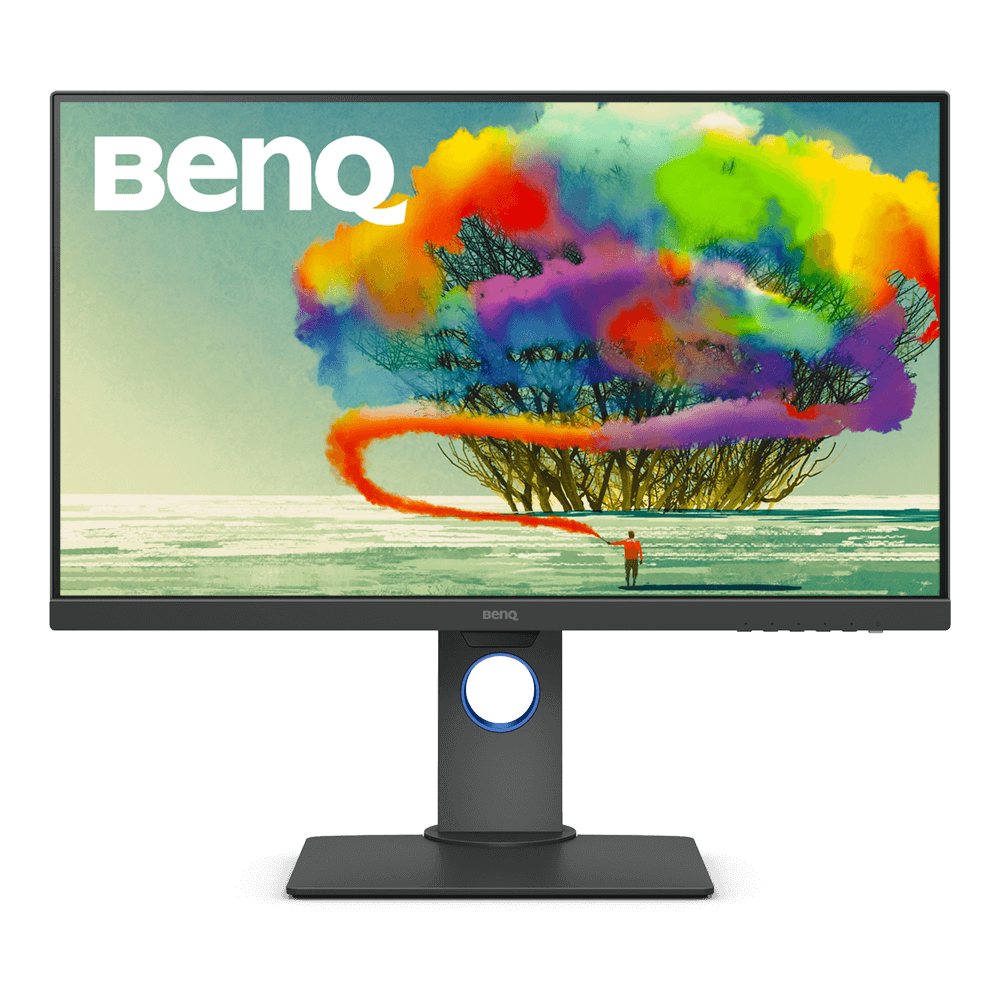
PD2705Q 27 inch 2K IPS HDR USB-C DesignVue Designer Monitor
Make Inspirations Come Alive with AQCOLOR Tech
Application
 Can I use USB-C to charge my laptop or MacBook Pro?

Yes, you can. While using USB-C to transmit audio/video, you can also deliver up to 65W of power to your laptop. However, keep in mind several different hardware configurations of USB-C exist and some do not support all forms of data and power delivery. Check with your laptop manufacturer to make sure your USB-C port offers DisplayPort Alt Mode compatibility and power delivery support.
Learn More
Can I use Rosetta or Rosetta 2 with Apple M1 devices and Display Pilot?
Unfortunately no, even though BenQ programs can run with Rosetta on the app layer, they can't communicate with the monitor under the root layer of the M1 ARM architecture.
Trying to force run apps may result in poor data transmission, data errors, and possible data corruption.
Learn More
My BenQ monitor doesn’t support USB-C. Can it connect to an M1/M2 MacBook® via a Thunderbolt 3/4 (USB-C) to DisplayPort or HDMI adapter?
Please access the BenQ Knowledge Center to get more information.
Learn More
When connecting the monitor with a Mac, only the HDR picture mode is available in the OSD menu. How can I switch to other OSD picture modes?
According to the explanation on Apple Support website, if your Mac supports high dynamic range (HDR) video, and it detects that the external display also supports HDR, your Mac might automatically enable HDR for that display.
So the monitor detects HDR and stays in HDR mode.
Please turned off HDR on your Mac and then you can switch to the other OSD picture mode for the monitor.
Learn MoreSpecification
Are all BenQ monitors or only certain models mercury free?
All BenQ LED monitors are mercury free.
Learn More
What models do support ICC Sync in Display Pilot software?
PD2705Q, PD2720U, PD3220U, PD3420Q, PD2705U, PD2725U, and PD3205U all support ICC Sync in Display Pilot.
Learn More
What are the differences between Eye Protect, Bright Intelligence, and Bright Intelligence Plus?
Eye Protect: built-in light sensor detects light conditions around the monitor and adjusts the backlight automatically.
Bright Intelligence (B.I.): built-in light sensor works to detect the ambient light, image brightness, and contrast, and then balances screen settings automatically.
Bright Intelligence Plus (B.I.+): same as above but more advanced sensor also takes color temperature into account when optimizing screen settings for the best image quality.
Key word: BI, BI+, Eyeprotect
Learn MoreFurther Query
The projector is frozen with an error message showing “Installing upgrade package…” when it is powered on. What can I do to fix this?
This message indicates that firmware OTA upgrade process is not completed and projector is powered off last time. Please follow below steps to fix this issue. When projector is back to normal, make sure that keeping projector connected with power when performing OTA firmware upgrade.
(1) Power off the projector.
(2) Press ECO Blank button first, then press power key together for few seconds to power on projector.
(3) After projector powering on process is done, release the two buttons at the same time. Learn More
(1) Power off the projector.
(2) Press ECO Blank button first, then press power key together for few seconds to power on projector.
(3) After projector powering on process is done, release the two buttons at the same time. Learn More
Can I use USB-C to charge my laptop or MacBook Pro?
Yes, you can. While using USB-C to transmit audio/video, you can also deliver up to 65W of power to your laptop. However, keep in mind several different hardware configurations of USB-C exist and some do not support all forms of data and power delivery. Check with your laptop manufacturer to make sure your USB-C port offers DisplayPort Alt Mode compatibility and power delivery support.
Learn More
Can I use Rosetta or Rosetta 2 with Apple M1 devices and Display Pilot?
Unfortunately no, even though BenQ programs can run with Rosetta on the app layer, they can't communicate with the monitor under the root layer of the M1 ARM architecture.
Trying to force run apps may result in poor data transmission, data errors, and possible data corruption.
Learn More
My BenQ monitor doesn’t support USB-C. Can it connect to an M1/M2 MacBook® via a Thunderbolt 3/4 (USB-C) to DisplayPort or HDMI adapter?
Please access the BenQ Knowledge Center to get more information.
Learn More
When connecting the monitor with a Mac, only the HDR picture mode is available in the OSD menu. How can I switch to other OSD picture modes?
According to the explanation on Apple Support website, if your Mac supports high dynamic range (HDR) video, and it detects that the external display also supports HDR, your Mac might automatically enable HDR for that display.
So the monitor detects HDR and stays in HDR mode.
Please turned off HDR on your Mac and then you can switch to the other OSD picture mode for the monitor.
Learn More