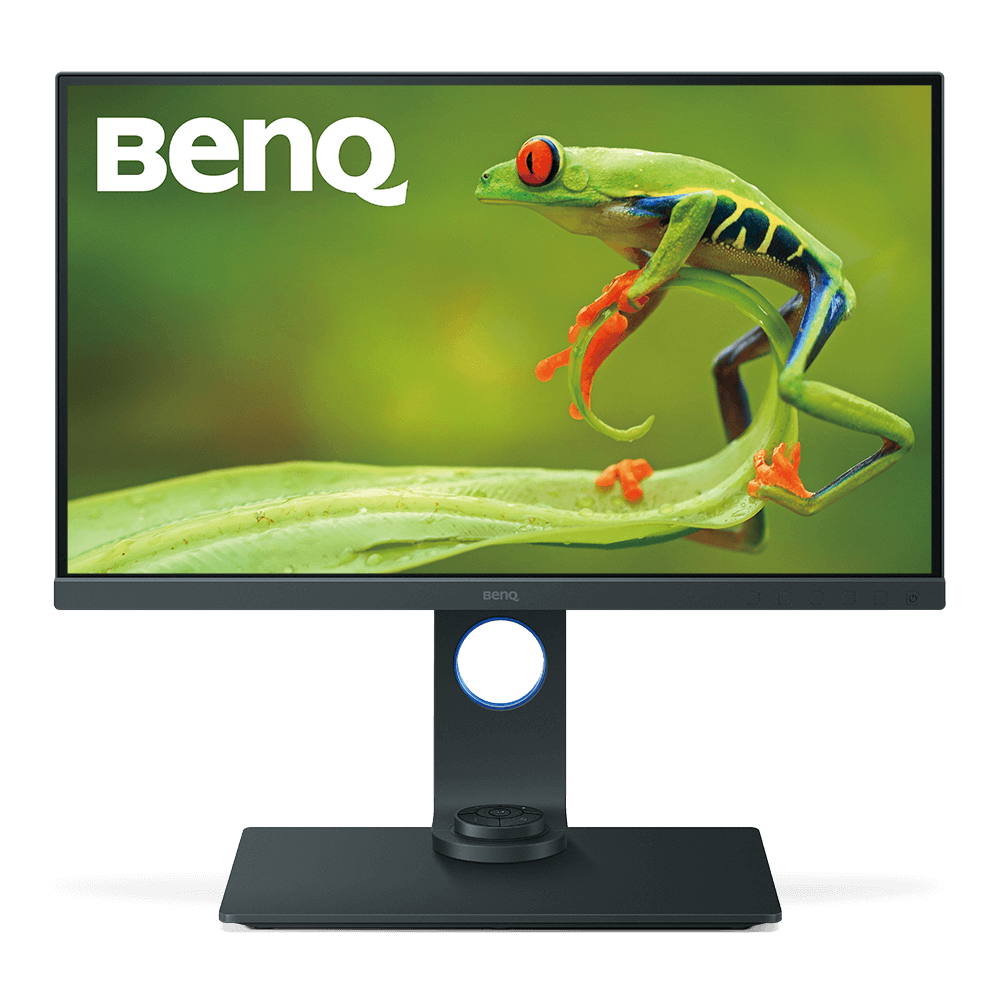
SW271 27 inch 4K Adobe RGB PhotoVue Photographer Monitor
Relive the Moment with AQCOLOR Tech
Application
 When connecting the monitor with a Mac, only the HDR picture mode is available in the OSD menu. How can I switch to other OSD picture modes?

According to the explanation on Apple Support website, if your Mac supports high dynamic range (HDR) video, and it detects that the external display also supports HDR, your Mac might automatically enable HDR for that display.
So the monitor detects HDR and stays in HDR mode.
Please turned off HDR on your Mac and then you can switch to the other OSD picture mode for the monitor.
Learn MoreSpecification
How to change the settings for my monitor that shows ”HDR Emulated” instead of “HDR On” while the HDR video looks good?
Please follow below steps to verify and fix the issue:
1. Make sure the video content is encoded with HDR by looking for the HDR description or logo. For example, for YouTube, the video quality setting should indicate “HDR.” For streaming services such as Netflix, the HDR logo will be displayed on the video cover.
2. Check the internet speed and ensure it is fast enough to stream HDR content. For example, for HDR content in 4K resolution, the download speed should be higher than 25 megabits per second.
3. Check the HDR compatibility of source device. The firmware of source device should be updated to the latest version and support HDR and HDCP 2.2.
4. Verify whether the cables support HDR. The cables that come with BenQ HDR monitors are recommended for the best video quality. If an aftermarket cable is used, make sure it fits one the following requirements:
-HDMI: HDMI 1.4 or later versions.
-DisplayPort/DP to MiniDP: DP 1.2 or later versions.
-USB Type C: USB-C certified.
For more information, please refer to: httcps://www.benq.com/en/knowledge-center/knowledge/hdr-troubleshooting-instruction.html Learn More
1. Make sure the video content is encoded with HDR by looking for the HDR description or logo. For example, for YouTube, the video quality setting should indicate “HDR.” For streaming services such as Netflix, the HDR logo will be displayed on the video cover.
2. Check the internet speed and ensure it is fast enough to stream HDR content. For example, for HDR content in 4K resolution, the download speed should be higher than 25 megabits per second.
3. Check the HDR compatibility of source device. The firmware of source device should be updated to the latest version and support HDR and HDCP 2.2.
4. Verify whether the cables support HDR. The cables that come with BenQ HDR monitors are recommended for the best video quality. If an aftermarket cable is used, make sure it fits one the following requirements:
-HDMI: HDMI 1.4 or later versions.
-DisplayPort/DP to MiniDP: DP 1.2 or later versions.
-USB Type C: USB-C certified.
For more information, please refer to: httcps://www.benq.com/en/knowledge-center/knowledge/hdr-troubleshooting-instruction.html Learn More
Are all BenQ monitors or only certain models mercury free?
All BenQ LED monitors are mercury free.
Learn More
Further Query
When connecting the monitor with a Mac, only the HDR picture mode is available in the OSD menu. How can I switch to other OSD picture modes?
According to the explanation on Apple Support website, if your Mac supports high dynamic range (HDR) video, and it detects that the external display also supports HDR, your Mac might automatically enable HDR for that display.
So the monitor detects HDR and stays in HDR mode.
Please turned off HDR on your Mac and then you can switch to the other OSD picture mode for the monitor.
Learn More