- Sujets
- Release Information
- X-Sign Quick guide
-
X-sign User manual
- Account (4)
- Licence (4)
-
Manager (15)
- Pairing the device with X-Sign Manager
- Creating the channel
- Scheduling the content by channel
- Scheduling the content by device
- Editing the device management structure
- Pushing Real-Time Message to your BenQ Smart Signage remotely
- Controlling the device remotely
- Updating device Player remotely
- Managing the calling system
- Creating an API table in X-Sign Manager
- Setting Verification
- Getting the system notification
- Updating device status immediately New
- Player report (proof-of-play) New
- Using Designer Express New
-
Designer (18)
- Creating a new project file in X-Sign Designer
- Uploading your content from Designer
- Creating content in X-Sign Designer
- Creating content from Designed Templates
- Creating a clock widget in X-Sign Designer
- Setting a weather widget
- Creating an Image or Video slideshow
- Rotating an image or video
- Generating a QR Code
- Adding a data connection
- Setting a timer widget
- Creating an API template using the demo kit
- Creating a TV Input source widget in X-Sign Designer
- Setting background music in X-Sign Designer
- Changing the playing order of pages
- Sealing a file in X-Sign Designer
- Opening an X-Sign 1.x project file
- Changing your language in X-Sign Designer
- Player (6)
- Local Delivery (3)
- Report (2)
- Video Wall (3)
- Interactive (Premium) (6)
- API (Premium) (1)
- GPL/LGPL Software Licenses Used by X-Sign
- X-Sign OpenAPI
X-Sign User Manual
In this section, we'll explain how to manage content in X-Sign, control the player, and set up playlists.
X-sign 2.0 / X-sign User manual / Interactive (Premium)
Creating interactive content from designed templates with Area Link
2020 / 08 / 24
There are two ways to create interactive content in X-Sign Designer. Click here to watch the demonstration video.
- Interactive Template: Three layers’ structures designed by BenQ Designer which make you change your content easily. Refer to Creating interactive content with Interactive template for more information.
- Area Link: For you to customize the link relation yourself. You can easily use it to turn the original project into the interactive project as you wish.
The following is an introduction of how to create an interactive content with Area Link.
Note: Be sure that your smart signage has successfully imported with the interactive content otherwise the touch function may not work.
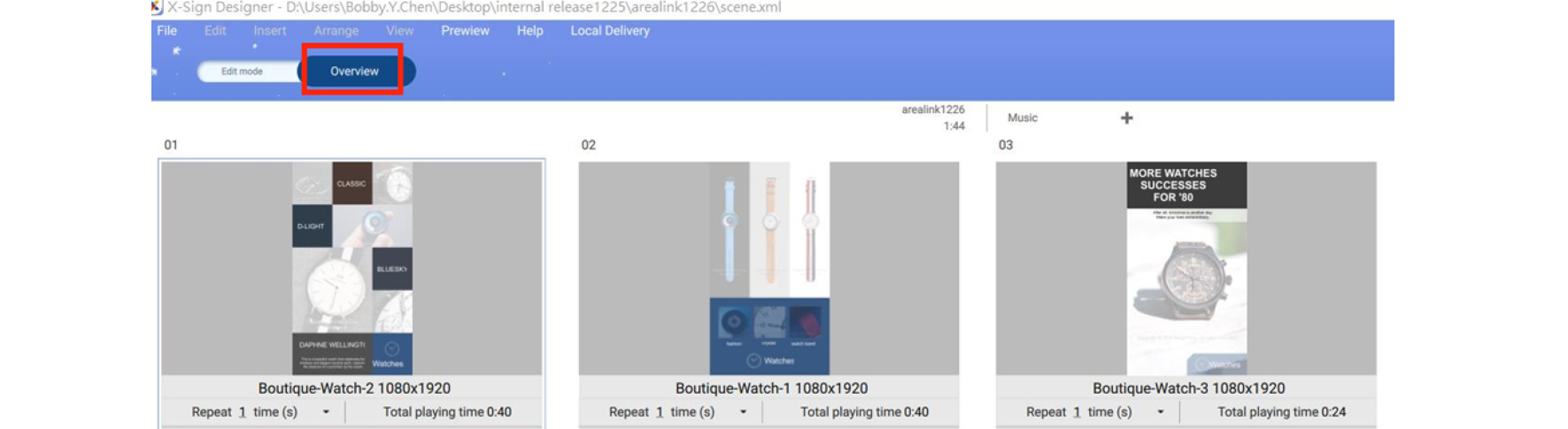
1. Open the project you want to change to the interactive content, then select Overview mode.
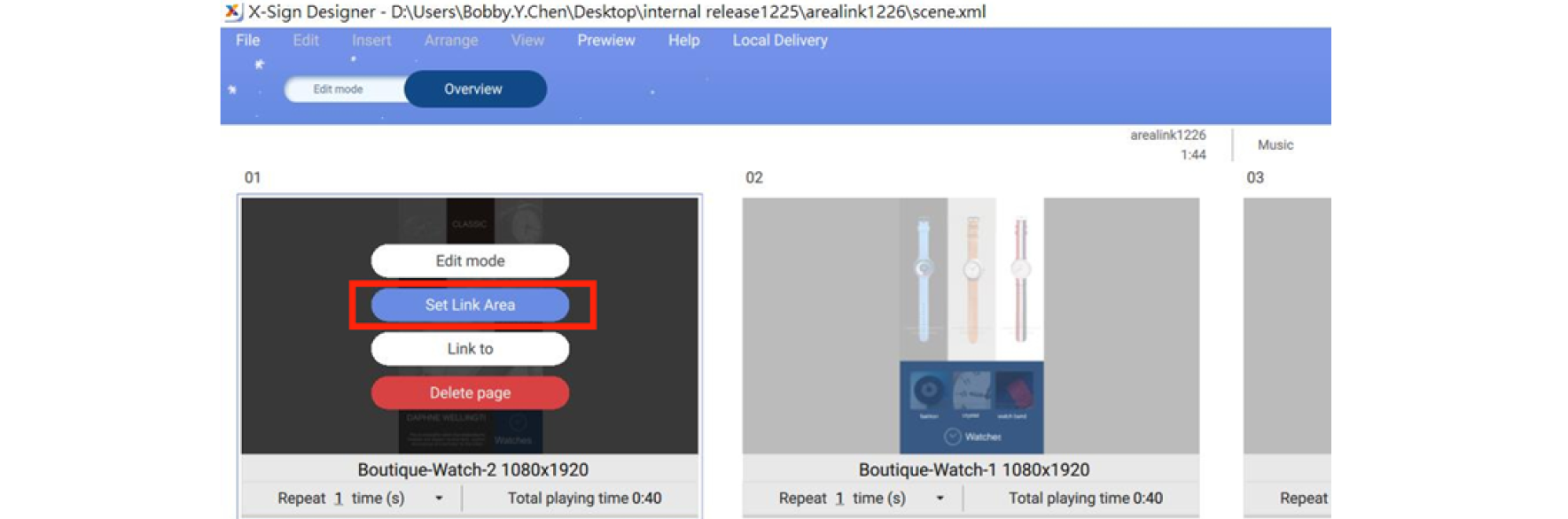
2. Choose the page you want to set the link, then press Set Link Area.
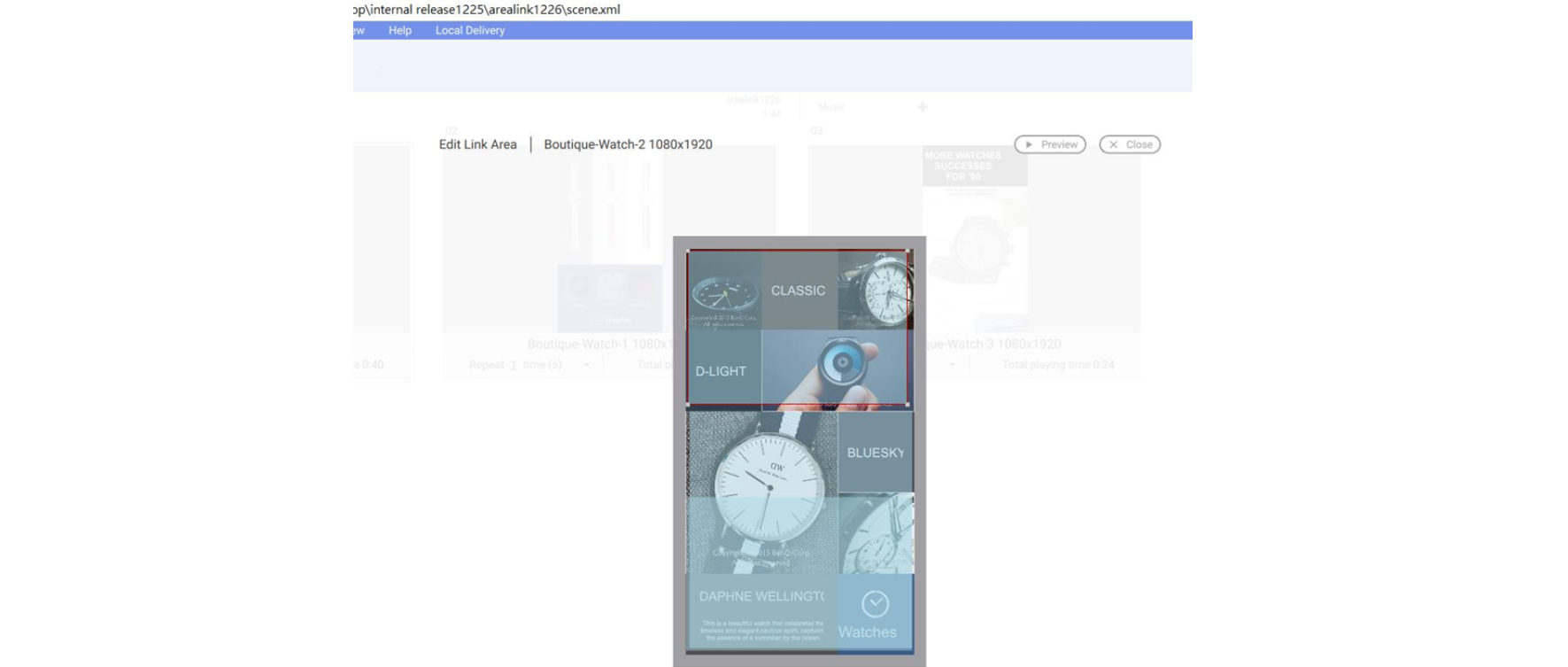
3. You will see Link Area setting wizard. Drag an area to create an Area Link.
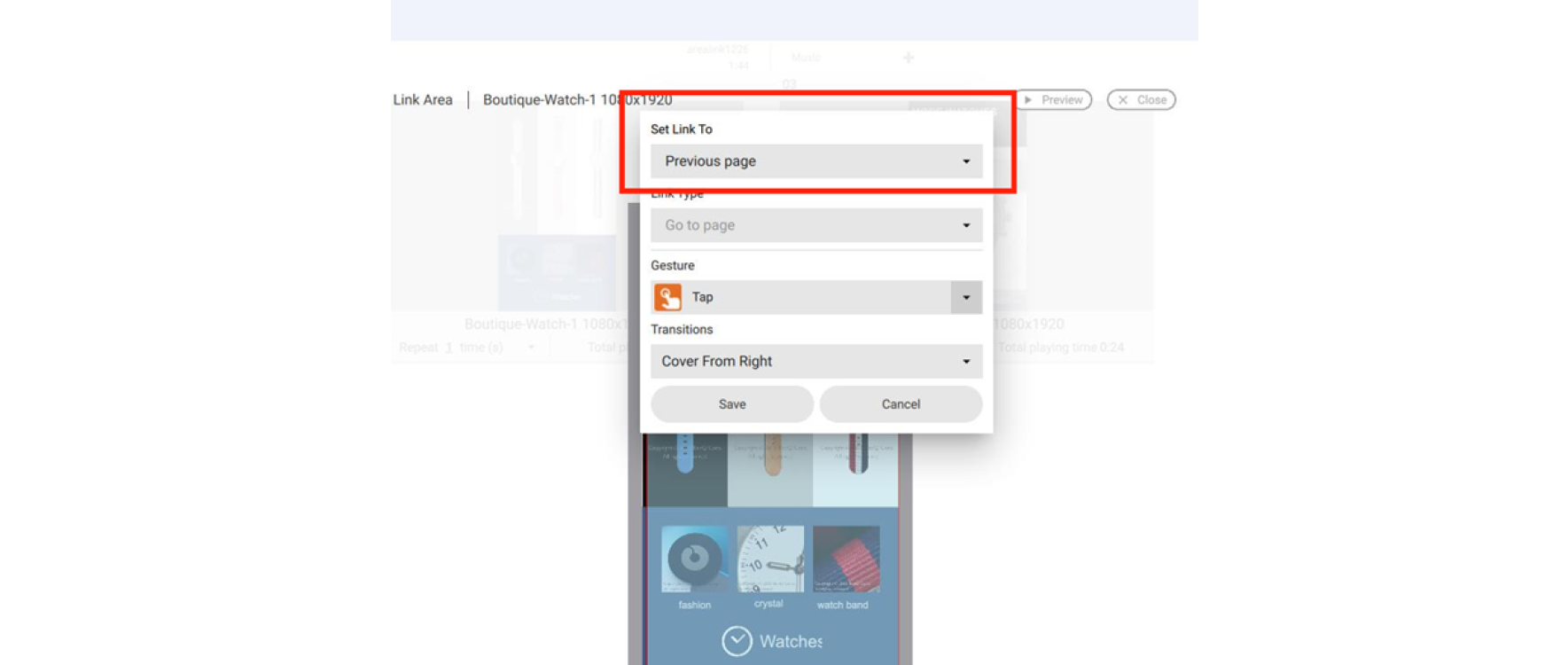
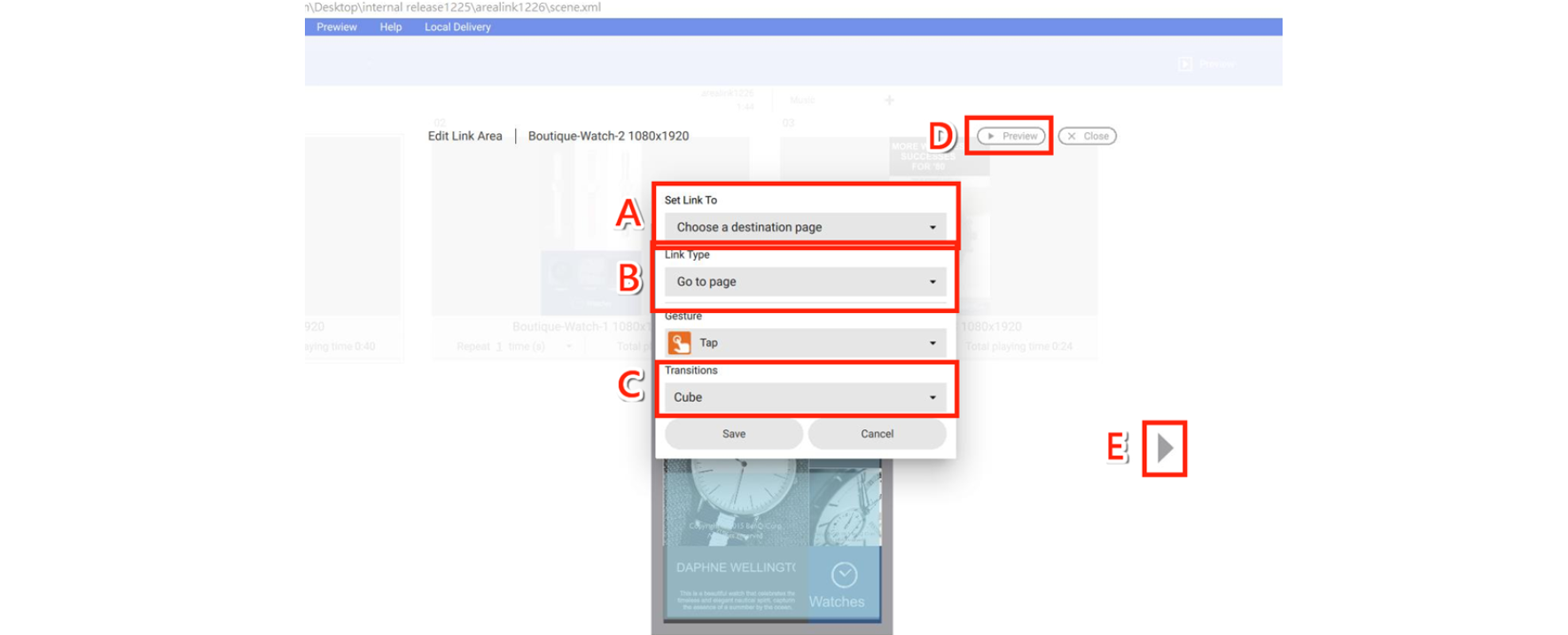
4. In Area Link configuration, you can set:
A. Set the page you want to link to. After tabbing the area, you can see the related page.
B. Set the link effect. You can go to the link page directly or to the link page overlapping the original one.
C. Set the transition effect.
D. After you finish the setting, you can preview the effect.
E. Go to and edit other pages.
5. Set link to the previous page, then you can go back to the previous page.