
- Sujets
- Release Information
- X-Sign Quick guide
-
X-sign User manual
- Account (4)
- Licence (4)
-
Manager (15)
- Pairing the device with X-Sign Manager
- Creating the channel
- Scheduling the content by channel
- Scheduling the content by device
- Editing the device management structure
- Pushing Real-Time Message to your BenQ Smart Signage remotely
- Controlling the device remotely
- Updating device Player remotely
- Managing the calling system
- Creating an API table in X-Sign Manager
- Setting Verification
- Getting the system notification
- Updating device status immediately New
- Player report (proof-of-play) New
- Using Designer Express New
-
Designer (18)
- Creating a new project file in X-Sign Designer
- Uploading your content from Designer
- Creating content in X-Sign Designer
- Creating content from Designed Templates
- Creating a clock widget in X-Sign Designer
- Setting a weather widget
- Creating an Image or Video slideshow
- Rotating an image or video
- Generating a QR Code
- Adding a data connection
- Setting a timer widget
- Creating an API template using the demo kit
- Creating a TV Input source widget in X-Sign Designer
- Setting background music in X-Sign Designer
- Changing the playing order of pages
- Sealing a file in X-Sign Designer
- Opening an X-Sign 1.x project file
- Changing your language in X-Sign Designer
- Player (6)
- Local Delivery (3)
- Report (2)
- Video Wall (3)
- Interactive (Premium) (6)
- API (Premium) (1)
- GPL/LGPL Software Licenses Used by X-Sign
- X-Sign OpenAPI
X-Sign User Manual
In this section, we'll explain how to manage content in X-Sign, control the player, and set up playlists.
X-sign 2.0 / X-sign User manual / Player
Activating an Interactive function in Standalone mode
2020 / 08 / 24
Once you have purchased an Standalone Premium License, you can configure your device. The following is an introduction for activating an Interactive License in X-Sign Player.
To activate your Interactive License in X-Sign Player:
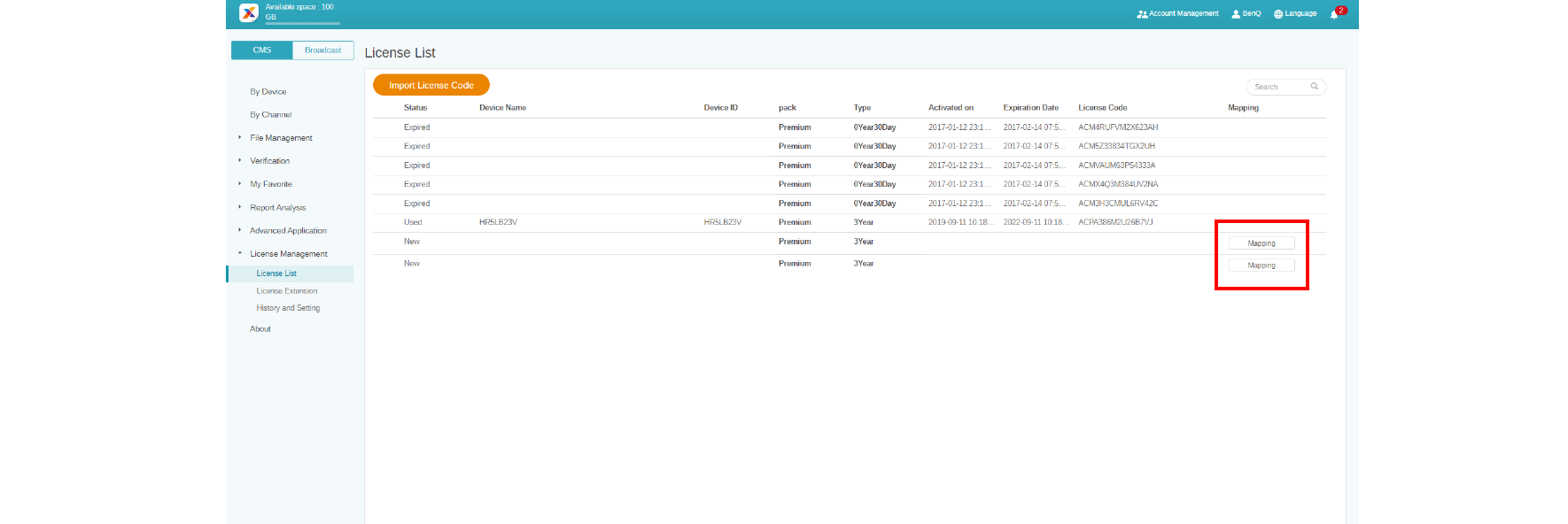
1. Select unpaired licenses, then click Mapping.
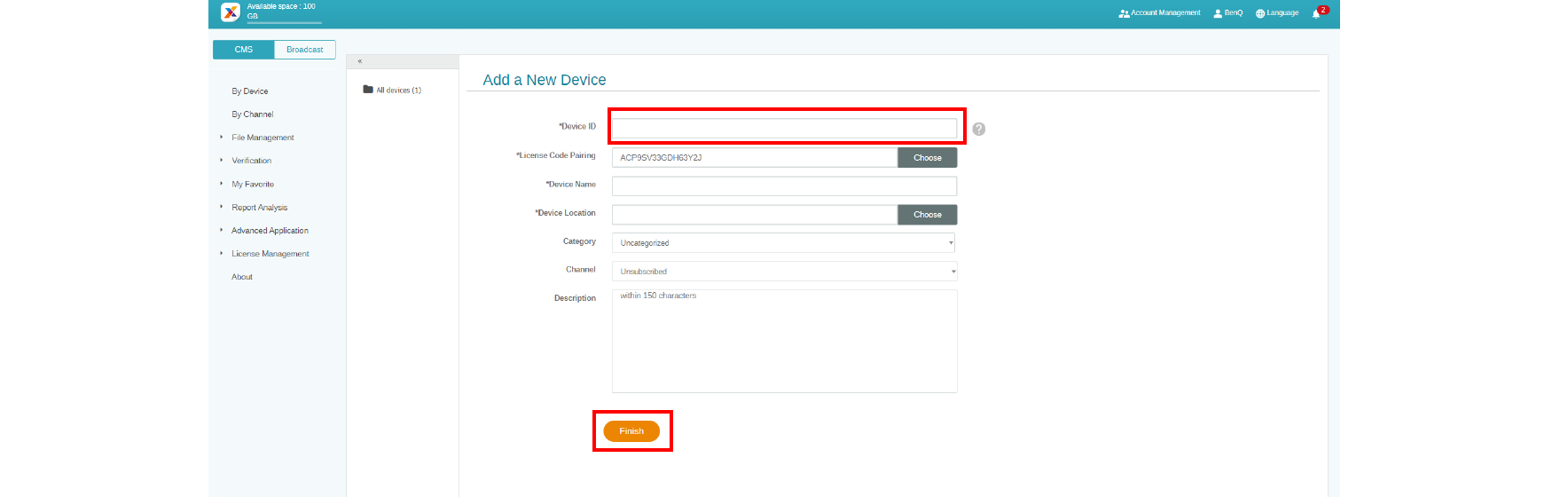
2. After mapping licenses, fill in the device name, then click Finish to complete pairing.
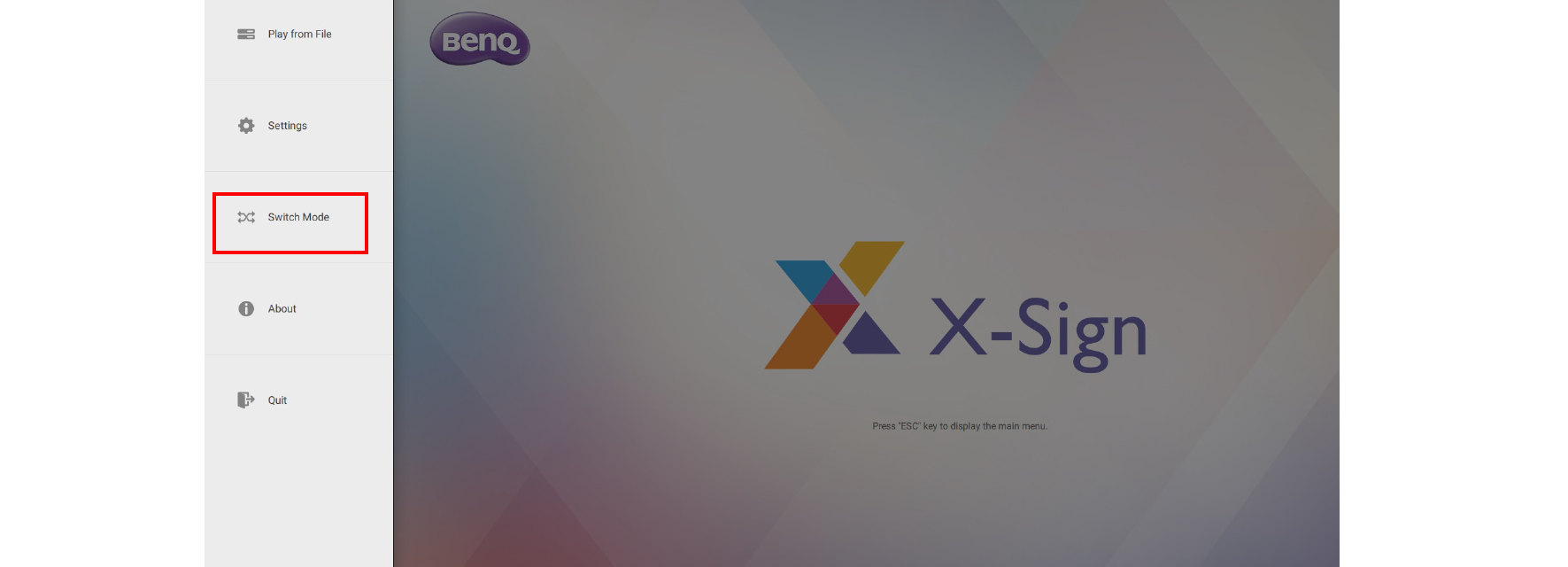
3. Choose Switch Mode.
4. When the pairing is done on X-Sign Manager, you can start to set schedules. You can play files with interactive features from X-Sign Manager.
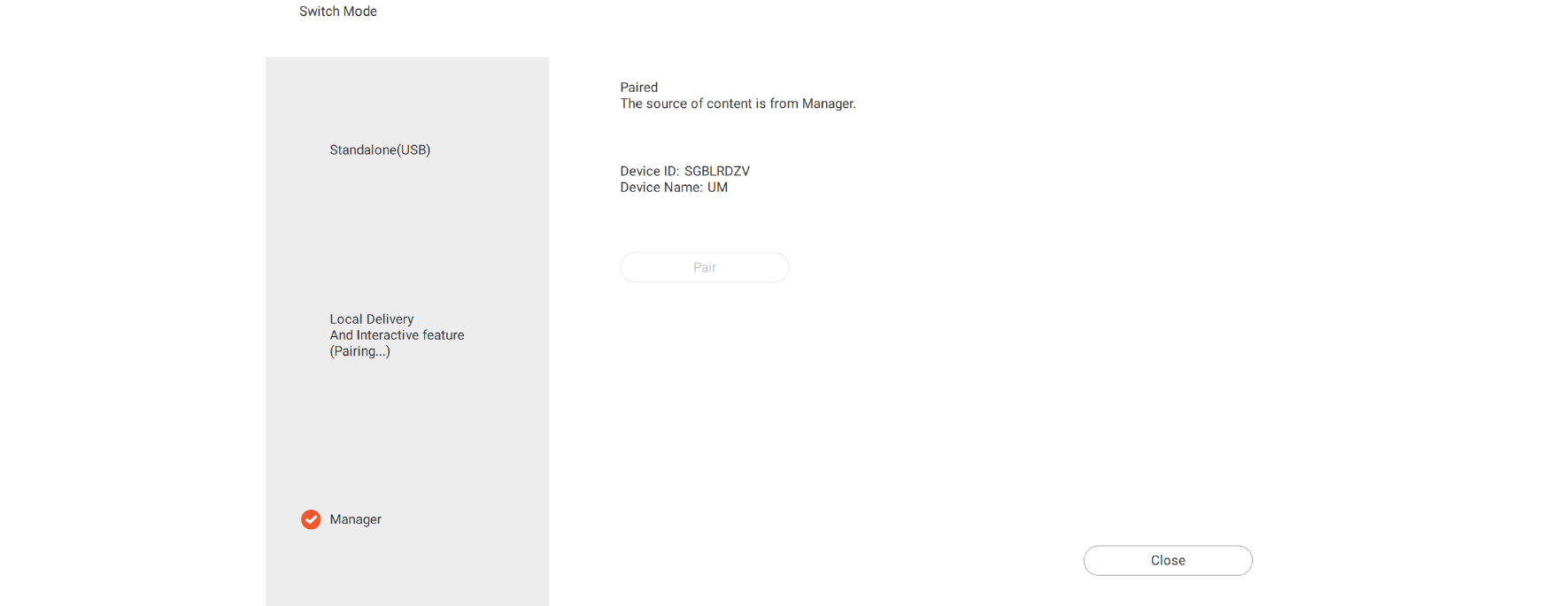
5. On the Local Delivery And Interactive feature page, you can see that the device’s license has been paired.
Note: To play an interactive file via USB, you have to change Switch Mode back to Standalone(USB).