
- Topics
- Release Information
- X-Sign Quick guide
-
X-sign User manual
- Account (4)
- Licence (4)
-
Manager (15)
- Pairing the device with X-Sign Manager
- Creating the channel
- Scheduling the content by channel
- Scheduling the content by device
- Editing the device management structure
- Pushing Real-Time Message to your BenQ Smart Signage remotely
- Controlling the device remotely
- Updating device Player remotely
- Managing the calling system
- Creating an API table in X-Sign Manager
- Setting Verification
- Getting the system notification
- Updating device status immediately New
- Player report (proof-of-play) New
- Using Designer Express New
-
Designer (18)
- Creating a new project file in X-Sign Designer
- Uploading your content from Designer
- Creating content in X-Sign Designer
- Creating content from Designed Templates
- Creating a clock widget in X-Sign Designer
- Setting a weather widget
- Creating an Image or Video slideshow
- Rotating an image or video
- Generating a QR Code
- Adding a data connection
- Setting a timer widget
- Creating an API template using the demo kit
- Creating a TV Input source widget in X-Sign Designer
- Setting background music in X-Sign Designer
- Changing the playing order of pages
- Sealing a file in X-Sign Designer
- Opening an X-Sign 1.x project file
- Changing your language in X-Sign Designer
- Player (6)
- Local Delivery (3)
- Report (2)
- Video Wall (3)
- Interactive (Premium) (6)
- API (Premium) (1)
- GPL/LGPL Software Licenses Used by X-Sign
- X-Sign OpenAPI
X-Sign User Manual
In this section, we'll explain how to manage content in X-Sign, control the player, and set up playlists.
X-sign 2.0 / X-sign User manual / Player
Playing files with USB
2020 / 08 / 24
In X-Sign Player, for standalone function you can play files with your local storage or everywhere with your USB. The file in the USB can be played automatically once the USB is connected to the device. Set the auto play to off if you want to select specific files. The following is an introduction of how to play file from USB. Refer to Creating a new project file in X-Sign Designer for more information. Click here to watch the demonstration video.
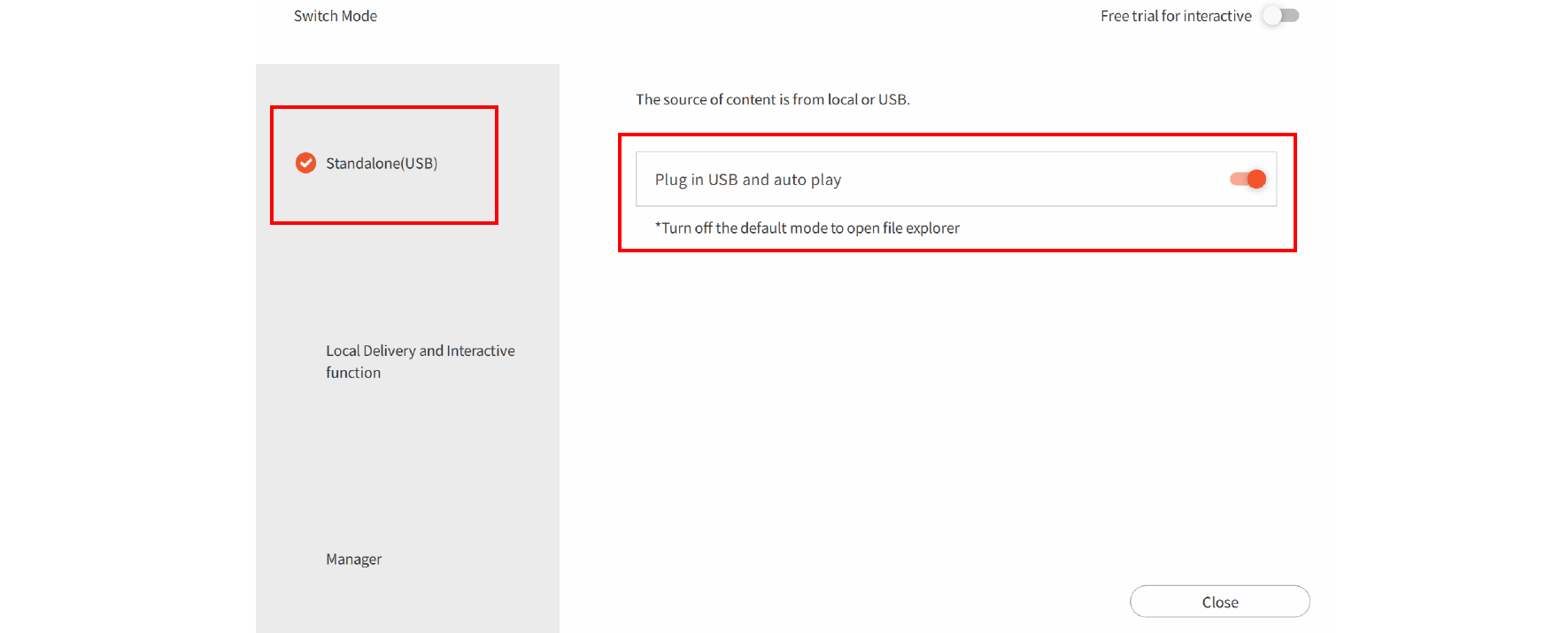
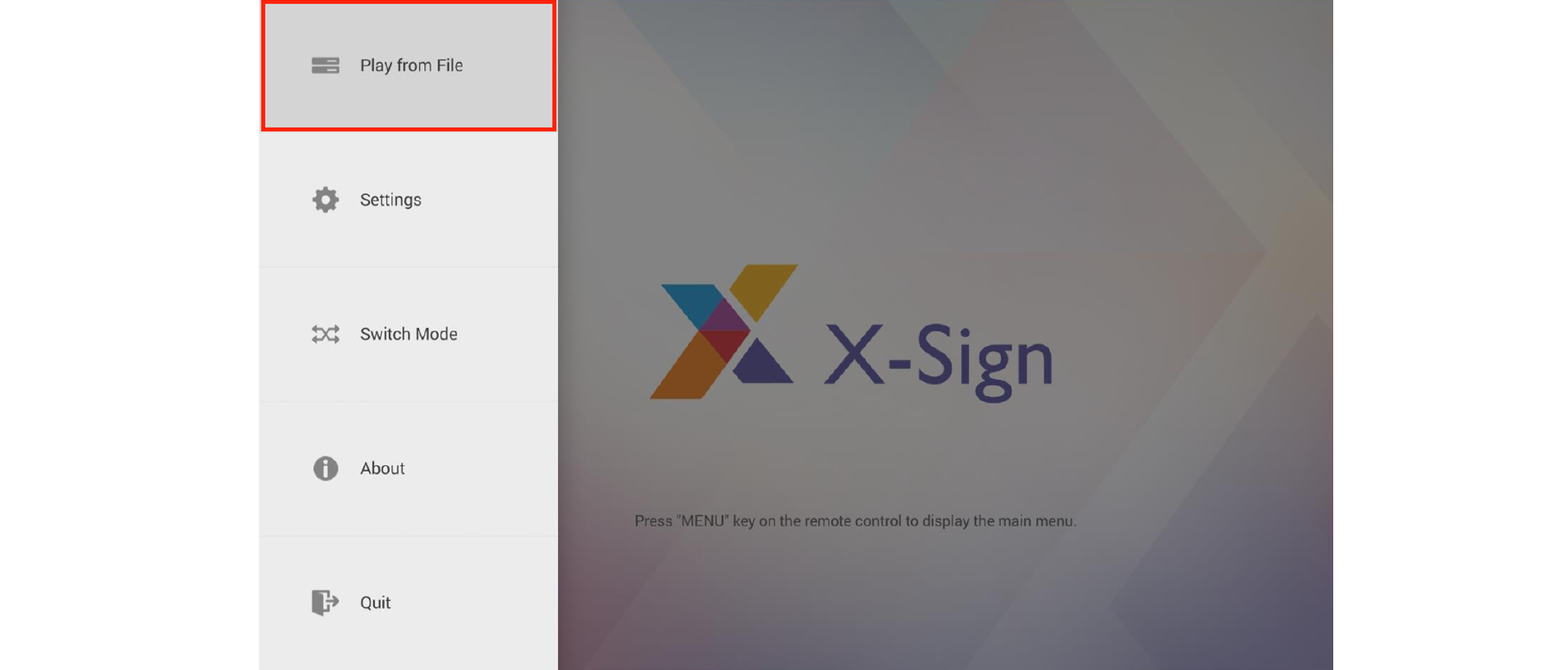
1. Tab the menu bar again, and press Play from File.
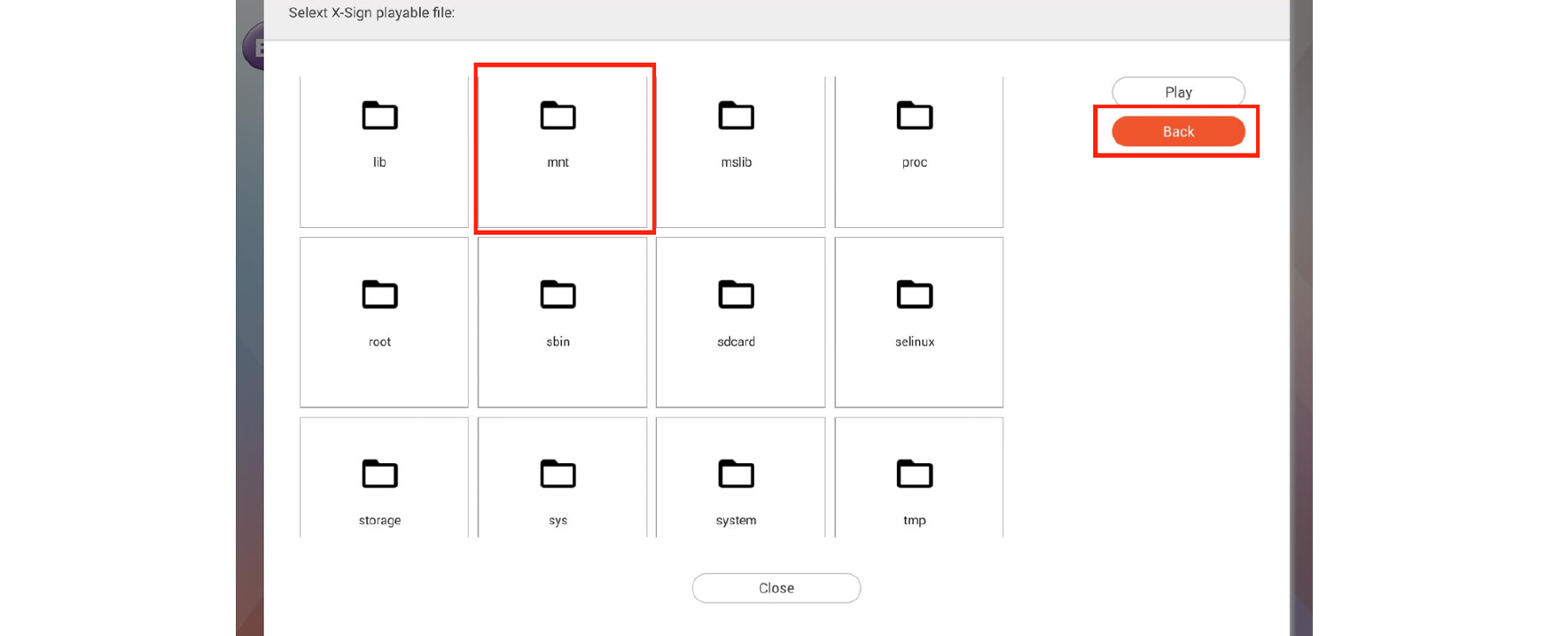
2. Keep pressing Back to go back to the root folder. Then go to the "mnt" folder.
3. Select the "usb_storage" folder.
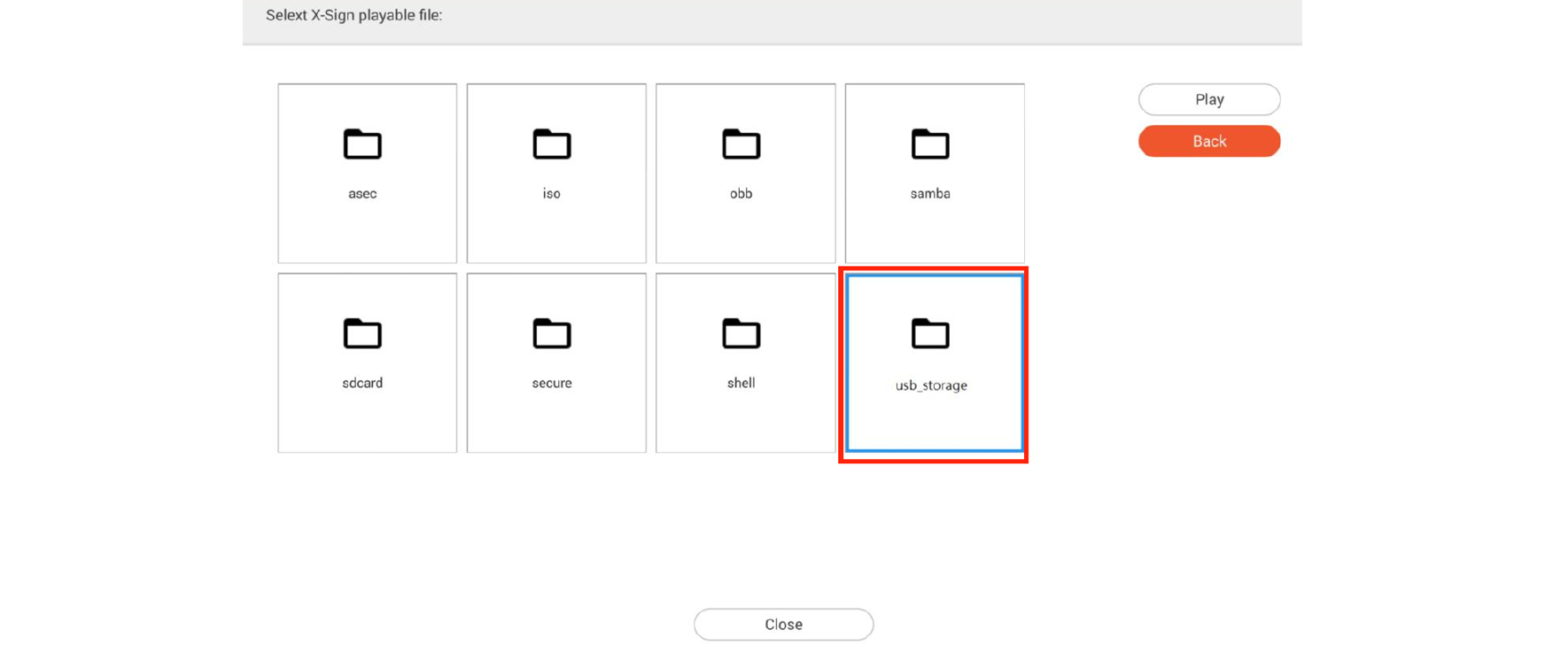
4. Choose the file you want to play, then press Play.
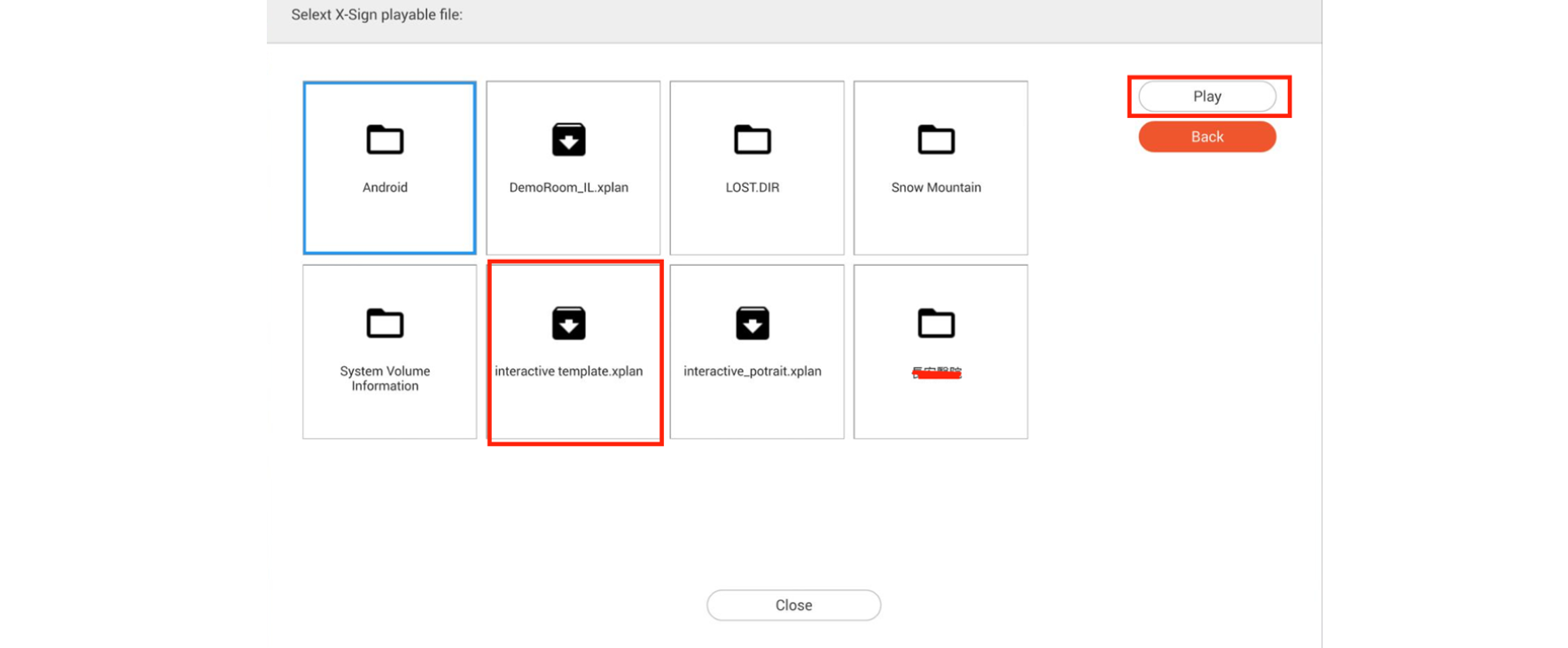
5. Now you can enjoy your content.
Note: Once you play files successfully, the path will be remembered. You don't have to choose the path again next time you play files.