Windows laptops can connect to multiple monitors relatively easily. If your laptop features an independent graphics card, two USB-C ports with Thunderbolt capabilities, and an HDMI port, you can have a 3-monitor setup with your laptop. For example, two monitors can be connected via USB-C, while the 3rd monitor connects through an HDMI cable. However, laptops with multiple ports and the necessary graphics output, as well as an independent graphics card, can be expensive. Additionally, the display quality may be limited by the specifications of your graphics card and the type of cables used. Another drawback is that your desk setup might become cluttered with cables, which need to be disconnected and reconnected whenever you want to go mobile with your laptop.
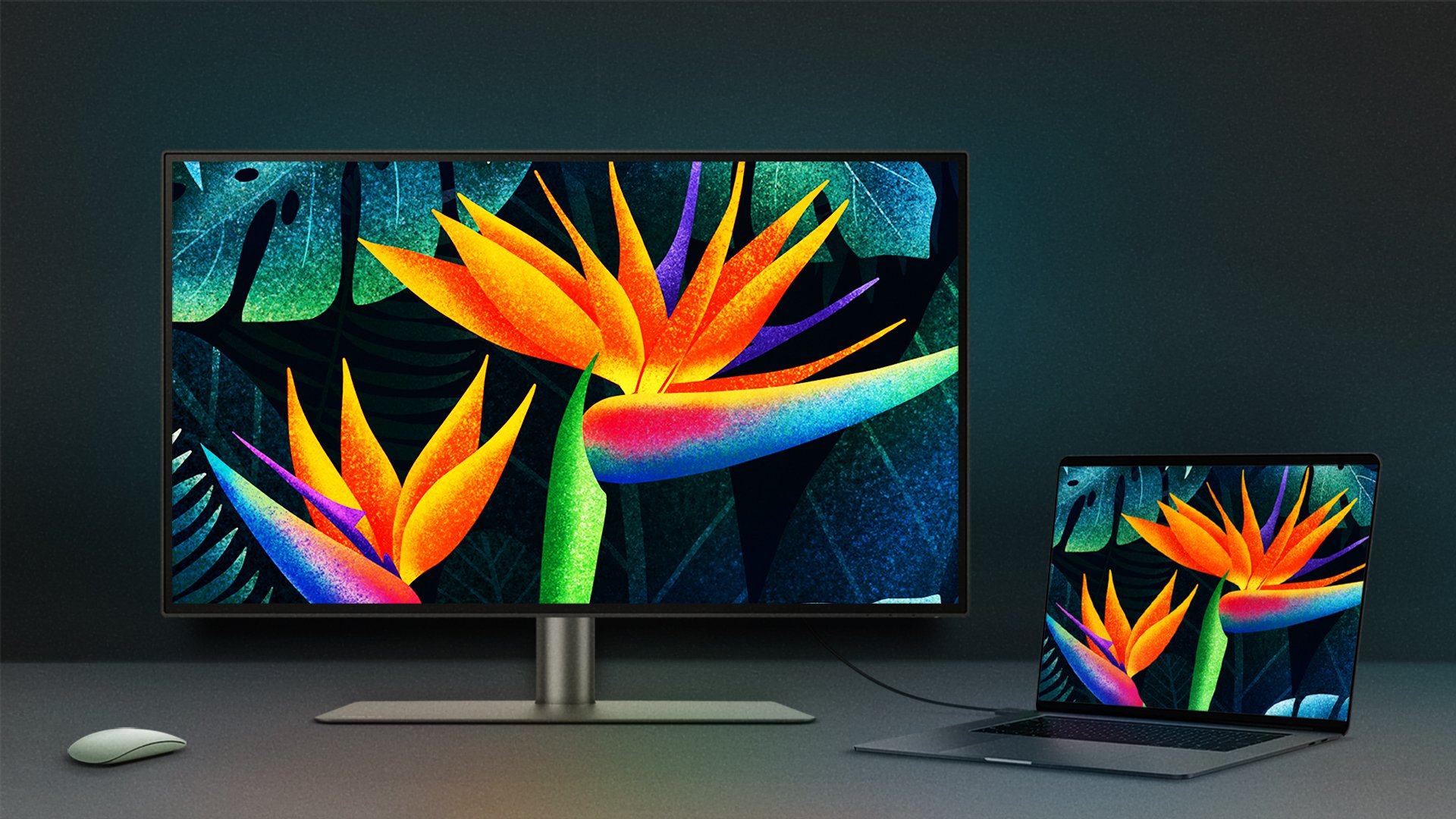
For MacBooks, only MacBook Pro models equipped with the Max chip can support connecting 3 monitors through their display ports. The process is similar to that of Windows laptops: you can connect monitors via Thunderbolt and HDMI ports to create a triple monitor setup. However, cable management remains an issue, and the visual performance depends on your device and cable specifications.
Ultimately, using your laptop’s built-in display ports to connect 3 monitors eliminates the need for additional equipment. However, your laptop must meet the required specifications to support such a setup, and managing the cables may prove to be inconvenient.





![How Can I Connect a Mac® M1/M2/M3 to BenQ Monitors? [Updated]](https://image.benq.com/is/image/benqco/thumbnail-m1-solution?$ResponsivePreset$)