





Why is my 144Hz monitor only running at 60Hz? You’ve purchased a monitor that claims to offer a 120Hz or 144Hz refresh rate but it may not actually run at its advertised refresh rate. You will find out what to do, to change some settings or sort out your hardware, to set your monitor to 144Hz and enjoy a smooth gameplay.
1. Check Your Monitor Setting
Check your monitor setting to see if it supports 144Hz. The easiest way is to turn on your OSD and find it. If it does, select 144Hz and then configure.
You then need to check Windows is actually set at the advertised refresh rate and not a lower refresh rate, like 60Hz.
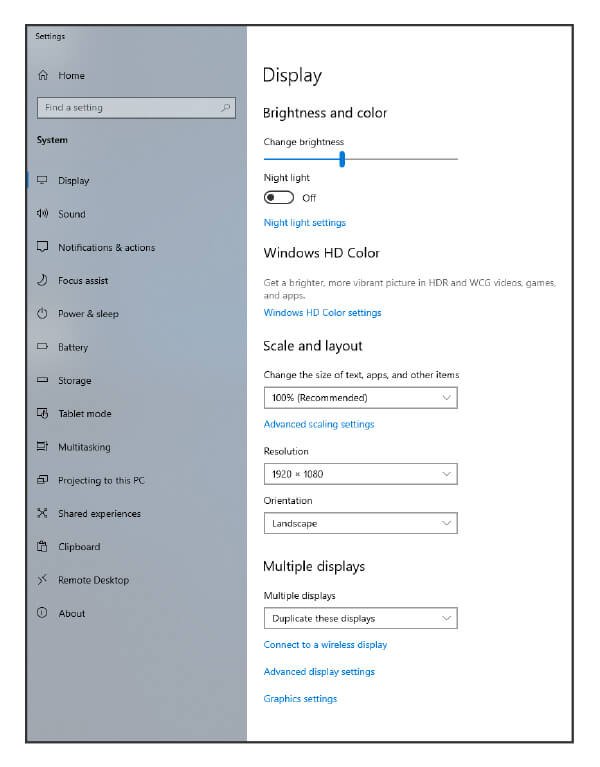
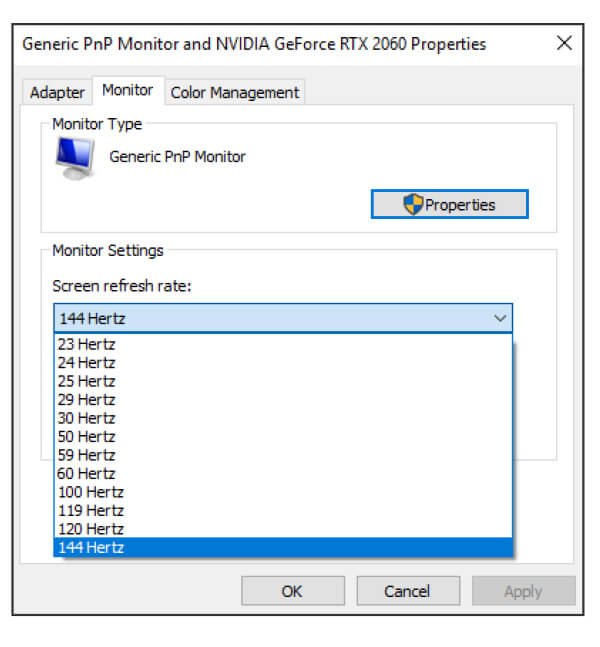
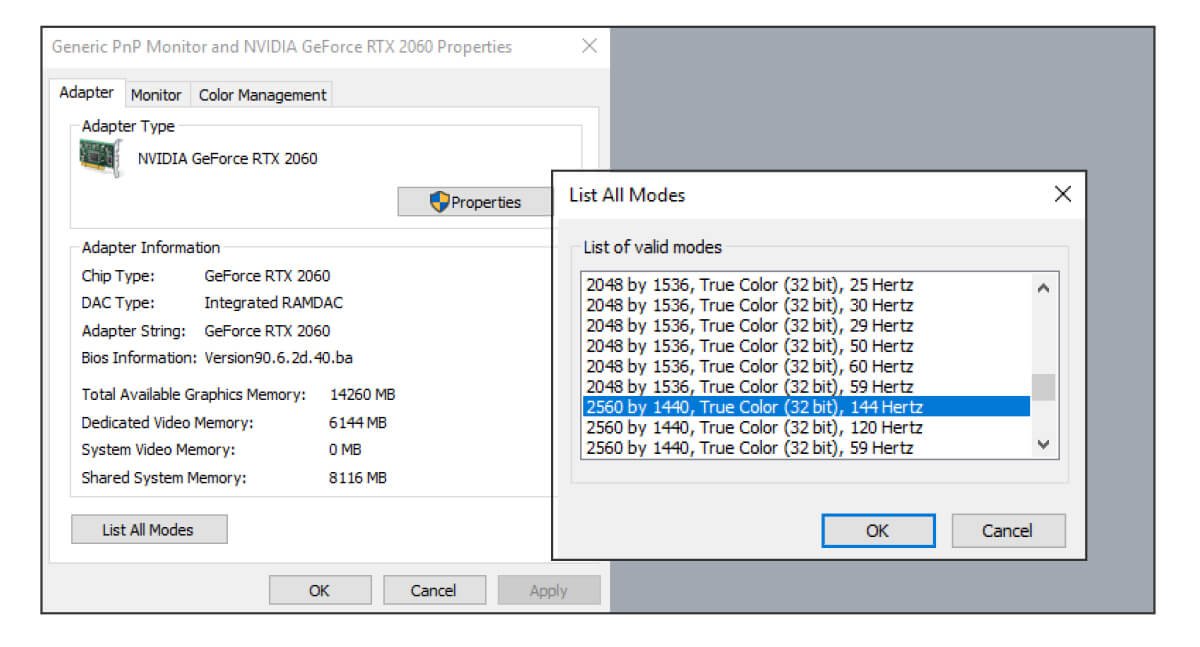
If you are running Win 10, follow this: Setting > System > Display > Advanced Display Settings > Display Adapter Properties.
Then click the “Monitor” tab, choose your monitor’s advertised refresh rate from the “Screen Refresh Rate” list, and click “OK.”
If you are running Win 7 or Win 8, follow this:
Right-click the desktop and select “Screen Resolution.” Click the “Advanced Settings” link then click the “Monitor” tab and choose the refresh rate from the “Screen Refresh Rate” box.
Graphics cards also offer refresh rate setup interface, reference as below:

nVidia
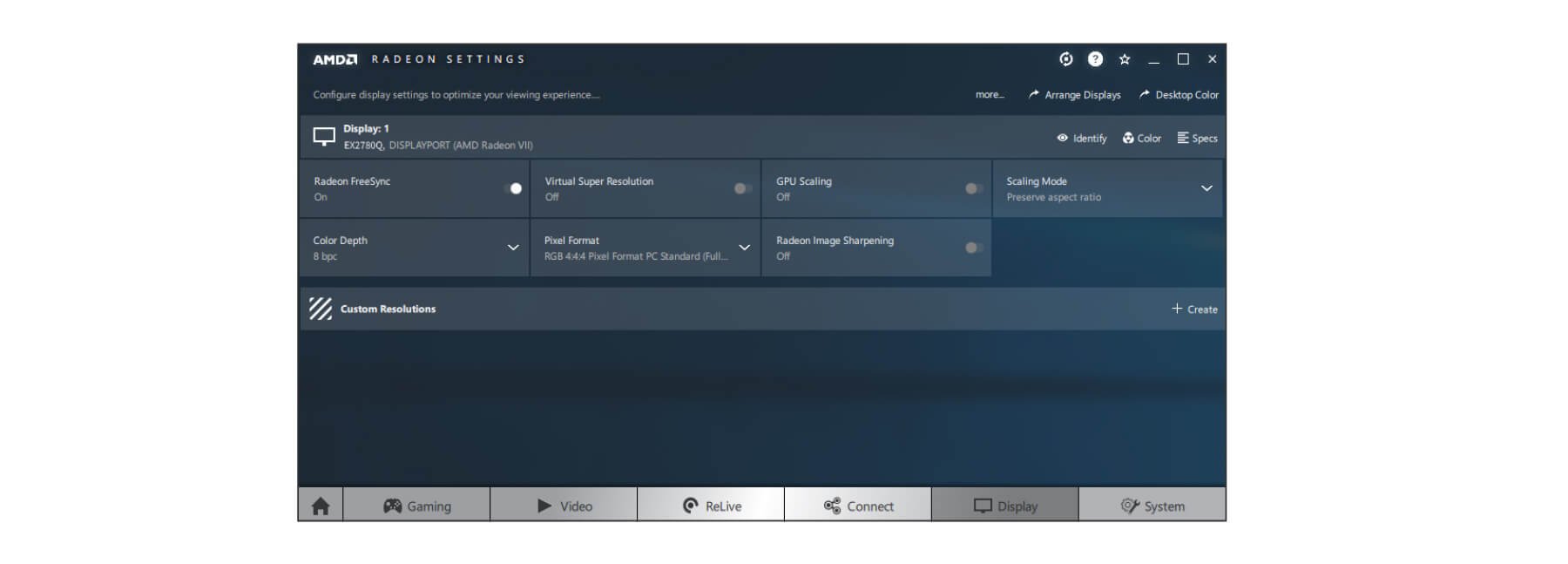
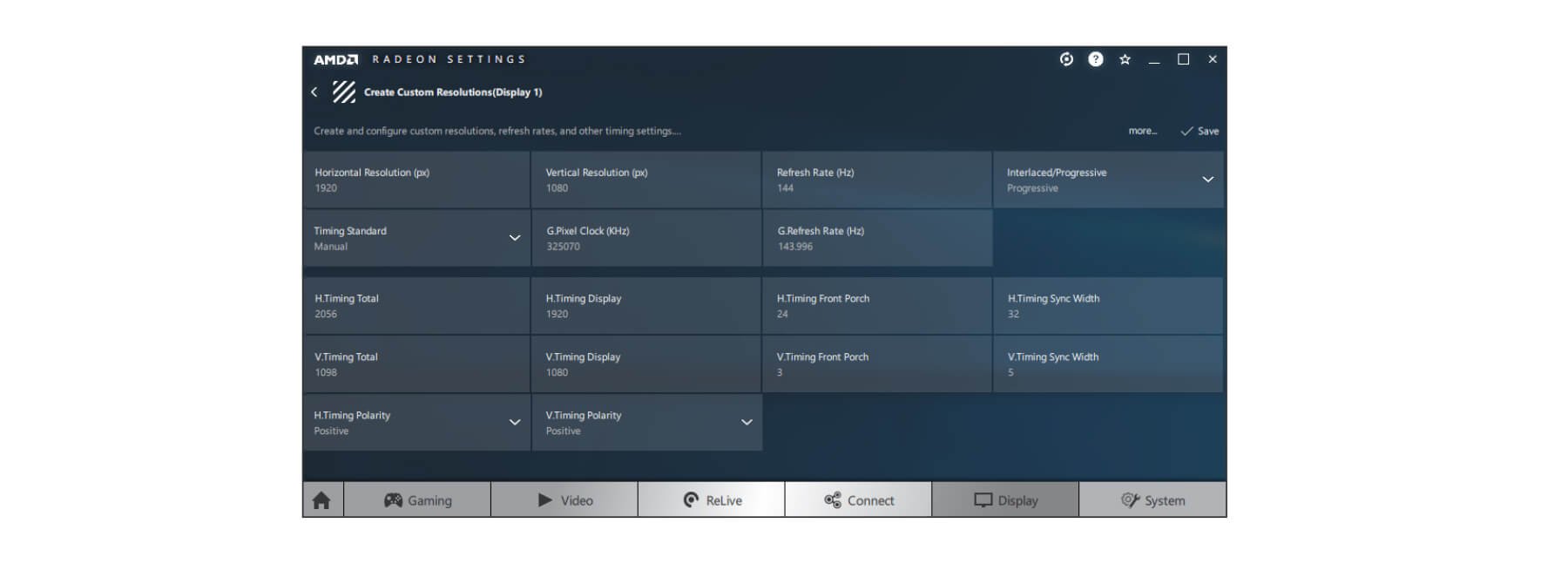
AMD
If you still don’t seem to get your monitor configured at the advertised refresh rate–there’s more you need to do.
2. Check Your Cables
• Port
If you want to expect a high refresh rate, it’s necessary to pay attention to the ports your monitor came with. Some monitors may use both HDMI and DisplayPort ports at the same time but will be limited to a lower refresh rate when connected via HDMI. You then need to use a DisplayPort cable.
• Cable bandwidth
DisplayPort generally supports video resolutions of up to 3840 x 2160 pixels at 120Hz and the maximum bandwidth sent through a DisplayPort cable is 32.4 Gbps. While the most used HDMI is HDMI 1.4, it supports 4K resolution at 30Hz. The maximum bandwidth for HDMI 1.4 is 10.2 Gbps. Then you need to use the “Premium High-Speed” HDMI cable, not the standard one.
FHD (1920x1080) |
QHD(2560x1440) |
UHD(3840x2160) |
|||||||
| HDMI cable | HDMI cable | HDMI cable | |||||||
| Refresh rate | High speed (HDMI 1.4) |
Premium high speed (HDMI 2.0) |
DP | High speed (HDMI 1.4) |
Premium high speed (HDMI 2.0) |
DP | High speed (HDMI 1.4) |
Premium high speed (HDMI 2.0) |
DP |
| 240Hz | ╳ | ○ | ○ | ╳ | ╳ | ○ | ╳ | ╳ | ╳ |
| 165Hz | ╳ | ○ | ○ | ╳ | ╳ | ○ | ╳ | ╳ | ╳ |
| 144Hz | ○ | ○ | ○ | ╳ | ○ | ○ | ╳ | ╳ | ╳ |
| 120Hz | ○ | ○ | ○ | ╳ | ○ | ○ | ╳ | ╳ | ○ |
| 100Hz | ○ | ○ | ○ | ╳ | ○ | ○ | ╳ | ╳ | ○ |
| 75Hz | ○ | ○ | ○ | ○ | ○ | ○ | ╳ | ╳ | ○ |
| 60Hz | ○ | ○ | ○ | ○ | ○ | ○ | ╳ | ○ | ○ |
* There’s also RBR (Reduced Bit Rate) DisplayPort cables which only support 1080p.
For more information, visit below websites for more information:
https://www.displayport.org/product-category/cables-adaptors/
• Cable quality
You can also check the cable that came with your monitor. Cheap and low-quality cable can cause problems such as flickering and refresh rate drop. You then need to replace the cable with a high-quality one.
After excluding the listed cable issues, you can go on to check the following issues.
3. More Troubleshooting Tips:
• Check your computer’s GPU.
Integrated graphics or older discrete graphics might not support your monitor’s refresh rate. Check your graphics card to see if it supports the monitor’s resolution and refresh rate.
• Update graphics drivers.
Check and install the latest available version from NVIDIA or AMD’s website.
• Check for native resolution
We’d recommend that you set your monitor setting to the native resolution for the best display quality. Or, you can check the user’s manual for BenQ-qualified timings.
*Be sure to check your GPU and update your graphics drivers before this.
• Adjust In-Game Setting
If the game you’re playing has its own integrated graphics settings, try to select your monitor’s native resolution and the refresh rate of 120Hz or 144Hz in each game’s graphics options menu or that game may use a lower refresh rate.
After going through all these steps, you will figure out what cause the refresh rate drop and fix them. Enjoy a smooth gameplay at 144Hz.
Appendix 1
EX2780Q Timing support table for example
| Timing support | |||||||
PC / Video signal support |
Input port |
||||||
Resolution
|
Frame frequency(Hz)
|
DisplayPort (V1.4) |
HDMI 2.0 |
USB-C™ |
|||
PC timing |
Video timing |
PC timing |
Video timing |
PC timing |
Video timing |
||
640x480 |
60 |
v |
v |
v |
v |
v |
v |
640x480 |
75 |
v |
|
v |
|
v |
|
720x400 |
70 |
v |
|
v |
|
v |
|
720x480 |
60 |
|
v |
|
v |
|
v |
720x576 |
50 |
|
v |
|
v |
|
v |
800x600 |
60 |
v |
|
v |
|
v |
|
800x600 |
75 |
v |
|
v |
|
v |
|
832x624 |
75 |
v |
|
v |
|
v |
|
1024x768 |
60 |
v |
|
v |
|
v |
|
1024x768 |
75 |
v |
|
v |
|
v |
|
1152x870 |
75 |
v |
|
v |
|
v |
|
1280x720 |
50 |
|
v |
|
v |
|
v |
1280x720 |
60 |
v |
v |
v |
v |
v |
v |
1280x800 |
60 |
v |
|
v |
|
v |
|
1280x1024 |
60 |
v |
|
v |
|
v |
|
1280x1024 |
75 |
v |
|
v |
|
v |
|
1680x1050 |
60 |
v |
|
v |
|
v |
|
1600x900 |
60 |
v |
|
v |
|
v |
|
1920x1080 |
24 |
|
v |
|
v |
|
v |
1920x1080 |
25 |
|
v |
|
v |
|
v |
1920x1080 |
30 |
|
v |
|
v |
|
v |
1920x1080 |
50 |
|
v |
|
v |
|
v |
1920x1080 |
60 |
v |
v |
v |
v |
v |
v |
1920x1080 |
100 |
v |
v |
v |
v |
v |
v |
1920x1080 |
120 |
v |
v |
v |
v |
v |
v |
2560x1440 |
60 |
|
v |
|
v |
|
v |
2560x1440 |
120 |
|
v |
|
v |
|
v |
2560x1440 |
144 |
v |
|
v |
|
v |
|