{{item.name}}
Price: {{currency}}{{item.price| numberThousandsCommas | numberDecimalPoint}}
Qty: {{item.amount}}


Projectors

Monitors
Lighting
Interactive Displays & Signage
Remote Work & Learning
Shop
Whether using their BenQ projectors to binge watch in the privacy of their bedroom or check out the latest blockbuster in their own home theater, the options available to consumers looking to create their own viewing space is limitless. A major part of that equation is deciding what type of audio setup to use and the follow-up question of how to connect the chosen equipment to the projector.
With that in mind here are some of the options available to users who want to connect external audio to their BenQ projectors:
NOTE: The level of support for the connections described below may vary depending on the model used. Before making the connections please check the product specifications for your particular model and ensure that the features mentioned below are present and/or supported.
NOTE: Image for connecting instruction purposes only, actual I/O support please refer to the product information.
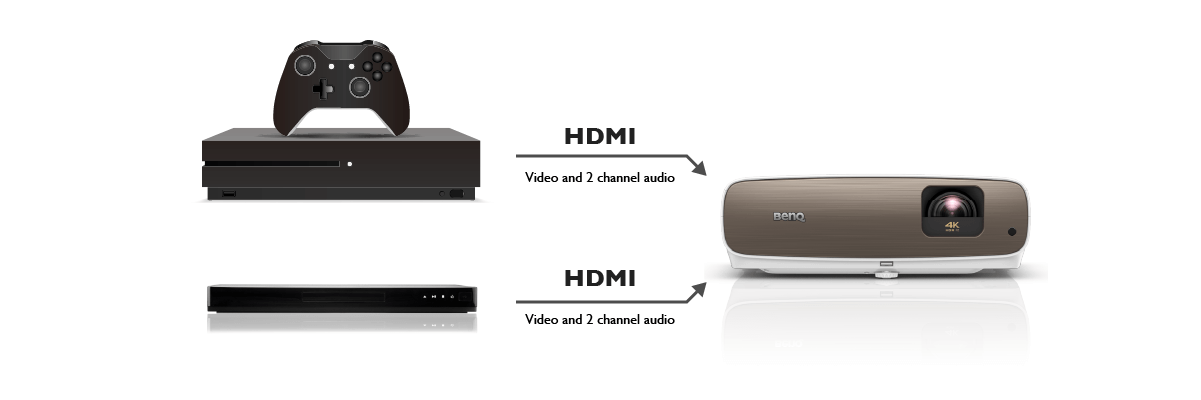
If you don’t have any external speakers to connect, you can directly connect your source devices (for example, game console, DVD player) to the projector and use its internal speakers to play the audio.
To connect a single output source to a soundbar that does not support HDMI, you can connect the HDMI output port on the device to the HDMI input port on the projector to broadcast video, and then connect either the SPDIF output port or 3.5mm audio out jack on the device to the soundbar.
To connect two output sources to a soundbar that does not support HDMI, you can connect the HDMI output port on each device to the two HDMI input ports on the projector to broadcast video, and then connect either the SPDIF output port or 3.5mm audio jack on the projector to the soundbar.
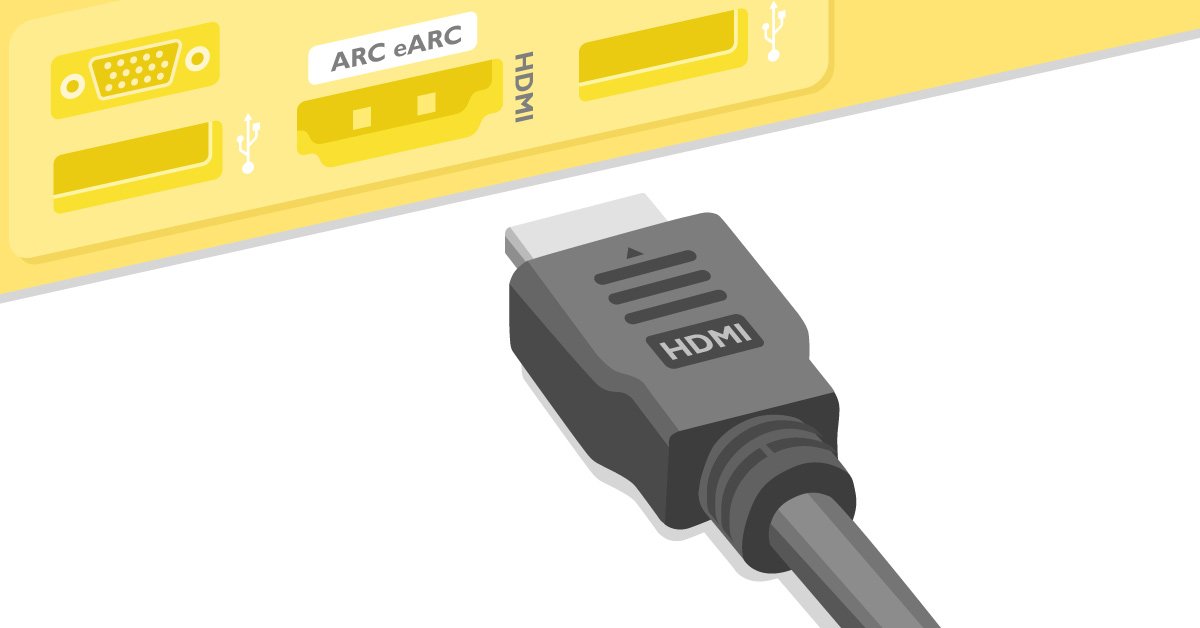
To connect an output source to a soundbar that supports HDMI ARC (Audio Return Channel), you can connect the HDMI output port on the device to the HDMI input port on the projector to broadcast video, and then connect the HDMI ARC output port on the projector to the HDMI ARC port on the soundbar.
To connect an output source with two HDMI output ports to a soundbar, you can connect one of the HDMI output ports on the device to the HDMI input port on the projector to broadcast video, and then connect the other HDMI output port on the device to the HDMI input port on the soundbar.
Because the HDMI input ports on a projector are usually not enough to connect multiple output devices, you will need to connect the HDMI output ports on each output device to an HDMI switch, connect the HDMI output on the HDMI switch to the HDMI input port on the projector, and then connect the HDMI ARC (Audio Return Channel) output port on the projector to the HDMI ARC port on the soundbar.
To connect a single output source to a soundbar that does not support HDMI, you can connect the HDMI output port on the device to the HDMI input port on the projector to broadcast video, and then connect either the SPDIF output port or 3.5mm audio out jack on the device to the soundbar (or other audio or video equipment).
To connect two output sources to a soundbar that does not support HDMI, you can connect the HDMI output port on each device to the two HDMI input ports on the projector to broadcast video, and then connect either the SPDIF output port or 3.5mm audio jack on the projector to the soundbar or AV receiver.
To connect an output source to a Soundbar or other audio or video equiment that does not support HDMI and external speakers you have two options:
To connect an output source with two HDMI output ports to an HDMI AV Receiver and external speakers, you can connect one of the HDMI output ports on the device to the HDMI input port on the projector to broadcast video, while connecting the other HDMI output port on the device to the HDMI input port on the audio and video equipment, and then connect the audio and video equipment, to the external speakers using speaker cables.
Recommended BenQ 4K Projectors
{{item.productWordingTag}}
{{currency}}{{item.finalPrice| numberThousandsCommas | numberDecimalPoint}} Save {{currency}}{{item.saveAmount | numberThousandsCommas | numberDecimalPoint}} Save {{item.savePercent | numberThousandsCommas | numberDecimalPoint}}%
new device price{{currency}}{{item.regularPrice| numberThousandsCommas | numberDecimalPoint}}