{{item.name}}
Price: {{currency}}{{item.price| numberThousandsCommas | numberDecimalPoint}}
Qty: {{item.amount}}


Projectors

Monitors
Lighting
Interactive Displays & Signage
Remote Work & Learning
Shop
You bought an external monitor hoping to boost your productivity on your MacBook. But the moment you connect it, something feels off — the colors don’t match. Everything looks washed out, or just... wrong. You wonder: Is my MacBook’s color profile to blame? Or is this external monitor just not color accurate for MacBook?
You're not alone. Most external monitors simply aren’t built to display colors correctly when connected to a MacBook. The reason is simple: MacBooks follow a unique color display standard that most monitors don’t automatically adjust to match.
Let’s break it all down to show you how the BenQ MA Series, a line of monitors designed specifically for MacBook users, can show Mac colors on your external monitor look just right.
Since 2015 Apple® has been using the Display P3 color gamut in most of their displays, including the built-in displays on their MacBook. But beyond supporting the P3 color gamut, your MacBook’s built-in display is also fine-tuned by Apple to ensure accurate, rich, and consistent color. As a result, while many external monitors claim to support P3, their color temperature, gamma curves (which control contrast), and color rendering often don’t match Apple’s standards. It is this mismatch that causes the colors to appear differently on most external monitors.
One key factor is white point, i.e., the way the monitor defines the color “white.”
MacBooks use a different white point from most PC monitors, which is why you might feel your external monitor looks too yellow or too blue.
The external monitor looks too yellow or too blue.
macOS® uses International Color Consortium (ICC) profiles to manage color consistency across devices. These profiles help your Mac understand how to display colors correctly depending on the display. However, most external monitors don’t provide preset settings optimized for MacBooks or their ICC profiles. And if you try to tweak them manually, chances are the colors still won’t match your MacBook. Here’s what all of this usually results in:
All of this happens because macOS and your monitor aren’t speaking the same “color language.”
Reds are overly saturated, whites look yellowish.
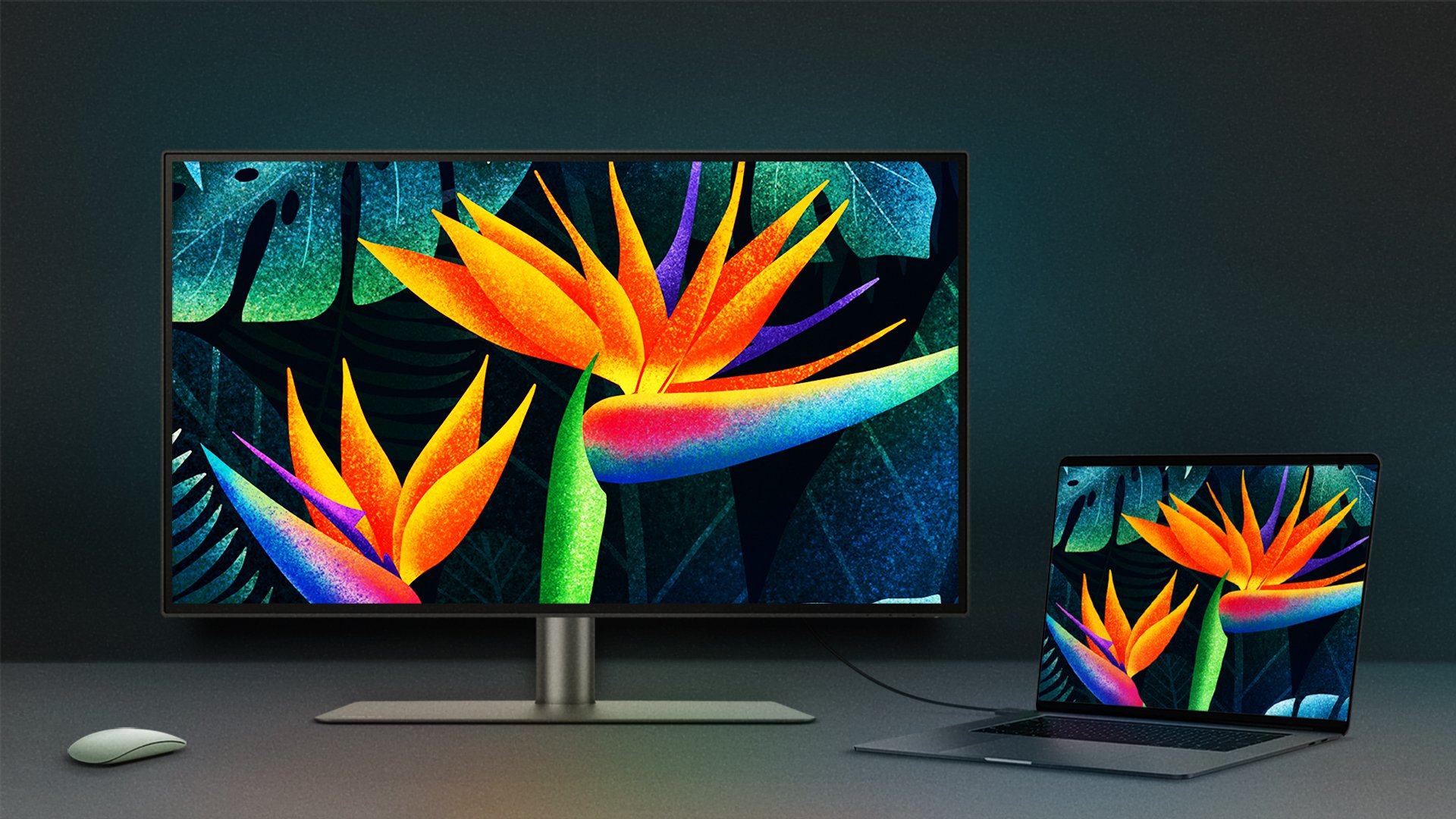
BenQ has spent years developing our expertise in color. With our Mac Color-Tuning Technology, the MA Series is engineered to bring your external monitor as close as possible to the MacBook’s color experience.
Unlike generic P3 monitors, BenQ MA Series displays are tested and tuned in BenQ’s professional color labs to align with MacBook’s visual standards. It’s not just about supporting P3—it’s about achieving true visual consistency.
What makes the MA series different:
.Accurate white point calibration
The MA Series matches MacBook’s white tone, meaning no yellow or blue shifts.
The MA Series matches Apple’s white tone, no yellow or blue shifts.
.Custom gamma curve
The same contrast and brightness balance found in your MacBook is replicated in the MA Series monitors.
The same contrast and brightness balance found in your MacBook.
.Gamut fine-tuning
Going beyond the P3 color gamut, each MA Series model includes specific color parameters tailored for various MacBook models*.
So, when you connect a BenQ MA Series monitor to your MacBook, the colors will instantly match with no manual adjustments required.
*MacBook models released before 2020 support M-book mode but do not have model-specific color tuning.
The MA Series works seamlessly with BenQ Display Pilot 2, a Mac-friendly software that instantly matches and syncs ICC profiles when switching color modes or connecting your Mac devices. It also allows quick, synchronized screen adjustments directly from your MacBook.

Sync with MacBook Control
You can synchronize controls between your MacBook computer and monitor with simple keystrokes, just like you would on your MacBook Pro and MacBook Air®. Simply press the brightness or volume key, and both displays will adjust simultaneously.

ICCsync Color Settings
BenQ ICCsync instantly matches and syncs ICC profiles between your Mac and BenQ monitor.

Sync with Focus Mode
Sync your MacBook's Focus mode with our monitor. Customize advanced settings like color modes, low blue light, volume, and sound modes to enhance your focus better.

The MA Series works seamlessly with BenQ Display Pilot 2, a Mac-friendly software that instantly matches and syncs ICC profiles when switching color modes or connecting your Mac devices. It also allows quick, synchronized screen adjustments directly from your MacBook.
Sync with MacBook Control
You can synchronize controls between your MacBook computer and monitor with simple keystrokes, just like you would on your MacBook Pro and MacBook Air®. Simply press the brightness or volume key, and both displays will adjust simultaneously.
ICCsync Color Settings
BenQ ICCsync instantly matches and syncs ICC profiles between your Mac and BenQ monitor.
Sync with Focus Mode
Sync your MacBook's Focus mode with our monitor. Customize advanced settings like color modes, low blue light, volume, and sound modes to enhance your focus better.
Display Pilot 2 makes your external monitor feel like it truly belongs in the Apple ecosystem.
Tip
What to Look for in an External Monitor for Your MacBook
If you want your external display to show Mac colors, make sure your monitor offers the following:
The BenQ MA Series was built to solve these exact pain points, so you can work, present, watch, and create with confidence, knowing that what you see matches what was intended for your MacBook.
*Apple®, MacBook®, macOS® are registered trademarks of Apple Inc.
Explore Our Picks for You
{{item}}
{{itemTag.title}}
{{productsCount}}Result
{{displaySortType}}
{{item}}
{{item.productWordingTag}}
{{currency}}{{item.finalPrice| numberThousandsCommas | numberDecimalPoint}} Save {{currency}}{{item.saveAmount | numberThousandsCommas | numberDecimalPoint}} Save {{item.savePercent | numberThousandsCommas | numberDecimalPoint}}%
new device price{{currency}}{{item.regularPrice| numberThousandsCommas | numberDecimalPoint}}
Compare Products
{{item.title}}
{{currency+' '}}{{item.finalPrice | numberThousandsCommas | numberDecimalPoint}}
Save {{currency}}{{item.saveAmount | numberThousandsCommas | numberDecimalPoint}}
Save {{item.savePercent | numberThousandsCommas | numberDecimalPoint}}%
{{currency+' '}}{{item.regularPrice | numberThousandsCommas | numberDecimalPoint}}
Max 4 products to compare reached.




![How to Choose the Best Monitor for Mac® Devices [2024]](https://image.benq.com/is/image/benqco/mac-monitor_thumb?$ResponsivePreset$)