{{item.name}}
Price: {{currency}}{{item.price| numberThousandsCommas | numberDecimalPoint}}
Qty: {{item.amount}}

Remote Work & Learning


Projectors

Monitors
Lighting
Interactive Displays & Signage
Remote Work & Learning
Shop
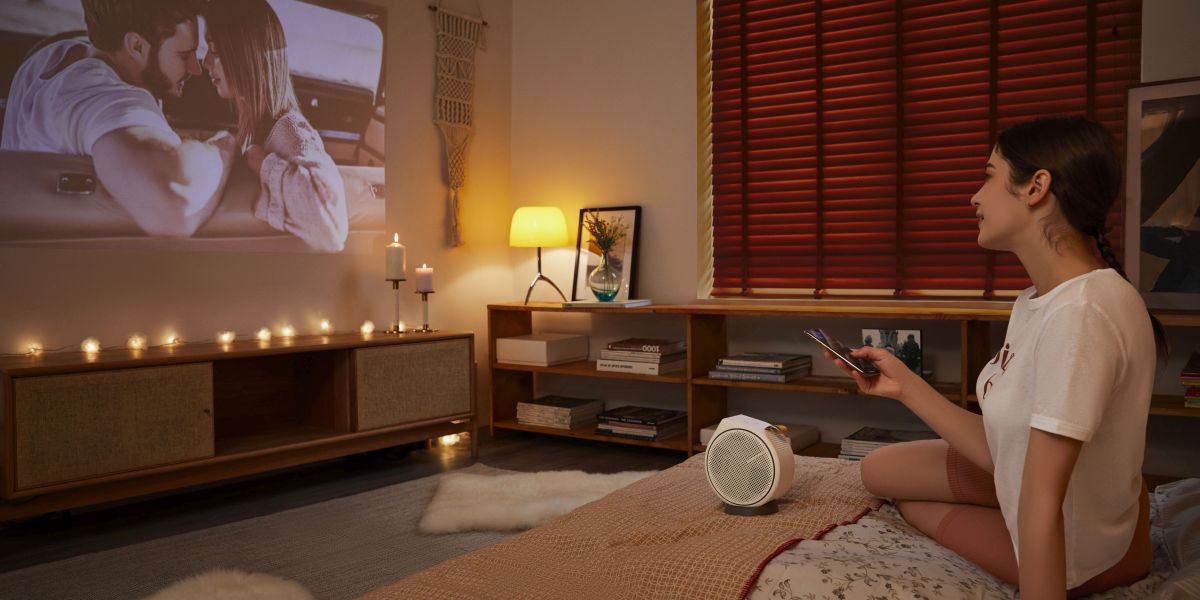
If you’re already using a portable projector or thinking of getting one, then you may be wondering if you can play Netflix through a projector. With strong compatabiliity and functionality, it's easy to have Netflix running on your phone and then pair with the projector so that you watch Netflix (or other streaming apps) on the big screen. While setting up, there are several things to keep in mind, and we want to offer this troubleshooting guide to help. We’ll look at issues with streaming Netflix from phone to projector, touch on wired connectivity concerns, and cover convenient ways to control apps directly from your phone.
While our focus here applies to portable projectors, do note that most of this article also refers to home cinema projectors such as the BenQ TK860i.
Let’s take a look at the common concerns:
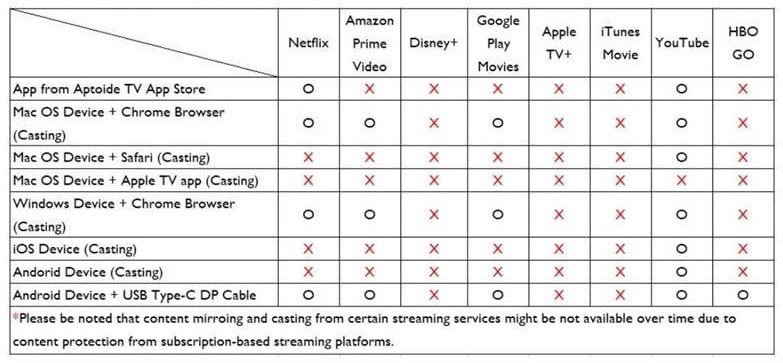
Paid streaming apps like Netflix, Prime Video, Max, Hulu, and Disney Plus have copy protection that prevents mirroring from mobile devices due their strict policies. But, Netflix’s content can be cast wirelessly via your laptop’s Google Chrome Browser. Watch this video for how to cast Netflix via your laptop’s Google Chrome Browser.
Alternatively, you can plug a media device like an Apple TV or Chromecast to your projector via HDMI and use the apps installed on the media device. The same goes for gaming consoles such as the Xbox and PlayStation. Plug them via HDMI to the projector and then run the Netflix app installed on the console.
If you prefer simple setups with no additional devices beyond your projector, you can use the Aptoide TV platform that comes installed on selected projectors. Aptoide is an app store much like those found on Android or iOS, with several streaming apps available. The Aptoide TV store has versions of Netflix, Max, Amazon Prime Video, and YouTube. However, as mentioned above, due to app developer and owner content policies some restrictions may still apply when mirroring.
BenQ has a Smart Control app that you can download to your phone. The app replaces the physical remote control and keypad on the projector and gives you control of projector functions directly from your smartphone. Since modern projectors have Wi-Fi, it’s all very easy. All you need to do is make sure your projector and phone are signed in to the same wireless network, so they can detect each other and communicate across devices.
Download BenQ Smart Control from the App Store / Google Play
We have a BenQ Smart Control app tutorial available right here: https://www.youtube.com/watch?v=J_wsP3W1id0
For this issue, the most important aspectn is to make sure you’re using USB-C cables that support DisplayPort Alt Mode in order to deliver video. Your phone or laptop also needs to support DisplayPort 1.2 or later with Alt Mode for USB-C video delivery, and the cable needs to support USB-C data carriage, not just power delivery.
HDMI offers a much better alternative if you’re using a laptop, as all versions of HDMI carry video. If you’re using an iOS device, you’ll need a cable or converter that’ll switch from the source Lightning port to HDMI. While plenty of options exist on the market, do keep in mind every conversion step increases the odds of compatibility issues. We strongly suggest our customers buy cables with a Made for iPhone/iPad logo (MFi).
GV11, GV30, GV31, and GV50 are members of the same family, and they share a unique round design that gives them wide-angle projection and makes viewing content on any surface easy, including your ceiling. Enjoy your laid-back movie time with the BenQ GV series of portable projectors.

Recommended Products
{{item.productWordingTag}}
{{currency}}{{item.finalPrice| numberThousandsCommas | numberDecimalPoint}} Save {{currency}}{{item.saveAmount | numberThousandsCommas | numberDecimalPoint}} Save {{item.savePercent | numberThousandsCommas | numberDecimalPoint}}%
new device price{{currency}}{{item.regularPrice| numberThousandsCommas | numberDecimalPoint}}