Projectors
Monitors
Lighting
Interactive Displays & Signage
Remote Work & Learning
Wireless PresentationShop
Welcome to BenQ Europe
How can I change my BenQ cookie settings?
Some essential features on BenQ sites just won’t work without cookies. And having other cookies switched off can seriously affect the way you’ll be able to enjoy our services.
Please check your cookie settings below and turn on any cookies you’re happy with.
“Strictly necessary” cookies can’t be turned off. But Functional and Performance cookies can be turned on or off below. You can learn more about cookies and what they do on our other pages.
If you've chosen to block third-party cookies on your browser, your cookie preferences won't carry over from benq.eu to benq.xx and vice versa. Please make sure to set your cookie preferences in both places.
On
Strictly necessary cookies
These cookies are essential so that you can move around the website and use its features. Without these cookies services you have asked for cannot be provided.
On
Off
Functional cookies
These cookies allow the website to remember choices you make to give you better functionality and personal features.
On
Off
Performance cookies
These cookies help to improve the performance of BenQ. If you want to opt-out of advertising cookies, you have to turn-off performance cookies.
Need help choosing your next BenQ product? Our online Live Chat connects you with real experts. No bots - just genuine human assistance.
Chat with us today!Need help choosing your next BenQ product? Our online Live Chat connects you with real experts. No bots - just genuine human assistance.
Chat with us today!
The upcoming PlayStation 5 and Xbox Series X, as well as new graphics cards from NVIDIA and AMD, all have one thing in common. They’re all going to support HDMI 2.1 and aim to go beyond 4K and closer to 8K resolution. The biggest thing with HDMI 2.1 is the exponential growth in bandwidth compared to HDMI 2.0, which has been most associated with 4K 60Hz. However, HDMI 2.0 also does have the ability to execute 4K 120Hz. As we’ve discussed before, it’s all a matter of bandwidth and the right settings.
Getting it to Work
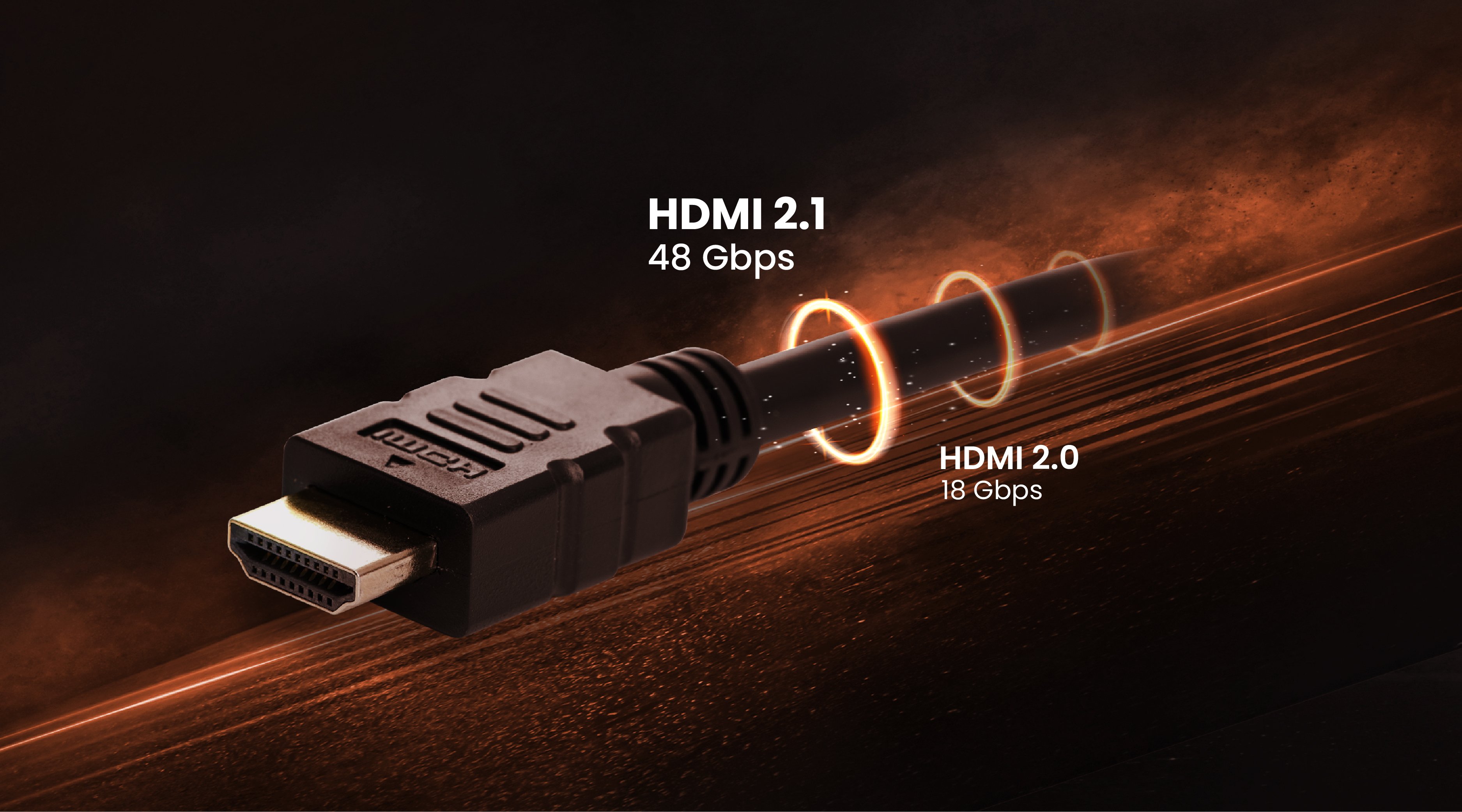
HDMI 2.1 has 48Gbps carry capacity, compared to just 18Gbps for HDMI 2.0. Now, the 18Gbps of HDMI 2.0 assumes video delivery with HDR, 4:4:4 chroma, and 10-bit color coding. At a resolution of 3840 x 2160, that would fill up the entire bandwidth with a maximum framerate of 60Hz, and often 4:4:4 won’t be possible, only 4:2:2. However, if we can force 8-bit color coding (16.7 million colors), no HDR, and 4:2:0 chroma subsampling, then 4K 120Hz actually turns out to “cost” about 16Gbps, which is technically possible on HDMI 2.0.
Current game consoles and graphics cards all allow for such controls over video settings, although many games and apps will force override user-defined parameters. In theory, though, HDMI 2.0 (effectively HDMI 2.0b since late 2016) can do 4K 120Hz.
This mostly applies to PC, where cards like the GTX 2080 Ti can actually pull off 120 frames per second in certain games while running in 4K. The PS4 Pro and Xbox One X won’t allow 120Hz in 4K anyway. At most you’ll be able to get 120Hz in 1440p with some televisions and monitors, though you’re more likely to be limited to 120Hz in 1080p, even if you have a very fast 2K display.
So, if you currently have a top of the line NVIDIA card, go into the NVIDIA Control Center and change display settings as described above. Force 8-bit color, limited RGB, and 4:2:0 chroma subsampling. Right click on your Windows desktop, go into display settings there, and make sure HDR is unchecked. This’ll save every bit of bandwidth possible so you can squeeze those 120 frames per second via HDMI 2.0 whenever possible.
Several “buts” if we’re being honest. If you’re on PC, then you may as well save yourself all this video math by going with DisplayPort, which since version 1.3 has been able to do 4K 120Hz with ease thanks to an effective bandwidth of nearly 30Gbps. This is why you have plenty of wonderful 100Hz and above monitors in and around 4K to choose from in the PC realm, as DisplayPort is standard in that context. However, HDMI offers a far more universal approach and works equally well for PCs, consoles, and a whole host of input sources, like streaming boxes. While USB-C alt mode may increase the ubiquity of DisplayPort, for now HDMI is the more popular. Which is why we thought you’d want to know that 4K 120Hz is already doable with HDMI.
Another important “but” is that HDMI 2.0 doesn’t officially support 4K at over 60Hz, only HDMI 2.1 does. Experimenting and trying to force 120Hz won’t hurt anything or invalidate warranties, but it may not work. A lot of it will also depend on the quality of the HDMI cable you’re using. Good ones have the full 18Gbps while shady products may go as low as 15Gbps, which won’t be enough. Go with an ultra high speed HDMI cable from a brand you know and trust.
Also, don’t expect your PS4 Pro or Xbox One X to accept 4K resolution at 120Hz refresh rate. They simply won’t allow that combination, so no need to get frustrated. In practical terms, 4K 120Hz is a PC-only combo for now, at least until more powerful consoles arrive.
Recommended Products
{{item.productWordingTag}}
{{currency}}{{item.finalPrice| numberThousandsCommas | numberDecimalPoint}} Save {{currency}}{{item.saveAmount | numberThousandsCommas | numberDecimalPoint}} Save {{item.savePercent | numberThousandsCommas | numberDecimalPoint}}%
new device price{{currency}}{{item.regularPrice| numberThousandsCommas | numberDecimalPoint}}