{{item.name}}
Price: {{currency}}{{item.price| numberThousandsCommas | numberDecimalPoint}}
Qty: {{item.amount}}

Remote Work & Learning


Projectors

Monitors
Lighting
Interactive Displays & Signage
Remote Work & Learning
Shop
For many programmers and engineers, hybrid and work-from-home setups are now standard. That makes the home office more than just a desk. It’s where focus is built or lost.
The wrong lighting setup quietly drains concentration, accelerates eye strain, and makes deep work harder than it needs to be. The right lighting, on the other hand, turns your workspace into an environment that supports long coding sessions without burning you out.
This guide explores the best home office lighting from the perspective of programmers and engineers, covering how it affects screen work, the technical factors to consider, and setups that solve common coding pain points.
Screens already push your eyes to their limits with glare, contrast shifts, and blue light. That’s where ambient lighting plays an important role. Add poor lighting on top of it, and you multiply the stress.
The difference between bad lighting and good lighting is the difference between constant fatigue and sustained focus:
Lighting Factor
Bad Lighting
Good Lighting
Brightness (lx)
Too dim or too bright makes eyes overwork
Aim for around 500 lx at desk level
Contrast Glare
Bright screen in a dark room causes visual fatigue
Balanced ambient light reduces contrast glare
Screen Glare
Reflections on screen cause headaches and broken concentration
Asymmetric design reduces glare, keeps code readable
Color Temperature (K)
Using the wrong color temperature at the wrong time disrupts circadian rhythm and strains eyes
Different ranges support different needs:
2700K–3000K for winding down
4000K–5000K for focus
5000K–6500K for daylight simulation
CRI (Color Rendering Index)
Low CRI causes distorted colors, harder to read charts/graphics
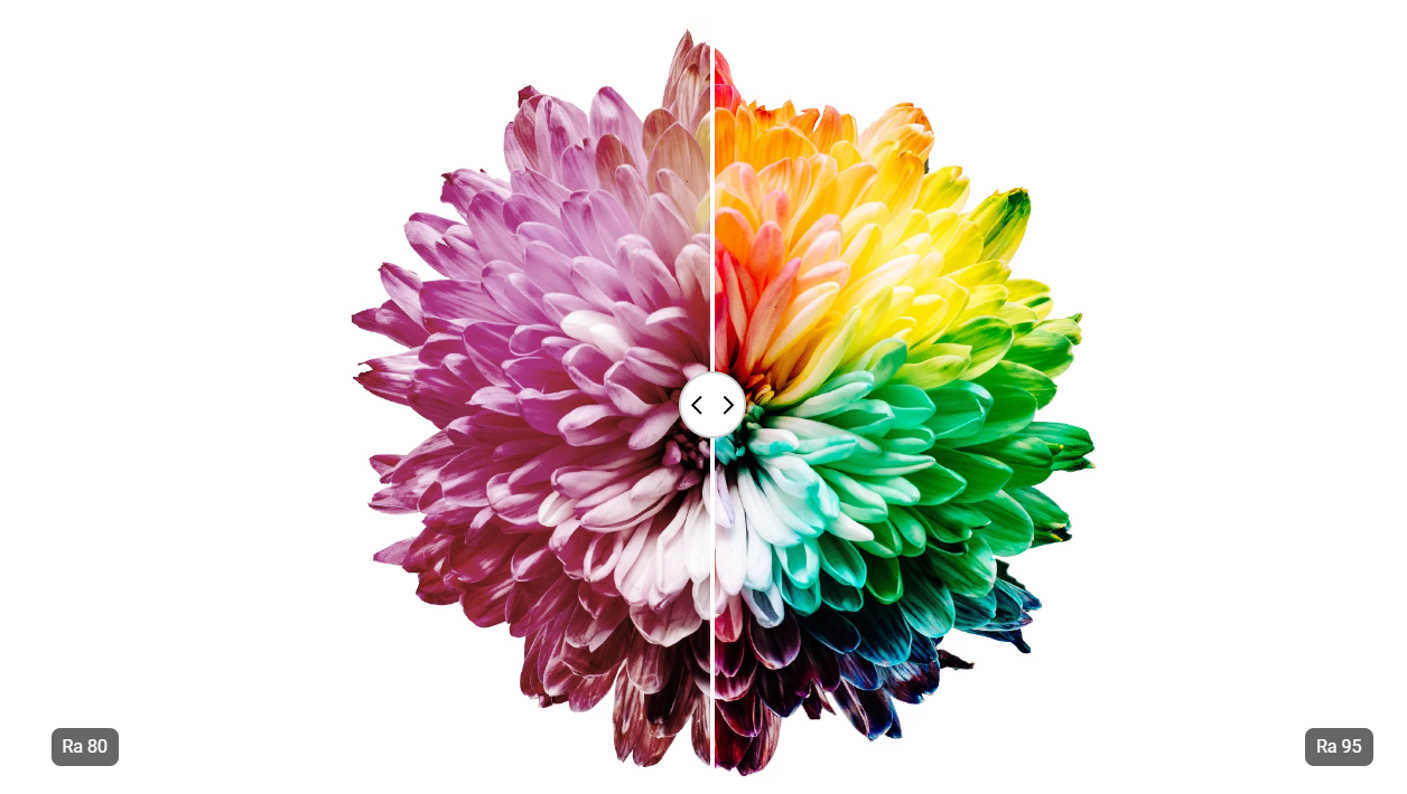
CRI ≥80 ensures accurate visuals for design/debugging
Flicker
Unstable drivers cause micro-flicker, eye strain, headaches
Flicker-free LED keeps output stable for long sessions
In short, bad lighting drains you, good lighting supports you, and the difference is in the details. Next, let’s unpack the technical factors behind these differences so you can design a setup that truly works.
For programmers, these “details” translate into specs you can actually measure: lx levels, color temperature, CRI, glare control, and flicker. Let’s look at why each of them matters when you’re setting up your home office lighting.
Keep your desk around 500 lx. Too dim and your eyes overwork; too bright and glare competes with your monitor. The best balance comes from combining ambient light with a focused task light.
Light color influences both focus and rest:
Color Temperature (K)
How It Helps You
2700K–3000K
Helps you wind down at night
4000K–5000K
Supports coding and debugging
5000K–6500K
Simulates daylight for maximum alertness
A CRI ≥ 80 ensures colors appear true to life, which is essential if you’re reviewing UI elements, debugging visualizations, or working on design tasks.
Glare comes in multiple forms: contrast glare from a bright screen in a dark room, direct glare from light shining straight into your eyes, and indirect glare from light reflected on your monitor. All of these, along with flicker from low-quality LEDs, cause fatigue and headaches. Stable drivers, balanced ambient light, and asymmetric optical design prevent these issues.
A good lighting setup lets you dim brightness, tune color temperature, and angle the light to avoid glare depending on the task at hand. Customizable color temperature also supports circadian rhythm: cooler light (around 4000K–5000K) helps you stay alert during coding, while warmer light (2700K–3000K) makes it easier to wind down at night.
Unlike many conventional LEDs, the ScreenBar Series is designed with no blue light hazard, ensuring safe, comfortable lighting even during long coding sessions.
LEDs with long lifespans and quality builds mean consistent lighting over the years, without the need for frequent replacements.
When choosing the best home office lighting, specs like brightness, color temperature, and CRI are essential, but they don’t tell the whole story. Not every programmer’s setup is the same: some work beside windows, others in windowless rooms, and many shift from day to night without moving desks. Each environment creates unique challenges, and your lighting should adapt accordingly.
Near a Window: Control Glare, Balance Daylight
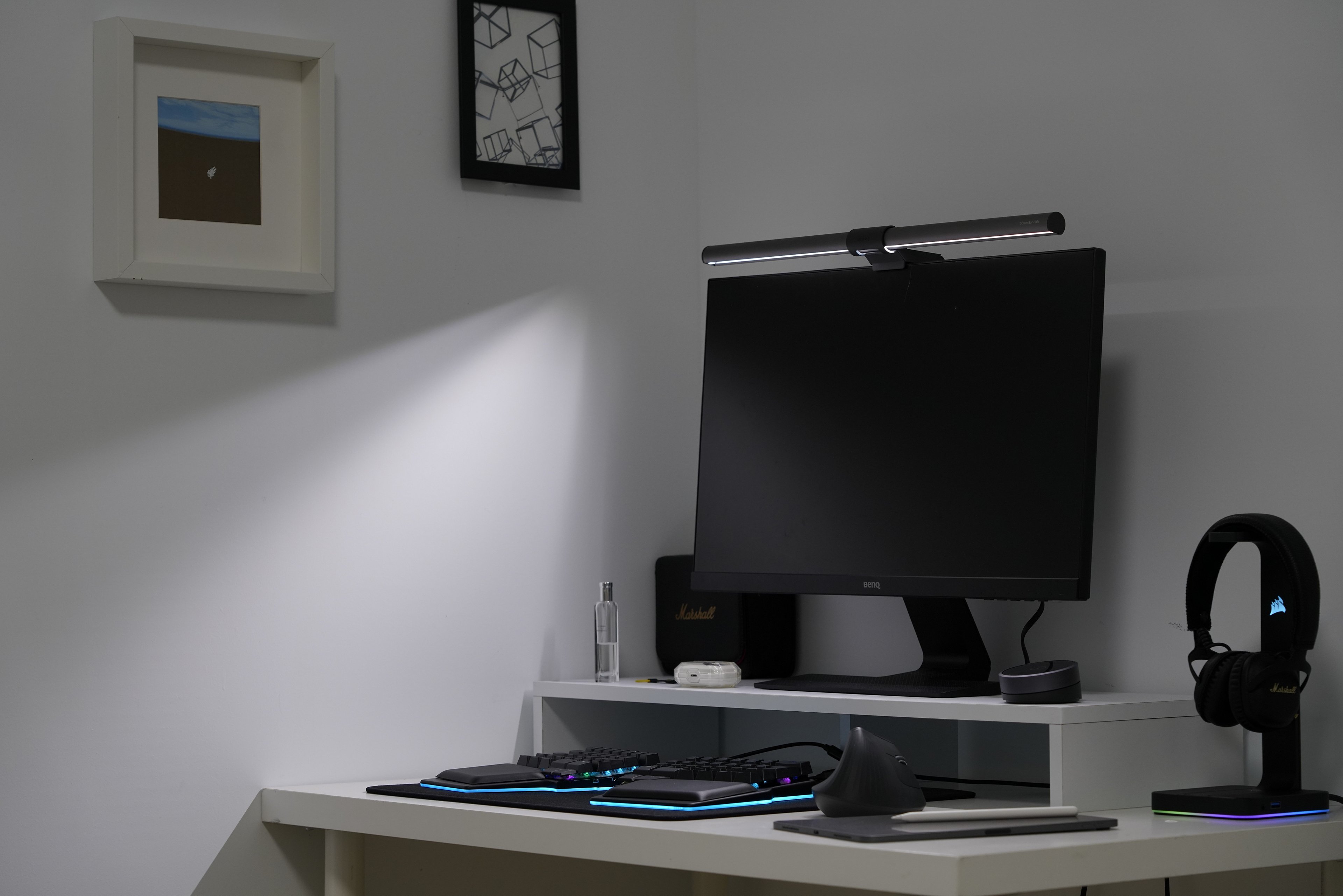
Natural light is a gift, but direct sunlight across your monitors creates harsh reflections. The solution is controlled balance: use blinds or curtains to diffuse daylight, and pair it with a monitor-mounted light bar such as the ScreenBar Halo 2. Its asymmetric design ensures the desk is evenly lit without spilling onto the screen, letting you enjoy daylight while keeping code sharp and readable.
No-Window Workspace: Simulate Natural Light
In a room without windows, your monitor becomes the brightest light source, forcing your eyes to work overtime. To avoid the “bright screen in a dark room” effect, choose lighting that mimics daylight (5000K–6500K).
The ScreenBar Halo 2 delivers 500 lx of desk coverage and adds a gentle backlight behind your monitor, reducing the contrast between the screen and wall so you can code longer without fatigue.
Day-to-Night Transition: Adapt Lighting as You Work
Many engineers start coding in daylight and continue into late hours. A static lamp won’t cut it. ScreenBar Halo 2’s wireless controller lets you fine-tune brightness and color temperature from 2700K to 6500K, supporting alertness during debugging sessions and comfort when winding down.
Whether you’re working in a sunlit loft or a windowless corner, the right lighting setup turns your space into an environment built for focus. For screen-heavy work, the ScreenBar Halo 2 ensures that your desk and monitor stay perfectly balanced: no glare, no wasted space, just lighting that keeps you in the zone.
Q1: Is 3000K or 4000K better for home office?
4000K is generally better for focused work. 3000K is suggested in the evening when winding down.
Q2: How bright should a desk lamp be for your home office?
A good desk setup should provide about 500 lx at desk level. Use a desk lamp as a task light for your work area, and ambient light for even, comfortable brightness across the workspace.
Q3: Is warm or cool light better for coding?
Cooler light (4000K–5000K) keeps you alert and reduces eye strain for long coding sessions. Warmer light (2700K–3000K) is suitable for late-night maintenance tasks.
Q4: What is the best office lighting for eyes?
Balanced ambient light plus task lighting that avoids glare and flicker. A monitor light bar is ideal for screen-heavy setups.
Choosing the right home office lighting is like optimizing your workflow: fix the fundamentals and the rest becomes easier. The right setup balances brightness, color temperature, and contrast so your eyes stay comfortable and your focus sharp.
Lighting is only one variable in the equation of eye comfort. For a complete solution, you also need proper breaks, screen positioning, and daily eye-care habits. We’ve covered those in detail in our guide: Protect Your Eyes from Screen Overuse
Treat lighting as infrastructure for your work. Once it’s in place, you’ll notice the difference, not just in comfort, but in how long you can stay in the zone.
Monitor Lighting that Empowers Your Focus and Flow
Recommended Products
{{item.productWordingTag}}
{{currency}}{{item.finalPrice| numberThousandsCommas | numberDecimalPoint}} Save {{currency}}{{item.saveAmount | numberThousandsCommas | numberDecimalPoint}} Save {{item.savePercent | numberThousandsCommas | numberDecimalPoint}}%
new device price{{currency}}{{item.regularPrice| numberThousandsCommas | numberDecimalPoint}}