{{item.name}}
Price: {{currency}}{{item.price| numberThousandsCommas | numberDecimalPoint}}
Qty: {{item.amount}}


Projectors

Monitors
Lighting
Interactive Displays & Signage
Remote Work & Learning
Shop
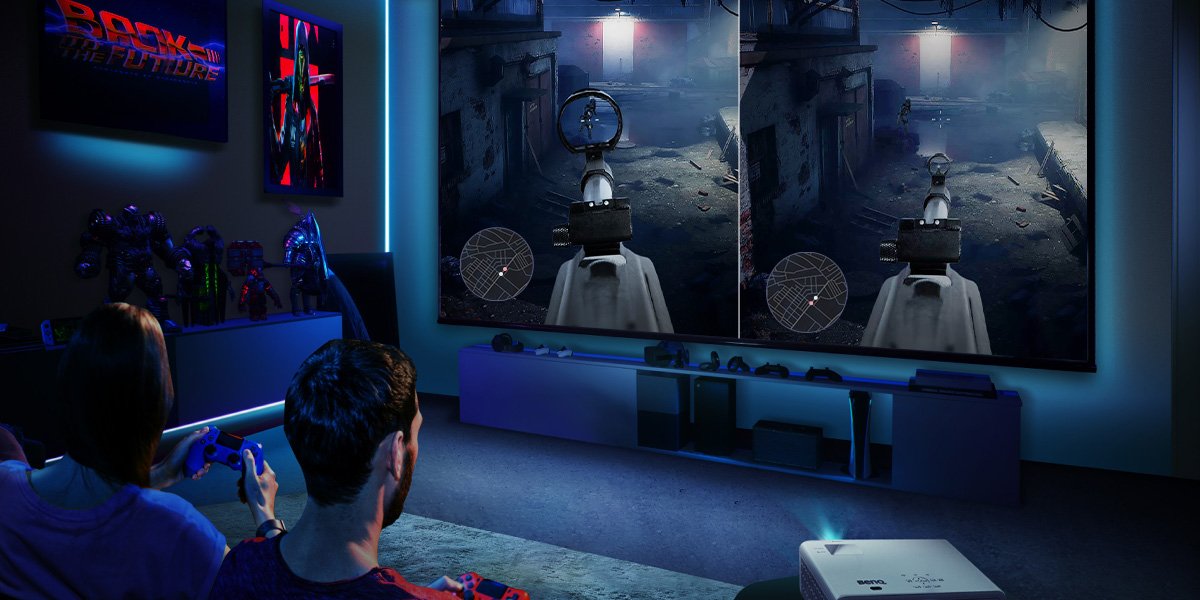
Halo titles have always been local play-friendly and geared towards multiplayer. With the exception of Halo 5, all of them have had some form of split screen local multiplayer or campaign co-op. In this article we’ll be looking at how to set up Halo Infinite on your Xbox One and Xbox Series X/S consoles for split screen multiplayer, so you can compete with your friends right at home on the big gaming projector screen, or join a campaign together and take on the Banished with the local co-op feature added to Halo Infinite.
If you want to learn more about Halo Infinite’s graphics modes to ensure the best performance, read this article.
Due to differences in processing power and development goals by 343 Industries, Xbox One consoles offer two player split screen while current generation Xbox Series X/S consoles allow for Halo Infinite four player split screen. That’s perfect if you have more people over, and means that the newer consoles are a better fit for low latency 4K HDR gaming projectors with screens in the 120” and bigger range.
The one big catch is that, unlike the days of Halo and Halo 2, everyone needs to have a gamertag, which means a Microsoft account. To play split screen, each player needs to be signed in, since guest accounts are not supported in Halo Infinite.
The process is:
More Tips for Halo Infinite Split Screen
The more players you have on one display, the bigger your screen should preferably be. Projectors with their huge image sizes possibilities are a better fit for split screen than monitors or TVs, as you don’t have to crowd around a smaller display with a bunch of friends. With gaming projectors, such as the BenQ X Series, you get 120” or more in screen size and sit back in comfort while maintaining extremely low input lag. In 4K 60Hz, that’s just over 16ms, while 1080p 120Hz is as low as 8ms, which is good for Halo Infinite because it offers a 120Hz mode on both Xbox Series consoles. This is the mode you want to choose for split screen multiplayer, because it’s responsive, sleek, and maximizes your in-game performance. In the single player campaign, 4K 60Hz with higher visual settings is preferred, but those aren’t as important in multiplayer, where swift responses count more than anything else.
If you want to take Halo Infinite action to your study, then we recommend having a 4K, high refresh rate, low latency gaming monitor like the BenQ MOBIUZ EX2710U or EX3210U. But, as mentioned above, for split screen enjoyment the bigger the screen, the better. A monitor is great if you’re gaming on your own, but for multiple players nothing beats a massive projected image that’s fast and detailed.
Have fun with those local multiplayer matches!
Recommended Products
{{item.productWordingTag}}
{{currency}}{{item.finalPrice| numberThousandsCommas | numberDecimalPoint}} Save {{currency}}{{item.saveAmount | numberThousandsCommas | numberDecimalPoint}} Save {{item.savePercent | numberThousandsCommas | numberDecimalPoint}}%
new device price{{currency}}{{item.regularPrice| numberThousandsCommas | numberDecimalPoint}}