Projectors
Accessories
Accessories
Projectors
Monitors
Lighting
Accessories
Interactive Displays & Signage
Shop
Welcome to BenQ Europe
How can I change my BenQ cookie settings?
Some essential features on BenQ sites just won’t work without cookies. And having other cookies switched off can seriously affect the way you’ll be able to enjoy our services.
Please check your cookie settings below and turn on any cookies you’re happy with.
“Strictly necessary” cookies can’t be turned off. But Functional and Performance cookies can be turned on or off below. You can learn more about cookies and what they do on our other pages.
If you've chosen to block third-party cookies on your browser, your cookie preferences won't carry over from benq.eu to benq.xx and vice versa. Please make sure to set your cookie preferences in both places.
On
Strictly necessary cookies
These cookies are essential so that you can move around the website and use its features. Without these cookies services you have asked for cannot be provided.
On
Off
Functional cookies
These cookies allow the website to remember choices you make to give you better functionality and personal features.
On
Off
Performance cookies
These cookies help to improve the performance of BenQ. If you want to opt-out of advertising cookies, you have to turn-off performance cookies.
Win a MOBIUZ OLED Monitor
Enter NowWin a MOBIUZ OLED Monitor
Enter Now
Important Product Recall Notice - GV31
Read moreImportant Product Recall Notice - GV31
Read more
Need advice? Our online chat connects you with real experts instead of bots
Chat with us todayNeed advice? Our online chat connects you with real experts instead of bots
Chat with us today
Why is my 144Hz / 165Hz / 240Hz monitor only running at 60Hz? You’ve purchased a monitor that claims to offer a 120Hz or 144Hz / 165Hz / 240Hz refresh rate but it may not actually run at its advertised refresh rate. You will find out what to do, to change some settings or sort out your hardware, to set your monitor to 144Hz / 165Hz / 240Hz and enjoy a smooth gameplay.
Check your display setting to see if it supports 144Hz / 165Hz / 240Hz. The easiest way is to turn on your OSD and find it. If it does, select 144Hz / 165Hz / 240Hz and then configure.
You then need to check Windows is actually set at the advertised refresh rate and not a lower refresh rate, like 60Hz.
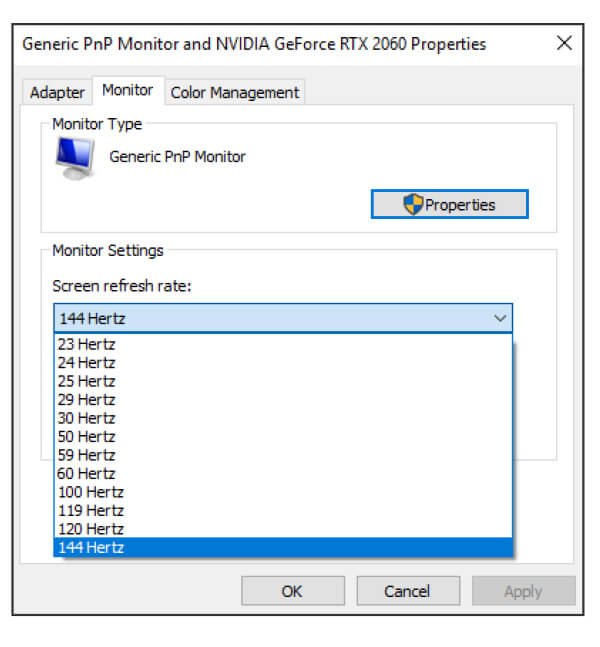
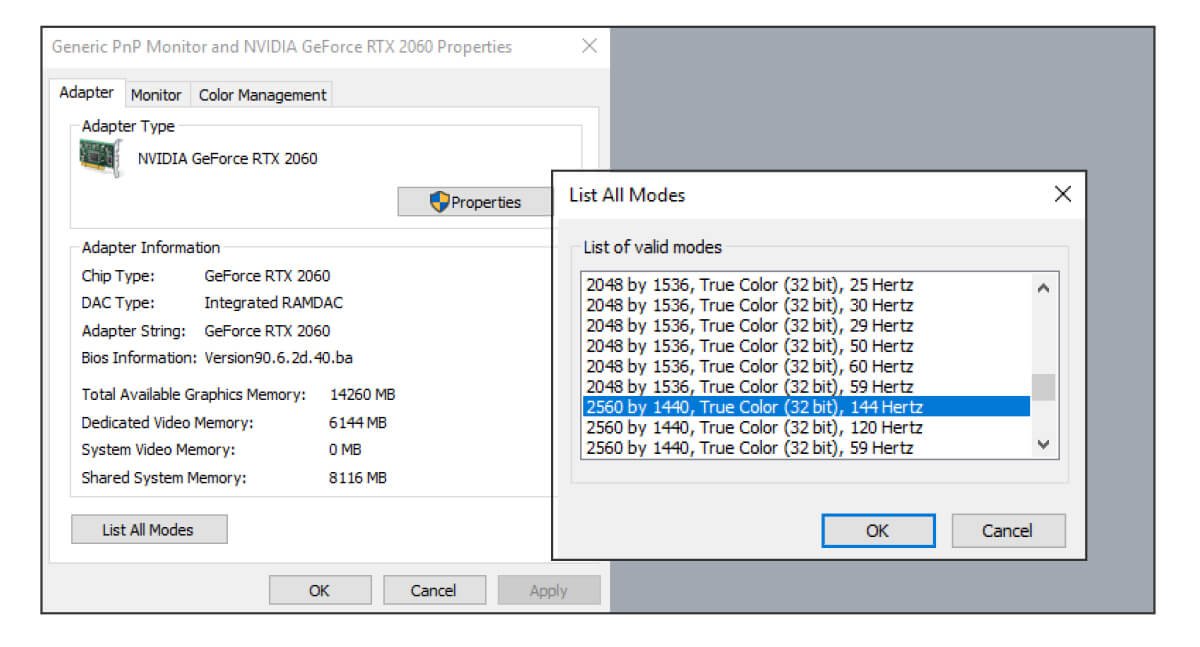
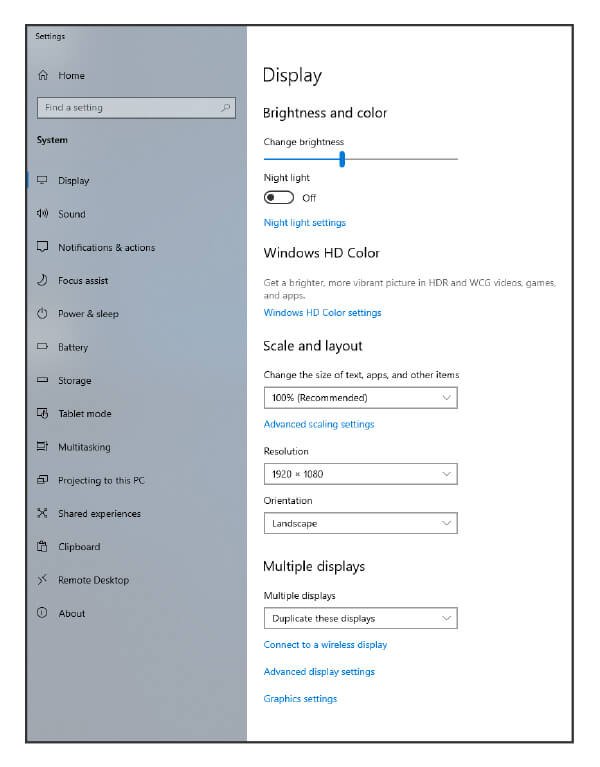
If you are running Win 10, follow this: Setting > System > Display > Advanced Display Settings > Display Adapter Properties.
Then click the “Monitor” tab, choose your monitor’s advertised refresh rate from the “Screen Refresh Rate” list, and click “OK.”
NVIDIA
If you are running Win 11, follow this:
1. Launch the Start menu, search for Settings, and click on the Best match.
2. From the sidebar, click on System and then navigate to Display > Advanced display.
3. In the Choose a refresh rate dropdown box, select the advertised refresh rate.
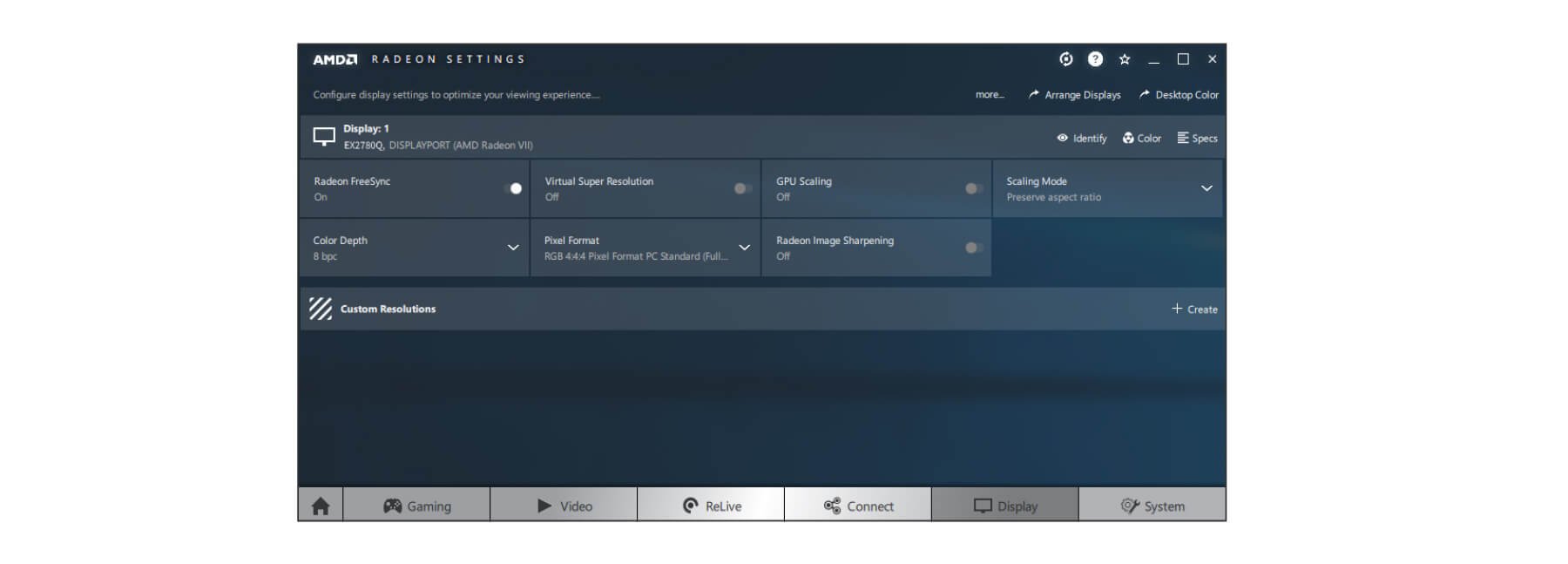
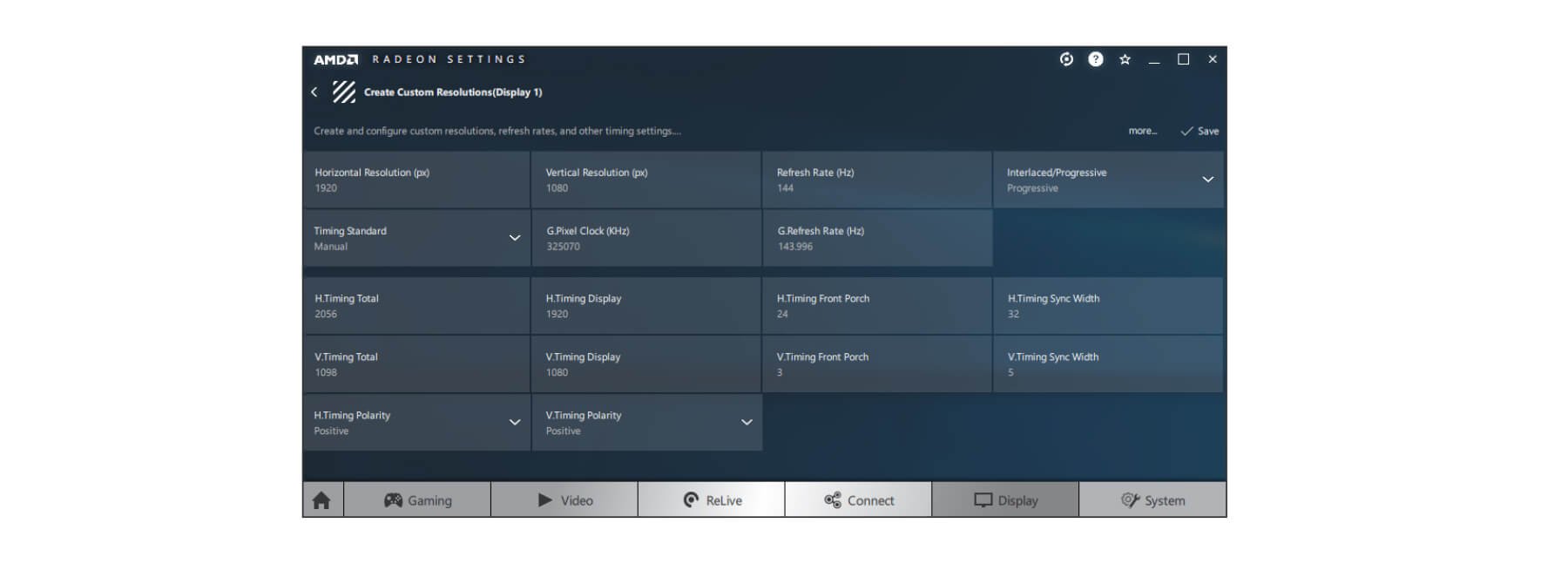
Graphics cards also offer refresh rate setup interface, reference as below:
AMD
If you still don’t seem to get your monitor configured at the advertised refresh rate–there’s more you need to do.
• Port
If you want to expect a high refresh rate, it’s necessary to pay attention to the ports your monitor came with. Some monitors may use both HDMI and DisplayPort ports at the same time but will be limited to a lower refresh rate when connected via HDMI. You then need to use a DisplayPort cable.
• Cable bandwidth
DisplayPort generally supports video resolutions of up to 3840 x 2160 pixels at 120Hz and the maximum bandwidth sent through a DisplayPort cable is 32.4 Gbps. While the most used HDMI is HDMI 1.4, it supports 4K resolution at 30Hz. The maximum bandwidth for HDMI 1.4 is 10.2 Gbps. Then you need to use the “Premium High-Speed” HDMI cable, not the standard one.
* There’s also RBR (Reduced Bit Rate) DisplayPort cables which only support 1080p.
For more information, visit below websites for more information:
https://www.displayport.org/product-category/cables-adaptors/
• Cable quality
You can also check the cable that came with your monitor. Cheap and low-quality cable can cause problems such as flickering and refresh rate drop. You then need to replace the cable with a high-quality one.
After excluding the listed cable issues, you can go on to check the following issues.
• Check your computer’s GPU.
Integrated graphics or older discrete graphics might not support your monitor’s refresh rate. Check your graphics card to see if it supports the monitor’s resolution and refresh rate.
• Update graphics drivers.
Check and install the latest available version from NVIDIA or AMD’s website.
• Check for native resolution
We’d recommend that you set your monitor setting to the native resolution for the best display quality. Or, you can check the user’s manual for BenQ-qualified timings.
*Be sure to check your GPU and update your graphics drivers before this.
• Adjust In-Game Setting
If the game you’re playing has its own integrated graphics settings, try to select your monitor’s native resolution and the refresh rate of 120Hz or 144Hz / 165Hz / 240Hz in each game’s graphics options menu or that game may use a lower refresh rate.
After going through all these steps, you will figure out what cause the refresh rate drop and fix them. Enjoy a smooth gameplay at 144Hz / 165Hz / 240Hz.
{{item.productWordingTag}}
{{currency}}{{item.finalPrice| numberThousandsCommas | numberDecimalPoint}} Save {{currency}}{{item.saveAmount | numberThousandsCommas | numberDecimalPoint}} Save {{item.savePercent | numberThousandsCommas | numberDecimalPoint}}%
new device price{{currency}}{{item.regularPrice| numberThousandsCommas | numberDecimalPoint}}