Projectors
Accessories
Accessories
Projectors
Monitors
Lighting
Accessories
Interactive Displays & Signage
Shop
Welcome to BenQ Europe
How can I change my BenQ cookie settings?
Some essential features on BenQ sites just won’t work without cookies. And having other cookies switched off can seriously affect the way you’ll be able to enjoy our services.
Please check your cookie settings below and turn on any cookies you’re happy with.
“Strictly necessary” cookies can’t be turned off. But Functional and Performance cookies can be turned on or off below. You can learn more about cookies and what they do on our other pages.
If you've chosen to block third-party cookies on your browser, your cookie preferences won't carry over from benq.eu to benq.xx and vice versa. Please make sure to set your cookie preferences in both places.
On
Strictly necessary cookies
These cookies are essential so that you can move around the website and use its features. Without these cookies services you have asked for cannot be provided.
On
Off
Functional cookies
These cookies allow the website to remember choices you make to give you better functionality and personal features.
On
Off
Performance cookies
These cookies help to improve the performance of BenQ. If you want to opt-out of advertising cookies, you have to turn-off performance cookies.
Win a MOBIUZ OLED Monitor
Enter NowWin a MOBIUZ OLED Monitor
Enter Now
Important Product Recall Notice - GV31
Read moreImportant Product Recall Notice - GV31
Read more
Need advice? Our online chat connects you with real experts instead of bots
Chat with us todayNeed advice? Our online chat connects you with real experts instead of bots
Chat with us today
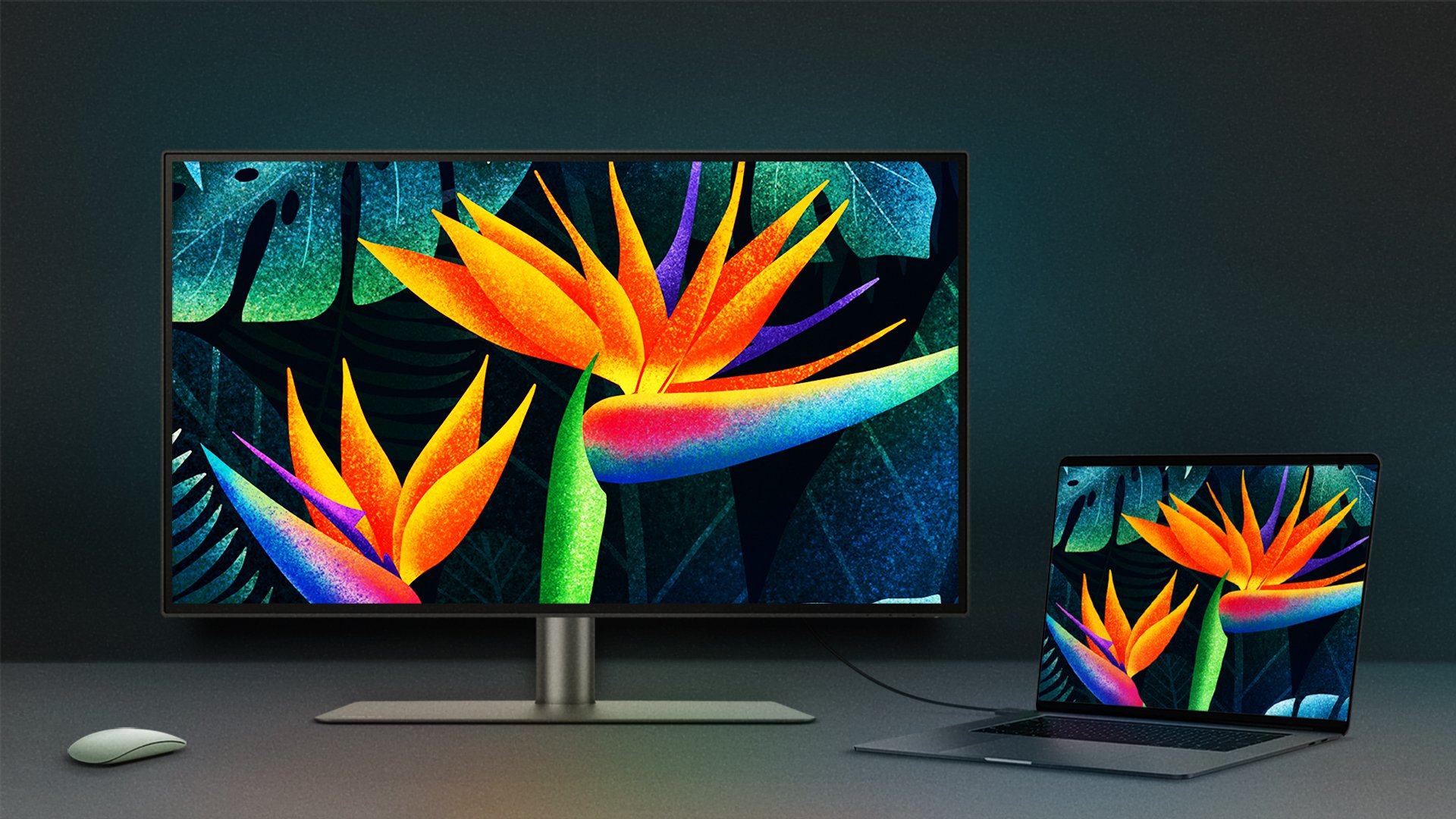
A MacBook’s display is known for its high resolution, vibrant colors, and smooth performance. or those using MacBook Pro®, MacBook Air®, Mac Studio®, and the Mac mini®, an external monitor can significantly enhance multitasking, creative workflows, and overall productivity. Selecting the right monitor isn’t just about screen size. Compatibility, Mac® color-matching, and connectivity are key factors in ensuring a seamless experience with macOS. Here’s what to consider when choosing the perfect external monitor for your Mac setup.
To ensure a hassle-free experience, the best external monitors for Mac should work seamlessly with a range of Apple® devices, including the MacBook Pro, MacBook Air, Mac Studio, and Mac Mini. A Mac-compatible monitor eliminates the need for extra adapters or workarounds, providing native support for macOS features like scaling, True Tone, and automatic brightness adjustments.
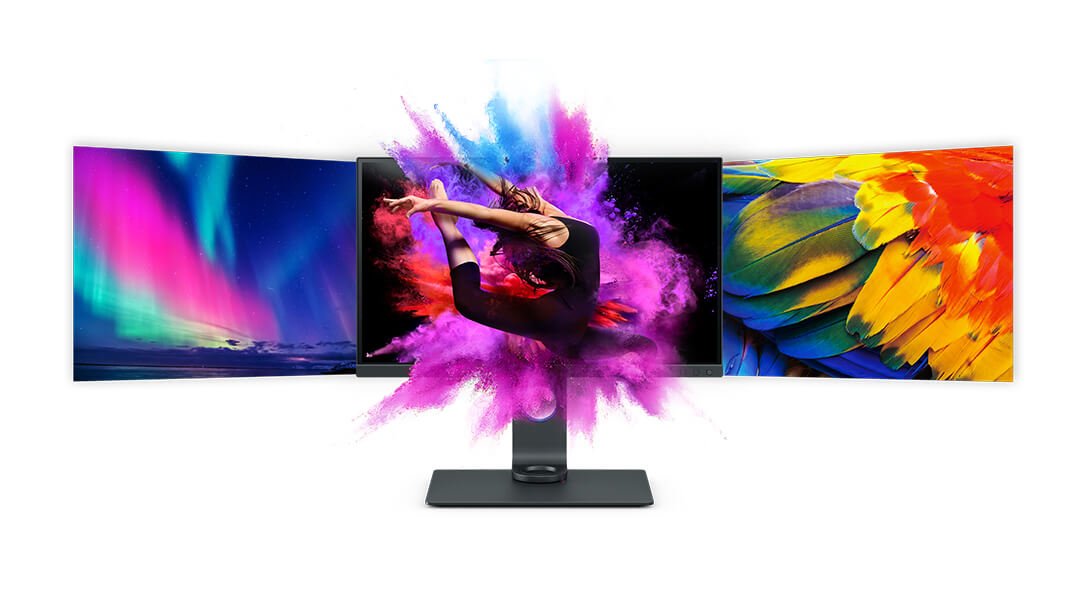
For Mac users, precise color representation is essential, whether for everyday tasks or professional creative work. BenQ monitors are optimized for color reproduction, supporting the P3 color gamut, ensuring vibrant and true-to-life colors that align with macOS's native display capabilities. This makes them a great choice for general MacBook users who want a visually consistent experience across their screens.
Explore options designed to work seamlessly with macOS here.
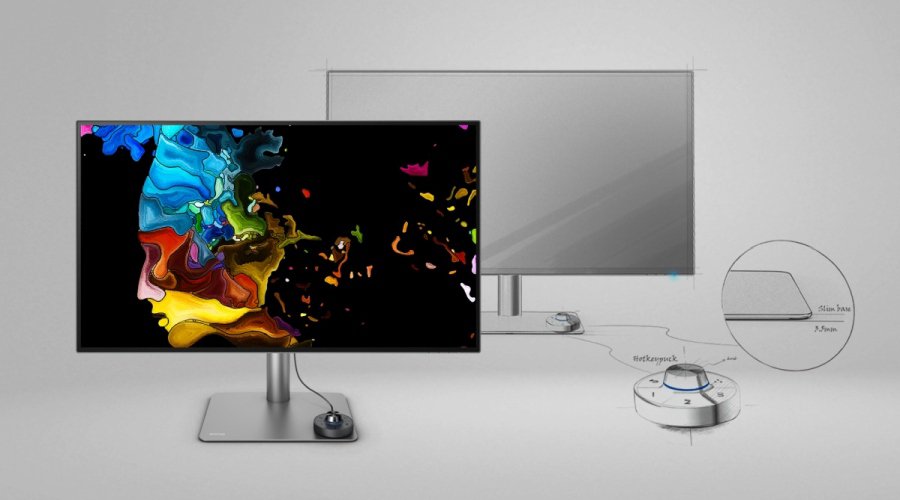
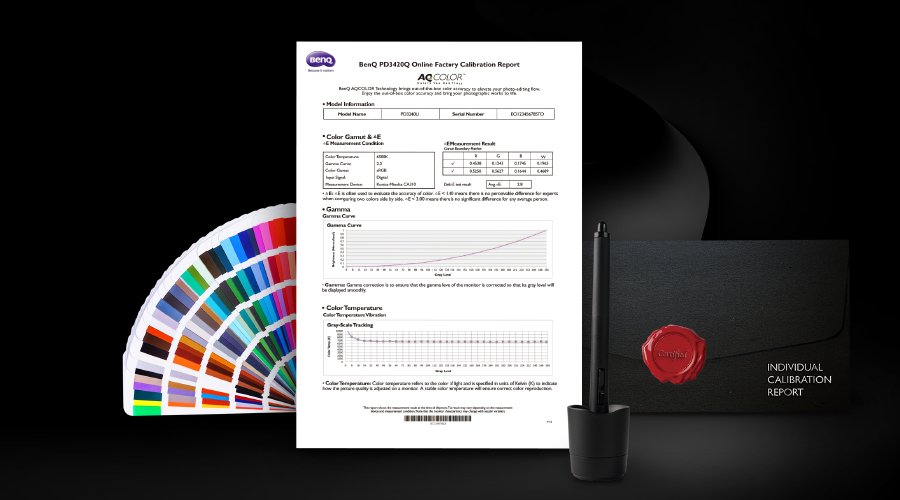
For professionals in graphic design, photography, and video editing, achieving industry-standard color precision is crucial. BenQ’s professional design monitors go beyond P3 color support, offering factory-calibrated accuracy, ICCsync for effortless color profile management, and certifications for color consistency. These features help creative professionals maintain control over their work with confidence.
If you're a Mac user, chances are you've heard that 5K is the ultimate upgrade. And in many ways, that's true—the clarity, the sharpness, the Retina feel all come together beautifully on a 5K display.
But here’s the thing: not every setup needs it. For most users, a well-tuned 4K monitor already delivers excellent results—especially when paired with good scaling and accurate color tuning. The difference really comes down to what matters to you.
If you're after pixel-perfect detail, or you work long hours with text and interface-heavy content, the extra sharpness of 5K makes a difference.
If your focus is broader usability, clean visuals, and a good match with your Mac's display behavior, a 4K model may be all you need.
Modern MacBooks favor USB-C and Thunderbolt ports, making these connectivity options essential for an external monitor. The best monitors for Mac offer USB-C or Thunderbolt connections for fast data transfer, and up to 100W of power delivery—allowing you to charge your MacBook while using the monitor. This all-in-one solution reduces cable clutter and simplifies your desk setup.
For streamlined multi-monitor setups, Thunderbolt is the preferred choice because On Mac, daisy chaining multiple monitors only works with Thunderbolt.
*Monitors with Thunderbolt 3/USB-C also work seamlessly with Mac devices that feature Thunderbolt 4.
Choosing an external monitor for your MacBook isn’t just about expanding screen space—it’s about enhancing your workflow, improving matching color or color accuracy, and ensuring seamless connectivity. By selecting a Mac-compatible monitor with USB-C, Thunderbolt 3, or Thunderbolt 4, matching color or professional-grade color accuracy, and versatile input options, you can create a setup that maximizes productivity and creativity.
Mac®, MacBook®, MacBook Pro®, MacBook Air®, Mac Studio®, Mac mini®, and Apple® are trademarks of Apple Inc.
{{item.productWordingTag}}
{{currency}}{{item.finalPrice| numberThousandsCommas | numberDecimalPoint}} Save {{currency}}{{item.saveAmount | numberThousandsCommas | numberDecimalPoint}} Save {{item.savePercent | numberThousandsCommas | numberDecimalPoint}}%
new device price{{currency}}{{item.regularPrice| numberThousandsCommas | numberDecimalPoint}}