With the proliferation of HDR content and HDR-compatible devices, gamers can immerse themselves into visually stunning worlds and dynamic cutscenes. This article addresses common HDR-related challenges and offers troubleshooting tips.
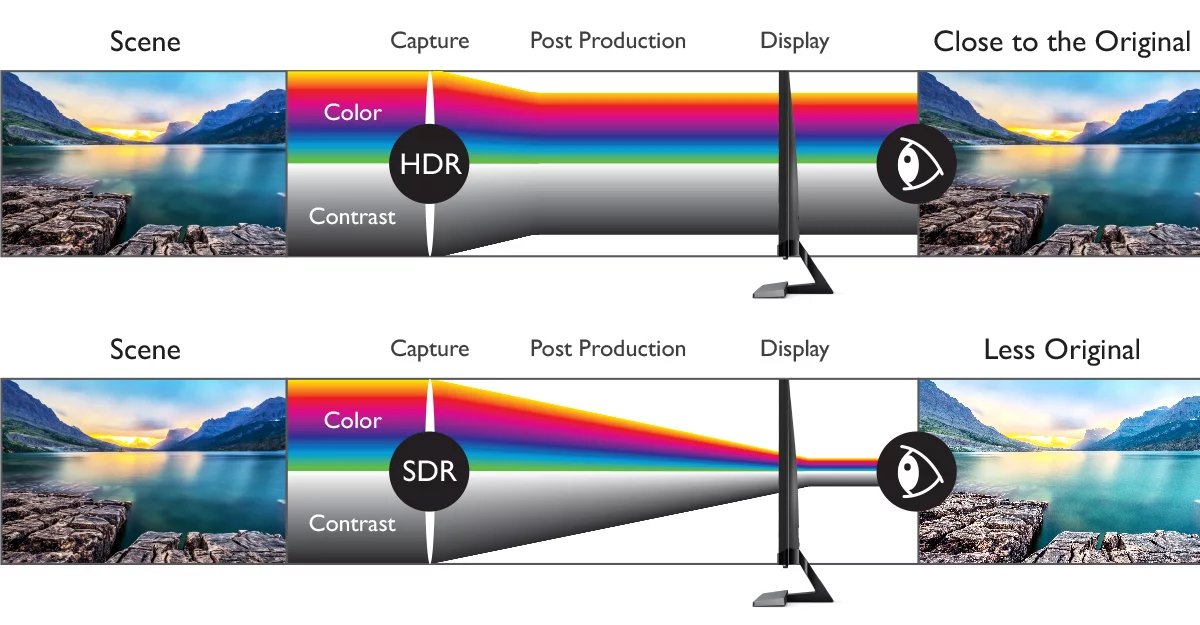
HDR, or High Dynamic Range, is a content format that captures, processes, and reproduces videos, images, or video games in a way that increases details in bright and dark scenes and offers a superior range of color. HDR provides enhanced realism and greater overall visual impact when compared to its predecessor format, SDR (Standard Dynamic Range). While SDR is still more common, HDR usage is increasing for both movies and video games. However, sometimes HDR-labeled content does not display correctly, and it may even appear worse than the same content in SDR.
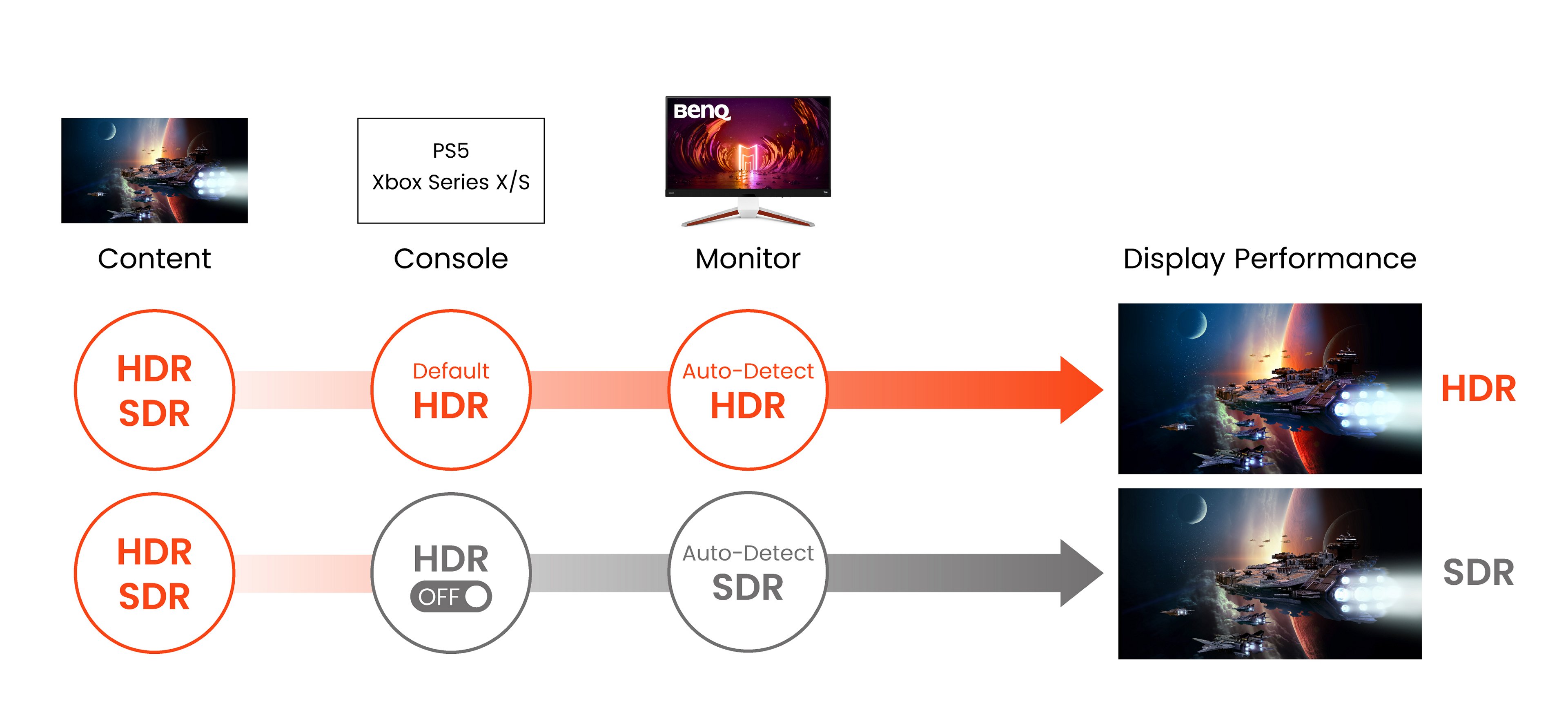
Remember that the key elements required for HDR to work correctly are: the source must be HDR content, it must come from an HDR signal source, it must display on an HDR-supporting monitor, and it must use an HDR-supported connection. All BenQ MOBIUZ monitors are designed to display HDR content, so if you’re already using one, here are the other elements for you to check:
1. Is the content HDR encoded? For videos games that support HDR, some require you to manually select or turn-on HDR in the game settings.
2. Is your signal source (PC or gaming console) set to display HDR content? You may have to turn this on manually.
3. Do you have the right signal cable for HDR? For HDR content, HDMI High Speed, HDMI Premium Certified, HDMI 2.0 compliant, or DisplayPort Compliance Certification for DP 1.4 compatibility will work. For 4K HDR 60Hz+ content, you’ll need HDMI 2.1 or DisplayPort (DP) 1.4 or higher.
HDR content could look incorrect due to the monitor, the content itself, or the bandwidth. If the monitor is not properly color calibrated for HDR content, you will have a lower display quality. The HDR content might not be properly produced or encoded, or it simply could be a result of technical limitations.
Additionally, because HDR content requires more signal bandwidth, an older HDMI/DisplayPort port or cable that can’t support it will cause display issues, such as a black screen.
MOBIUZ monitors auto-detect whether the source signal is HDR or SDR and adjust accordingly, so you’ll only have to turn HDR on or off at the source.
Understanding HDR requirements and troubleshooting can be complicated or confusing. Using the guidelines above will help you figure it out and optimize your HDR content experience.
{{item}}
{{itemTag.title}}
{{productsCount}}Result
{{displaySortType}}
{{item}}
{{item.productWordingTag}}
{{currency}}{{item.finalPrice| numberThousandsCommas | numberDecimalPoint}} Save {{currency}}{{item.saveAmount | numberThousandsCommas | numberDecimalPoint}} Save {{item.savePercent | numberThousandsCommas | numberDecimalPoint}}%
new device price{{currency}}{{item.regularPrice| numberThousandsCommas | numberDecimalPoint}}
Compare Products
Max 4 products to compare reached.