Projectors
Accessories
Accessories
Projectors
Monitors
Lighting
Accessories
Interactive Displays & Signage
Shop
Welcome to BenQ Europe
How can I change my BenQ cookie settings?
Some essential features on BenQ sites just won’t work without cookies. And having other cookies switched off can seriously affect the way you’ll be able to enjoy our services.
Please check your cookie settings below and turn on any cookies you’re happy with.
“Strictly necessary” cookies can’t be turned off. But Functional and Performance cookies can be turned on or off below. You can learn more about cookies and what they do on our other pages.
If you've chosen to block third-party cookies on your browser, your cookie preferences won't carry over from benq.eu to benq.xx and vice versa. Please make sure to set your cookie preferences in both places.
On
Strictly necessary cookies
These cookies are essential so that you can move around the website and use its features. Without these cookies services you have asked for cannot be provided.
On
Off
Functional cookies
These cookies allow the website to remember choices you make to give you better functionality and personal features.
On
Off
Performance cookies
These cookies help to improve the performance of BenQ. If you want to opt-out of advertising cookies, you have to turn-off performance cookies.
Just landed! MA320UG 4K 120Hz Monitor for Mac
Shop NowJust landed! MA320UG 4K 120Hz Monitor for Mac
Shop Now
Important Product Recall Notice - GV31
Read moreImportant Product Recall Notice - GV31
Read more
Need advice? Our online chat connects you with real experts instead of bots
Chat with us todayNeed advice? Our online chat connects you with real experts instead of bots
Chat with us today
Watch them bring it home on the big screen
Shop exclusive deals nowWatch them bring it home on the big screen
Shop exclusive deals now
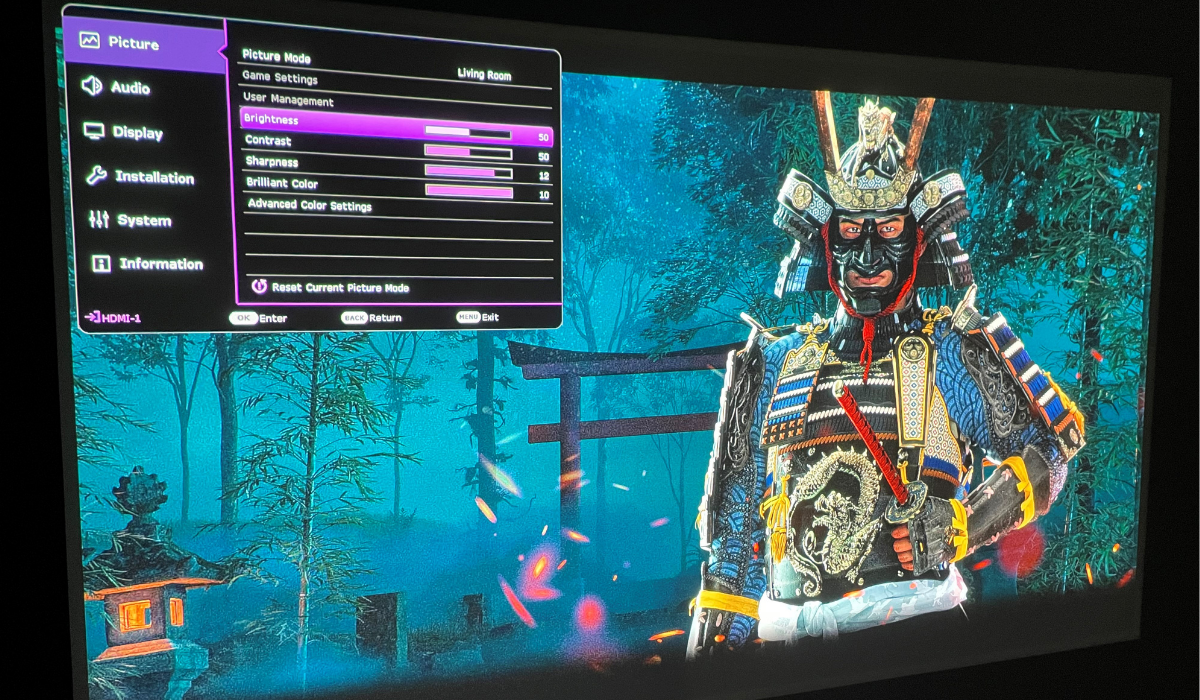
Almost all gaming projectors and projectors in general arrive with pre-calibrated picture modes. This applies most in high end models that go through an extensive image calibration at the factory for major use cases, such as cinema and gaming. The result is that movie mode puts an emphasis on color accuracy, while game mode places low latency above all else.
But sometimes you want to do your own calibration. Sure, you can hire a professional calibrator to come in and set up your projector using all sorts of scientific tools, but that kind of service doesn’t come cheap. Also, even the most meticulous manual calibration may become quite useless if you have too much ambient light where your gaming projector is set up.
In this article we’ll try to help you do your own easy calibration on your gaming projector, while providing tips on how to make sure your settings don’t go to waste due to factors not directly related to the projector.
Before you get started with the calibration proper, here are some things to do:
Now come the main steps.
Once done and satisfied, save the settings you adjusted as User Mode, which means you can always switch to them with a few presses on the remote. And while all of these steps were written with gaming in mind, to be honest games and movies have more and more in common, especially with HDR becoming so important. And so, a well-calibrated gaming mode is just as good at making movie and TV content look great.
The steps we detailed above are for manual calibration using the projector’s settings. But you can start with the calibration tools offered by gaming consoles, and then if the results are still not to your liking, do the projector calibration. Xbox consoles have a Calibrate TV tool under Settings, General, Video & Display Options. The process in this tool works for projectors, as well. On PS5, go to Settings, Screen and Video, then Adjust HDR. There’s no overall calibration tool, only HDR adjustment.
On both Xbox and PlayStation devices, if you find the adjustment tools sufficient and feel the image quality is to your liking, then there’s no need to do further manual calibration on the projector side.
There are a few more things to consider.
HDMI ports set up for max bandwidth: of high importance is the connection between your gaming projector and consoles. Of course, good projectors operate in HDMI 2.0 and detect your consoles automatically for the maximum bandwidth possible. If you encounter any issues such as flicker, no 4K, or no HDR, make sure to check your projector settings. Many projectors have something like “Enhanced” or “Input Signal Plus” in the HDMI settings portion of their menu, and that needs to be active for ports connected to consoles. If not toggled on, your console will be limited to HDMI 1.4b standards, which max out at 1080p 60Hz or 4K 30Hz, with no HDR support. While HDMI 2.0 should be on automatically when connected to a PS5 or Xbox Series X, it doesn’t hurt to check.
Select a specific game mode if available: really good gaming projectors like the BenQ X3100i don’t just have one overall game mode, but several. These are tailored to genres like first person shooters, sports, and role playing. You can switch between them as needed for the best results, so if you’re someone who plays a lot of COD: Warzone and Elden Ring, for example, you have optimized game modes that cater to both.
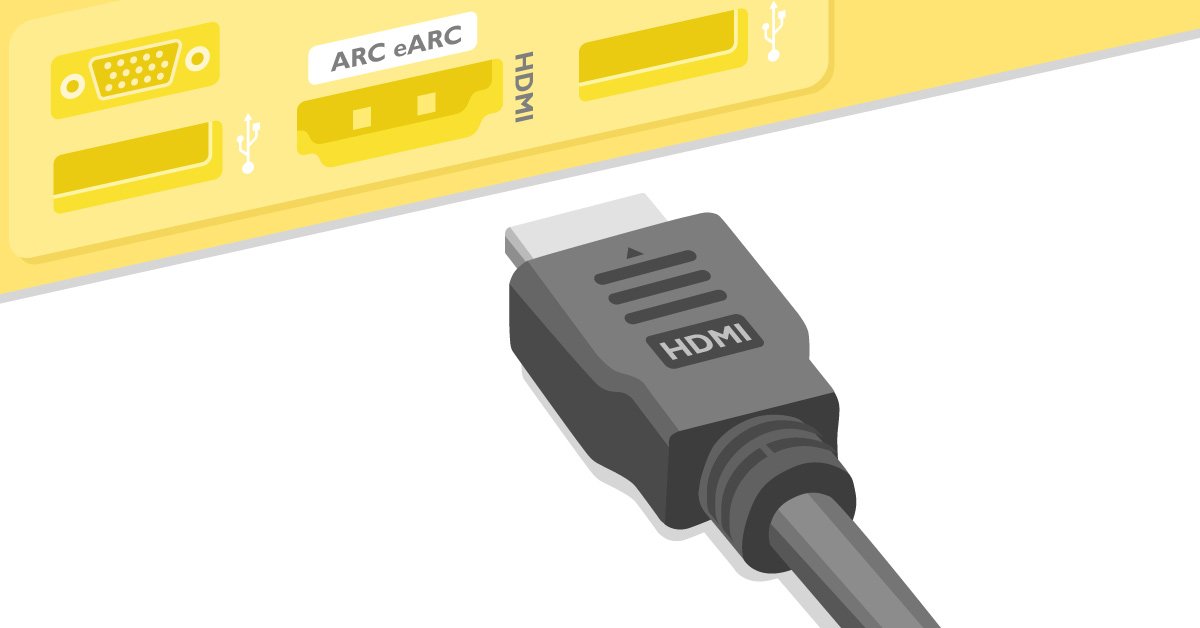
Choose the right HDMI port: to get the most bandwidth available when connecting to a PS5 or Xbox Series console, remember to connect directly to your projector via a non-ARC/eARC HDMI port. Those ports are supposed to be connected to external sound systems and may compromise video capabilities by limiting bandwidth and preventing HDR, VRR, or 4K 60Hz from working properly. By the same token, avoid connecting consoles to receivers or other intermediary devices as passthroughs to the projector. PS5 and Xbox Series consoles should be connected directly to your projector. And if your projector has several HDMI ports, connect your console to the ones not labeled ARC/eARC. We have more info on connecting projectors to sound systems if you’re interested.
As games continue to catch up to movies in terms of photorealistic visuals, the importance of image accuracy likewise grows as players want to enjoy the fruits of this progress. And if you have a gaming projector then you’ve already taken the most important step, because nothing does justice to better game graphics like the biggest and most immersive screen format. If you’re thinking of getting a gaming projector, make sure to choose one that has excellent out of the box image fidelity, which saves you a lot of second guessing down the line. Also, do not compromise and give in to the temptation to purchase a cheaper model, as you’ll likely end up with a lower-bandwidth HDMI connection that will bottleneck your consoles and even streaming content. Happy entertainment!
{{item.productWordingTag}}
{{currency}}{{item.finalPrice| numberThousandsCommas | numberDecimalPoint}} Save {{currency}}{{item.saveAmount | numberThousandsCommas | numberDecimalPoint}} Save {{item.savePercent | numberThousandsCommas | numberDecimalPoint}}%
new device price{{currency}}{{item.regularPrice| numberThousandsCommas | numberDecimalPoint}}