Projectors
Accessories
Accessories
Projectors
Monitors
Lighting
Accessories
Interactive Displays & Signage
Shop
Welcome to BenQ Europe
How can I change my BenQ cookie settings?
Some essential features on BenQ sites just won’t work without cookies. And having other cookies switched off can seriously affect the way you’ll be able to enjoy our services.
Please check your cookie settings below and turn on any cookies you’re happy with.
“Strictly necessary” cookies can’t be turned off. But Functional and Performance cookies can be turned on or off below. You can learn more about cookies and what they do on our other pages.
If you've chosen to block third-party cookies on your browser, your cookie preferences won't carry over from benq.eu to benq.xx and vice versa. Please make sure to set your cookie preferences in both places.
On
Strictly necessary cookies
These cookies are essential so that you can move around the website and use its features. Without these cookies services you have asked for cannot be provided.
On
Off
Functional cookies
These cookies allow the website to remember choices you make to give you better functionality and personal features.
On
Off
Performance cookies
These cookies help to improve the performance of BenQ. If you want to opt-out of advertising cookies, you have to turn-off performance cookies.
Win a MOBIUZ OLED Monitor
Enter NowWin a MOBIUZ OLED Monitor
Enter Now
Important Product Recall Notice - GV31
Read moreImportant Product Recall Notice - GV31
Read more
Need advice? Our online chat connects you with real experts instead of bots
Chat with us todayNeed advice? Our online chat connects you with real experts instead of bots
Chat with us today
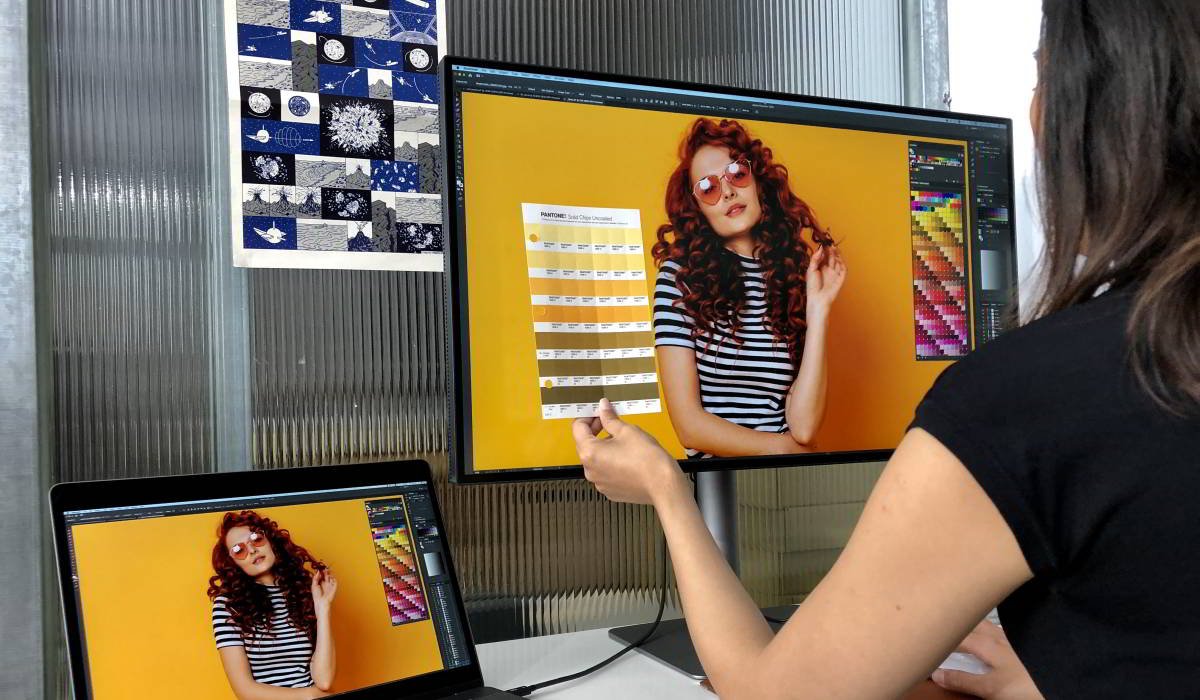
Creative professionals from different industries depend on color-managed workflows to deliver the best results. A crucial piece of equipment for any color management work is a properly color-calibrated monitor; it improves productivity and saves money by reducing the number of proofs needed delivering consistent results across media.
Guaranteeing accurate on-screen colors depends on the quality of the equipment used and proper setup and calibration by the end-user. While getting your monitor from a reputable brand can solve the first one, set up and color calibration can be confusing because there are two ways to get the color right on your screen – hardware and software calibration.
What's the difference between these two types of color calibration, and which one is the best for your needs? Read on to learn more about hardware vs. software calibration.
Inside a computer, numerical values of red, green, and blue define all possible colors, but what we use to reproduce that color will affect the result. For example, the color cyan is 100% green, 100% blue, and 0% red. These numeric values never change, so cyan will always be the same, but only numerically. How that cyan looks on the screen is affected by several factors, but the most common is an uncalibrated screen.
All computer monitors incorporate small variations due to the nature of manufacturing. For example, the blue pixels on a specific monitor could be slightly bluer than another one, even from the same brand and model. If you display the color cyan as defined by its RGB values on such a monitor, it will look slightly bluer than it should. At BenQ, we use high-precision equipment in the manufacturing process to minimize these discrepancies; however, it's practically impossible to eliminate them altogether.
Color calibration helps reduce the impact of those discrepancies on color performance. After manufacturing, a monitor can be color calibrated by the manufacturer or the end-user. A specialized optical tool measures the actual colors produced by a monitor and compares them to reference values. Whenever differences exist, the computer performs calculations to adjust the color and sends a corrected signal to the monitor; then, measurements are retaken. This process is repeated until everything falls within accepted tolerances for the monitor to be considered color accurate.
Inconsistent Color?
Upsets more than you'd expect
The main difference between hardware and software calibration comes at the next step of the calibration process. Once the necessary adjustments for each reference value have been calculated, they need to be stored somewhere to adjust every color that the monitor displays. A LUT (Lookup table) is used to calculate corrections; inside the LUT, each RGB combination has a new value assigned that reflects the values specific for a monitor to display accurate colors.
When using software color calibration, the LUT is stored on your computer where the color corrections are software-processed first, and the corrected RGB values are then sent to the monitor. A hardware LUT, which is used for hardware calibration, is stored on a dedicated chip inside the display. With a hardware LUT, the monitor receives the unadjusted RGB signal from the computer and then applies the color corrections using a chip on the display itself where the corrected values are stored.
A software calibration LUT needs to be reloaded every time you reboot your computer and only works with that computer's video signal. If you use multiple sources with your monitor, each one must have its color calibration stored independently. A hardware calibrated monitor will be color accurate regardless of which source or computer you connect to it.
The most significant disadvantage of software color calibration is that it comes at the cost of reduced color depth. Software calibration improves color accuracy by adjusting the RGB values at the computer's video graphic card or operating system. Still, some color depth is lost due to the limited bitrate connection to the display. It's impossible to fit the necessary range of adjusted 8 or 10-bit RGB values, which can fall above the original 100% max value, over a connection of the same bitrate.
When a hardware calibratable monitor takes care of the color correction, the RGB signal leaves the computer unchanged, avoiding any adverse effect on the color depth. The hardware LUT then processes these values on the monitor, using a much bigger color depth than the original signal, giving ample room to avoid color loss. While accuracy can be more or less the same between hardware and software calibrations, using a hardware LUT approach will ensure that your professional monitor's wide color gamut is not compromised.
Hardware calibration requires a monitor with a built-in LUT to store the adjustments. After a hardware calibration, colors on the screen are accurate and maintain the wide color gamut of the professional monitor. On the other hand, software calibration also provides accurate colors at the loss of color depth and more frequent recalibrations.
In general, hardware calibration offers several advantages over software calibration. It protects the monitor's original color gamut thanks to an internal LUT that doesn't truncate the color depth. The color calibration is plug-and-play thanks to the hardware LUT is inside the monitor, which is performing the corrections independently from the source. And typically, the results of hardware calibration last longer than software-based solutions.
Hardware calibration offers color-critical professionals a reliable workflow that saves them time and money with fewer recalibrations and colors on-screen that can be trusted.
{{item.productWordingTag}}
{{currency}}{{item.finalPrice| numberThousandsCommas | numberDecimalPoint}} Save {{currency}}{{item.saveAmount | numberThousandsCommas | numberDecimalPoint}} Save {{item.savePercent | numberThousandsCommas | numberDecimalPoint}}%
new device price{{currency}}{{item.regularPrice| numberThousandsCommas | numberDecimalPoint}}