{{item.name}}
Price: {{currency}}{{item.price| numberThousandsCommas | numberDecimalPoint}}
Qty: {{item.amount}}

Remote Work & Learning


Projectors

Monitors
Lighting
Interactive Displays & Signage
Remote Work & Learning
Shop
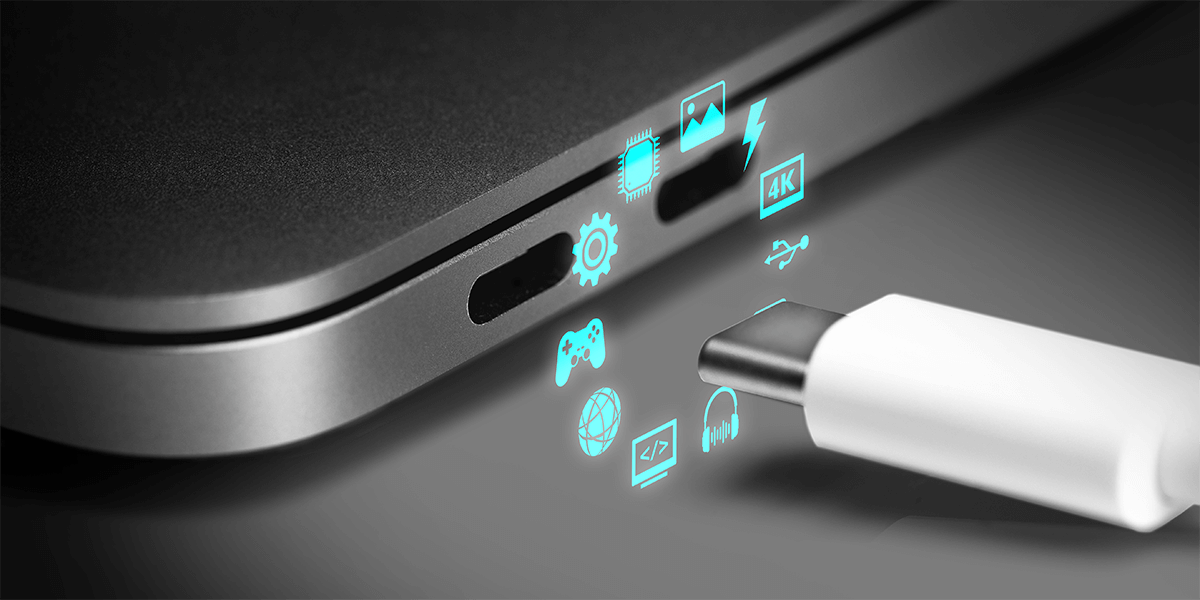
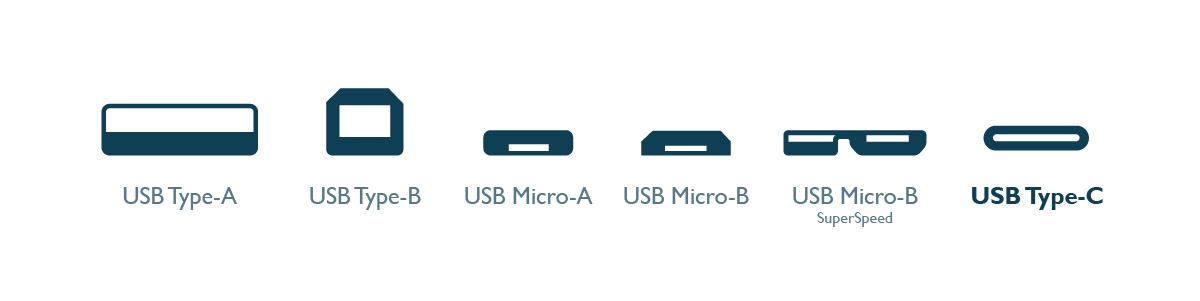
USB-C helps connect everything—from laptops and smartphones to monitors and external storage devices. While USB-A was the standard for years, USB-C has become the universal connector you see everywhere today.
Introduced in 2014, USB-C was designed to replace older USB ports with a smaller, reversible, and more powerful standard. It supports charging, data transfer, and video output all through a single port.
Despite its versatility, USB-C can also be a source of frustration. Many users find that while a USB-C cable may charge their laptop when plugged into a monitor, the screen remains black. The reason is that not all USB-C ports offer the same functionality. Some are limited to charging, others handle video output, and some focus solely on data transfer. Without checking your device specifications carefully, you could end up with a USB-C port that doesn’t perform the function you need.
So, what should you know about the USB-C connector? This article will help you explore and answer the following key questions and topics:
Expand Mac® Devices Color Perfection
Looks perfect as you'd expect
USB-C is a universal port that handles power, data, and sometimes video all through one cable. It replaced older standards like USB-A and Micro-USB by offering a smaller, reversible design with more capabilities. USB-C is now standard on most modern laptops, including all MacBook models but not all USB-C ports support the same features. Some only charge. Some transfer files. Some send video. That’s why it is important to understand what your device’s USB-C port actually supports. This single port can support data, charging, video output, and even audio—depending on the device.
Here’s what USB-C can potentially support—depending on the device:
Of the four USB-C features, only reversibility is guaranteed across all ports. Support for video output, charging, and audio depends on how each manufacturer designs their hardware. That’s why checking device specs—or testing in real use—is so important.
Not every USB-C device supports all of these. That’s why it’s important to check your device’s specs or test it in real use.
No—and this is where most people get confused. Just because a device has a USB-C port doesn’t mean it can charge your laptop or connect to a monitor. Some USB-C ports are data-only, while others support video output (via DP Alt Mode) or Power Delivery (PD) for charging. Always check your device’s official specs to confirm what the port supports. Of the four USB-C features, only reversibility is guaranteed across all ports. Support for video output, charging, and audio depends on how each manufacturer designs their hardware. That’s why checking device specs—or testing in real use—is so important.
DisplayPort Alt Mode (DP Alt Mode) is one of USB-C’s most powerful and most misunderstood features. It enables certain USB-C ports to send video signals to external monitors using the DisplayPort protocol, all through a single cable.
But not all USB-C ports support DP Alt Mode, and many brands don’t clearly label whether they do. That’s why some users find their device charges just fine over USB-C, but fails to show any picture on a monitor.
Standard USB-C
(No Thunderbolt)
Thunderbolt 1&2
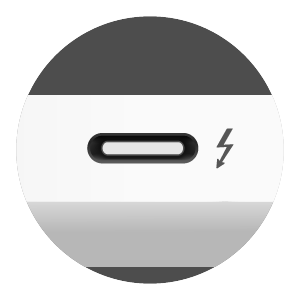
Thunderbolt 3&4
(USB-C connector)
* While Thunderbolt 3 and 4 look identical, they differ in minimum requirements and capabilities. Use the table above to compare what each supports.
There’s no universal label for DP Alt Mode on USB-C ports, and some brands don’t mark them clearly even if supported. The most reliable way is to check your device’s official tech specs.
You can also test it directly: use a USB-C monitor that supports DP Alt Mode and a full-featured USB-C cable (not a charge-only cable). If nothing shows up, try switching ports or cables.
USB Type-C in the Real World (Laptop)
What You Want to Do
Required Feature
Supported By
Charge your laptop
Power Delivery (PD)
USB-C PD, Thunderbolt 3/4
Connect to a 4K monitor
DisplayPort Alt Mode
USB-C DP Alt Mode, Thunderbolt 3/4
Use one cable for display + charging + data
Alt Mode + PD + Data
Thunderbolt 3/4, full-featured USB-C
Transfer files only
USB 3.1 / 3.2 (Gen1/2)
All USB-C data cables
Max speed (40 Gbps) + pro workflows
Thunderbolt 4
MacBook Pro® (2021+) + TB4 cables
Connect multiple monitors with one cable
Daisy Chain with Thunderbolt
Thunderbolt 3/4 only (USB-C does not support video daisy chaining)
*Not all laptops and mobile phones with USB-C ports support full USB-C function—so always check for terms like “DP Alt Mode,” “PD,” or “Thunderbolt” on your device and cable.
**Laptops and mobile phones have different combinations of USB-C functions.
Tip
Due to the various specifications and compatibility of the Type-C connector, BenQ InstaShow Wireless Presentation System presents the ultimate solution with its smart self-detecting technology, which can automatically show whether your laptop or mobile device with Type-C port supports Alt Mode output and therefore provide better intuition within your user experience.
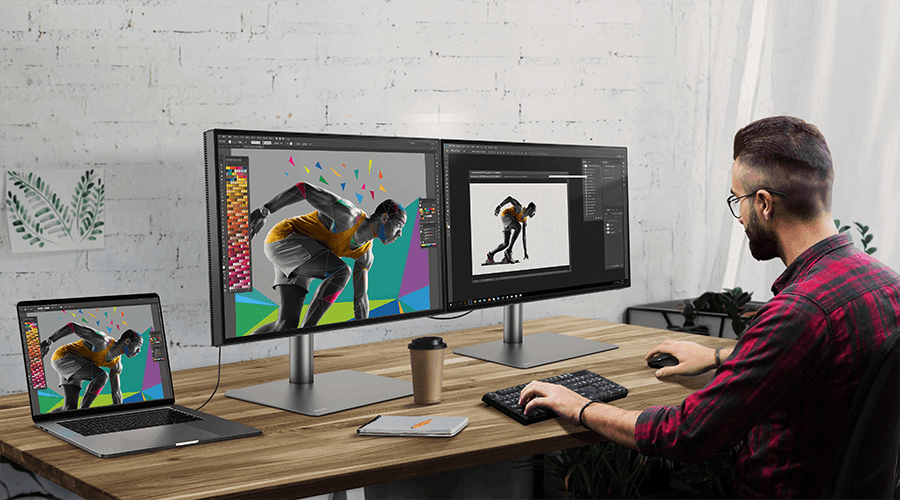
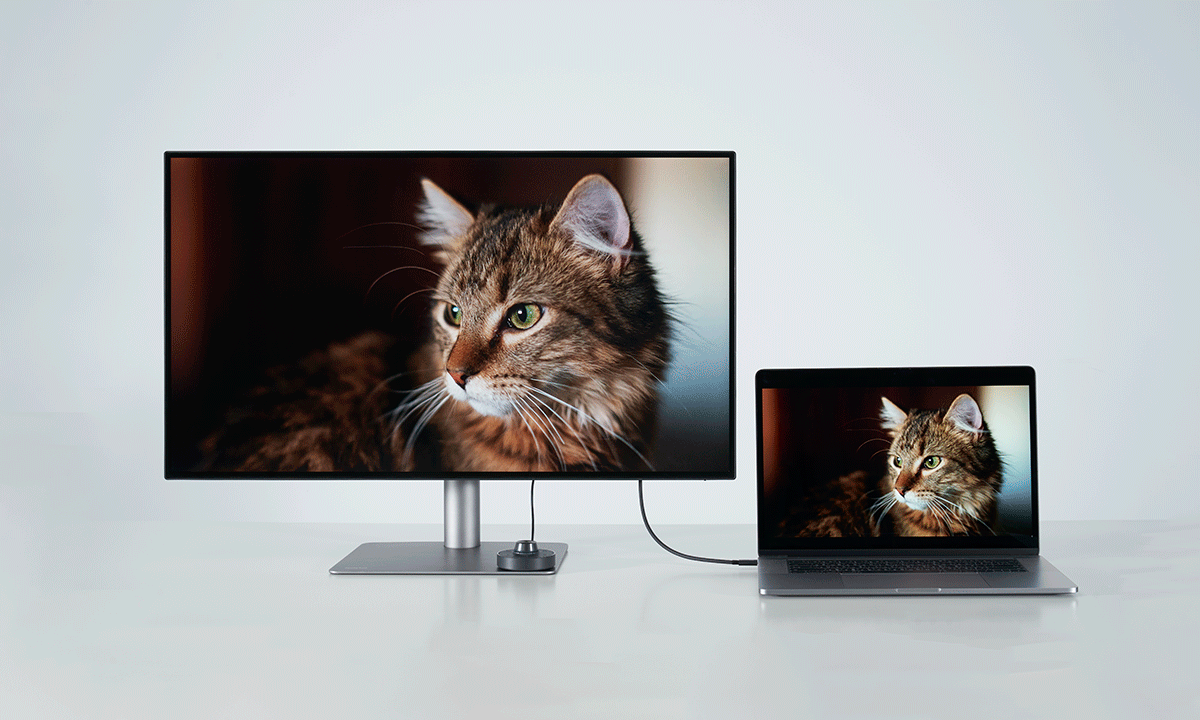
If you want to connect your laptop to a monitor using just one USB-C cable—for both display and charging—your monitor must support USB-C Power Delivery (PD).
But how do you check for that? Here’s what to look for:
What to look for
How to check
The monitor’s spec sheet or product page
Some models have a battery or power icon next to the port to indicate charging support
1. Look for phrases like: “USB-C with Power Delivery“, “PD 65W“ or “USB-C charging up to 90W“, “Charge your laptop via USB-C“
2. Spec listed like: “USB C (PowerDelivery 90W, DisplayPort Alt Mode, Data)”
If it works with a known charging-capable laptop and cable
Try it.
Example: MacBook Air® + USB-C Monitor
If you're using a MacBook Air (M1, M2, M3, M4), it can be charged via USB-C with as little as 30W to 45W of power. That means:
Some BenQ monitors go even further in delivering power and flexibility.
These models eliminate cable clutter—providing 90W charging for your MacBook, seamless 4K or 5K display output, and additional power for your peripherals, all through a single cable.
Yes—but compatibility depends on what you're trying to do.
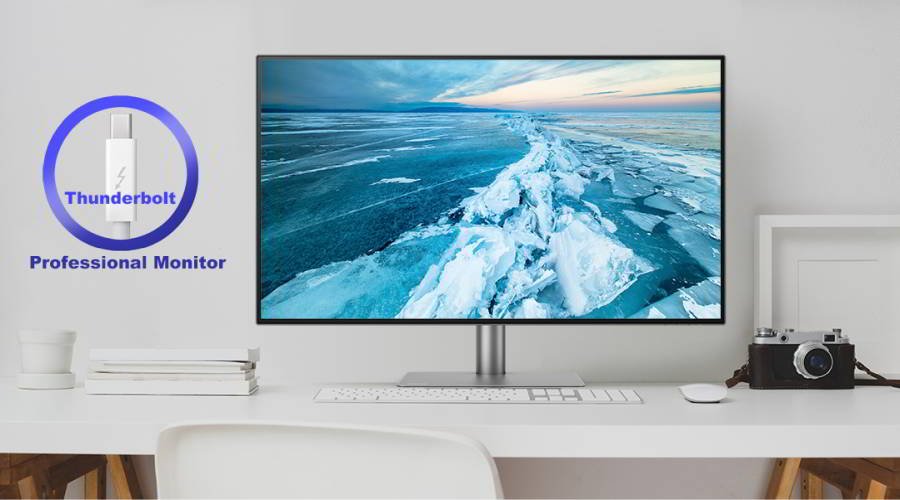
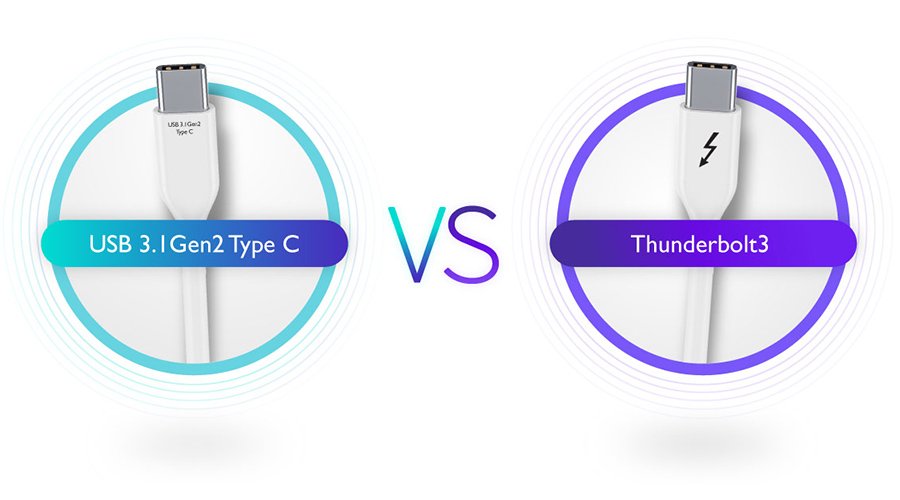
USB-C and Thunderbolt ports use the same connector, so they’re physically compatible. You can plug a USB-C device into a Thunderbolt port, and vice versa—but that doesn’t guarantee full functionality.
For example, a USB-C monitor will usually work with a Thunderbolt port for display and charging, as long as it supports DP Alt Mode and Power Delivery. But not all USB-C ports support Thunderbolt-level speed, daisy chaining, or PCIe accessories.
USB 3.1 Gen 2, Thunderbolt 3, and Thunderbolt 4 may look alike, but their performance and feature sets are quite different. The table below compares the key differences at a glance.
Feature
Type-C
Thunderbolt 3
Thunderbolt 4
Max Bandwidth
10 Gbps
Up to 40 Gbps
(varies by device)
40 Gbps
(guaranteed)
Video Output
Optional
(via DP Alt Mode)
Optional
(depends on device)
Required
(dual 4K or 1×8K)
Power Delivery
Optional
Up to 100W
Up to 100W
(PD 3.0/3.1)
PCIe Support
❌
Optional
Required
(min PCIe x4)
Daisy Chain
❌
Optional
Required
MacBook Examples
MacBook (Retina, 2015–2017)
MacBook Air (M1–M3),
MacBook Pro 13” (M1/M2)
MacBook Pro 14” / 16” (M1/M2/M3)
• Does charging through a monitor damage my MacBook’s battery?
No. Charging your MacBook via a USB-C monitor is completely safe, as long as the monitor supports Power Delivery (PD) and delivers sufficient wattage. macOS® manages power input intelligently, so your battery is protected from overcharging or overheating.
In this case, the monitor’s USB-C functionality has been tested by an Authorized USB-IF Test Lab to verify safe power delivery and MacBook compatibility—ensuring it charges your device reliably without compromising battery health.
• Why isn’t my MacBook charging from my USB-C monitor?
This could be due to one of four reasons:
1. The monitor doesn't support USB-C Power Delivery, or the output wattage is lower than what your MacBook requires.
2. The monitor is off or in a power-saving mode.
3. You're using a charge-only or low-wattage USB-C cable
4. Your MacBook is connected to the wrong port.
Try using a certified USB-C PD cable and double-check the monitor’s specifications for power output
• My USB-C monitor charges my Mac®—but there’s no picture?
Your monitor might only support charging, not video. To display content, both the MacBook and the monitor must support DP Alt Mode. Also ensure your cable supports both video and power, and the monitor is set to the correct input source.
• I’m charging my MacBook from a USB-C monitor. Can I plug in my iPad® too?
Yes—if the monitor offers an additional USB-C or USB-A port with Power Delivery. For example, BenQ’s MA Series includes a secondary 15W USB-C port ideal for charging an iPad or iPhone while your MacBook stays connected.
• Can I just buy any USB-C cable and expect it to work?
No. USB-C only refers to the shape of the connector—not what it can do. Some cables only charge. Others support video, data, or high-wattage power. Always check for labels like “4K,” “PD,” or “Thunderbolt Certified.”
• Do I need a special cable to connect my MacBook to a USB-C monitor?
Yes. Use a full-featured USB-C cable that supports both video and charging. Avoid USB-C cables designed only for power or data transfer. Look for specs like “4K video,” or “PD” when buying.
• What if my Mac is not detecting the monitor?
Try the following:
1. Use the correct input source on your monitor (USB-C)
2. Restart your Mac with the monitor plugged in
3. Use a different USB-C port or cable
4. Go to System Settings > Displays and click Detect Displays
• How do I know if my USB-C supports DP Alt Mode?
To confirm if your MacBook supports DisplayPort Alt Mode over USB-C:
1. Check Apple’s official specs: Most MacBook Air and Pro models with M1, M2, M3, or M4 chips support video output via USB-C. Look for “Display Support” or “Thunderbolt / USB 4” in the technical specs.
2. Use a USB-C monitor and a known good cable: If your monitor doesn't display anything, make sure the cable supports both power and video (DP Alt Mode), and that you're using the correct USB-C port on your MacBook (some hubs have data-only ports).
3. Avoid charge-only cables: These won’t transmit video, even if the devices support it.
If your MacBook is from 2020 or later, it's very likely to support DP Alt Mode via USB-C. The most common issue is using a cable that only charges but doesn’t support video transmission. All MacBooks with Thunderbolt 3 / 4 or USB 4 ports support DisplayPort Alt Mode.
• Do I need a Thunderbolt monitor for my MacBook?
Unless you have specific high-performance needs.
Most MacBooks support DisplayPort over USB-C, so a regular USB-C monitor with DP Alt Mode works perfectly for everyday tasks like browsing, streaming, or even photo editing.
Choose a Thunderbolt monitor only if you need daisy-chaining, external SSDs, or rely on a Thunderbolt dock for accessories.
*MacBook®, MacBook Pro®, MacBook Air®, macOS®, Mac®, iPhone®, and iPad® are registered trademarks of Apple Inc.
{{item.productWordingTag}}
{{currency}}{{item.finalPrice| numberThousandsCommas | numberDecimalPoint}} Save {{currency}}{{item.saveAmount | numberThousandsCommas | numberDecimalPoint}} Save {{item.savePercent | numberThousandsCommas | numberDecimalPoint}}%
new device price{{currency}}{{item.regularPrice| numberThousandsCommas | numberDecimalPoint}}