Projectors
Monitors
Lighting
Interactive Displays & Signage
Remote Work & Learning
Wireless PresentationShop
Welcome to BenQ Europe
How can I change my BenQ cookie settings?
Some essential features on BenQ sites just won’t work without cookies. And having other cookies switched off can seriously affect the way you’ll be able to enjoy our services.
Please check your cookie settings below and turn on any cookies you’re happy with.
“Strictly necessary” cookies can’t be turned off. But Functional and Performance cookies can be turned on or off below. You can learn more about cookies and what they do on our other pages.
If you've chosen to block third-party cookies on your browser, your cookie preferences won't carry over from benq.eu to benq.xx and vice versa. Please make sure to set your cookie preferences in both places.
On
Strictly necessary cookies
These cookies are essential so that you can move around the website and use its features. Without these cookies services you have asked for cannot be provided.
On
Off
Functional cookies
These cookies allow the website to remember choices you make to give you better functionality and personal features.
On
Off
Performance cookies
These cookies help to improve the performance of BenQ. If you want to opt-out of advertising cookies, you have to turn-off performance cookies.
Need help choosing your next BenQ product? Our online Live Chat connects you with real experts. No bots - just genuine human assistance.
Chat with us today!Need help choosing your next BenQ product? Our online Live Chat connects you with real experts. No bots - just genuine human assistance.
Chat with us today!
In 5 minutes or less, you can get the image that fits your game, your style, and your preferences.
Open world games have risen in popularity over the years because of the immersive experience they offer. Most games feature beautiful visuals and realistic details to provide ultimate immersion. To enjoy these visuals, it is important to shop for a gaming monitor that offers versatile settings so you can play the game your way. This is where MOBIUZ comes in: each monitor features our Color Vibrance, Light Tuner, and HDRi technology to help you experience ultimate immersion.
Color Modes: Preset Color Settings
Some gaming monitors only support Standard Dynamic Range (SDR) content but with many HDR games and content now available, be sure to look at monitors that support High Dynamic Range, or HDR. All MOBIUZ monitors automatically detect HDR content and apply HDR colors without any extra steps. Additionally, these monitors also include BenQ’s exclusive Game HDRi and Cinema HDRi modes. By studying over 100 different gaming color styles and conducting research with expert gamers, these two color modes were created to allow for an ultra-realistic survival game, a soul-stirring RPG, or a heart-stopping space horror experience.
Light Tuner: Fine-tuning Contrast
Fine-tuning the contrast level is a great way to increase the depth of an image but overdoing it will result in a loss of detail. MOBIUZ’s exclusive Light Tuner allows for high precision fine tuning of contrast. Developed by BenQ’s color lab experts in collaboration with a number of dedicated gamers, Light Tuner allows for adjustment of the brightness, contrast, and saturation of an image altogether. With 20 different adjustment levels, you can easily choose just the right contrast level for your game.
Color Vibrance: Tweaking Color
Even subtle differences in color can affect an individual’s perception of the visual details; MOBIUZ gaming monitors are equipped with an exclusive Color Vibrance feature that allows you to make small adjustments for color. This feature also supports 20-level adjustment so gamers can quickly adjust based on the desired visuals of the game.
Switch the Color Mode
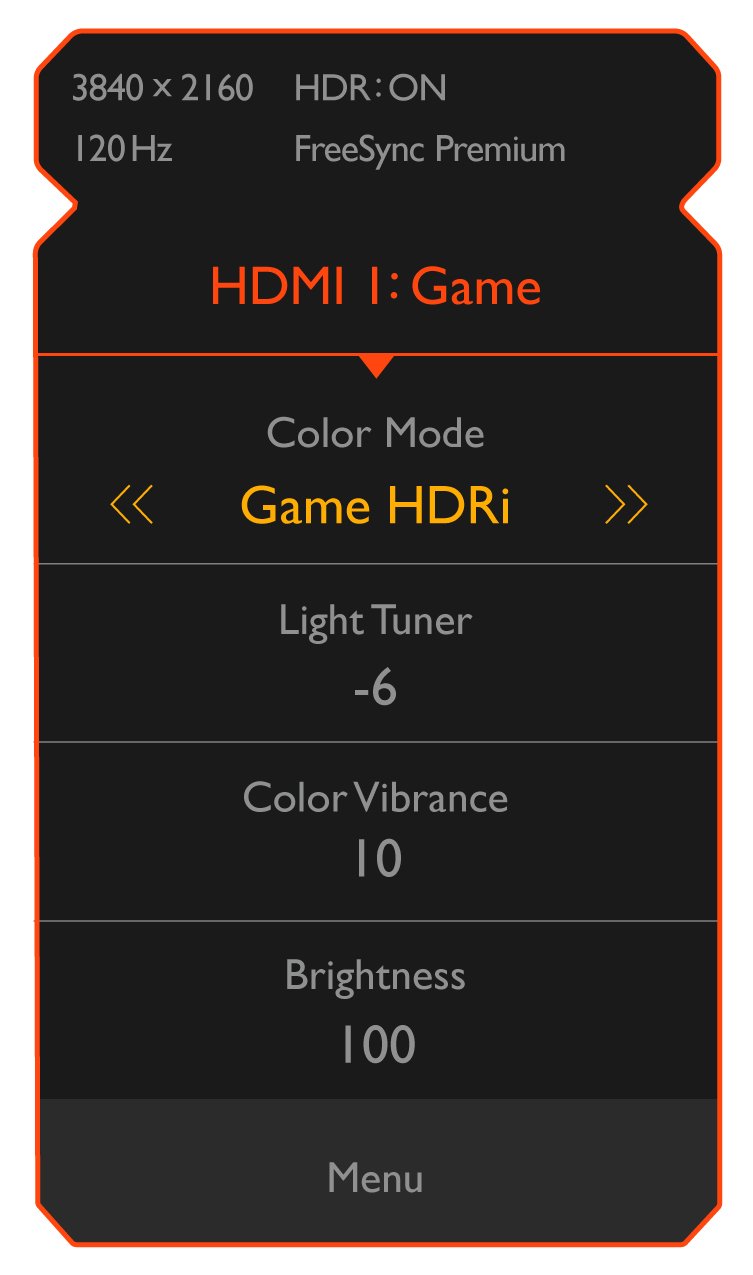
Via the Quick OSD menu, click right and you can easily switch color modes.
Adjust the Light Tuner and Color Vibrance
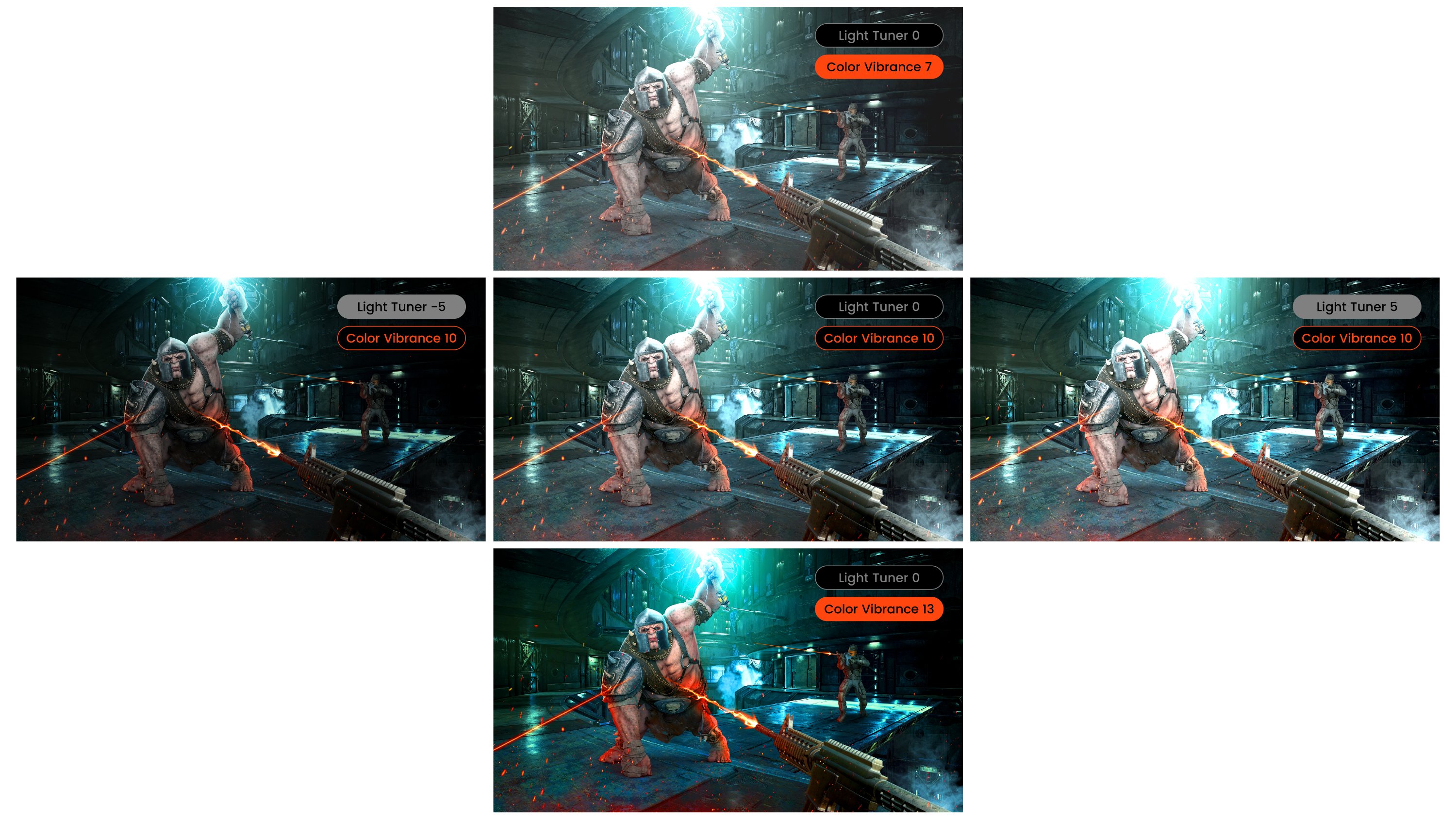
For optimal results, set the base tone first with Light Tuner for contrast settings. For this step, you can set a value of -10 to -1 to strengthen the details of an image while simultaneously boosting its depth. This type of adjustment is suitable for horror games or games that feature stunning landscapes where you’ll feel a greater sense of immersion while you play. On the other hand, Light tuner values from 1 to 10 boost the details in dark areas while ensuring that the image does not become over-exposed. This is suitable for first person shooter (FPS) games, increasing your ability to spot partially hidden enemies lurking in the darker scenes.
In the Color Vibrance setting, the default value is set to 10 and the higher values will make the colors more vivid, suitable for games where more striking visuals are preferred. The lower values of Color Vibrance reduce the saturation according to preference.
Adjusting Brightness, Contrast, Gamma, and Color Temperature
If you want to go to the next level of tuning, you can manually set the values for brightness, contrast, gamma, and color temperature. If you go too far, or get to a point you didn’t expect, simply hit the reset function, and start over.
(for its Lake-Facing Cliffs)
With a BenQ MOBIUZ gaming monitor, setting the right look for every game you play can be easier than ever before. Whether you choose one of the HDRi preset modes, use Light Tuner or Color Vibrance to adjust, or get into the detailed settings of gamma and color temperature, you have the ability to set the image the way you want it to be.
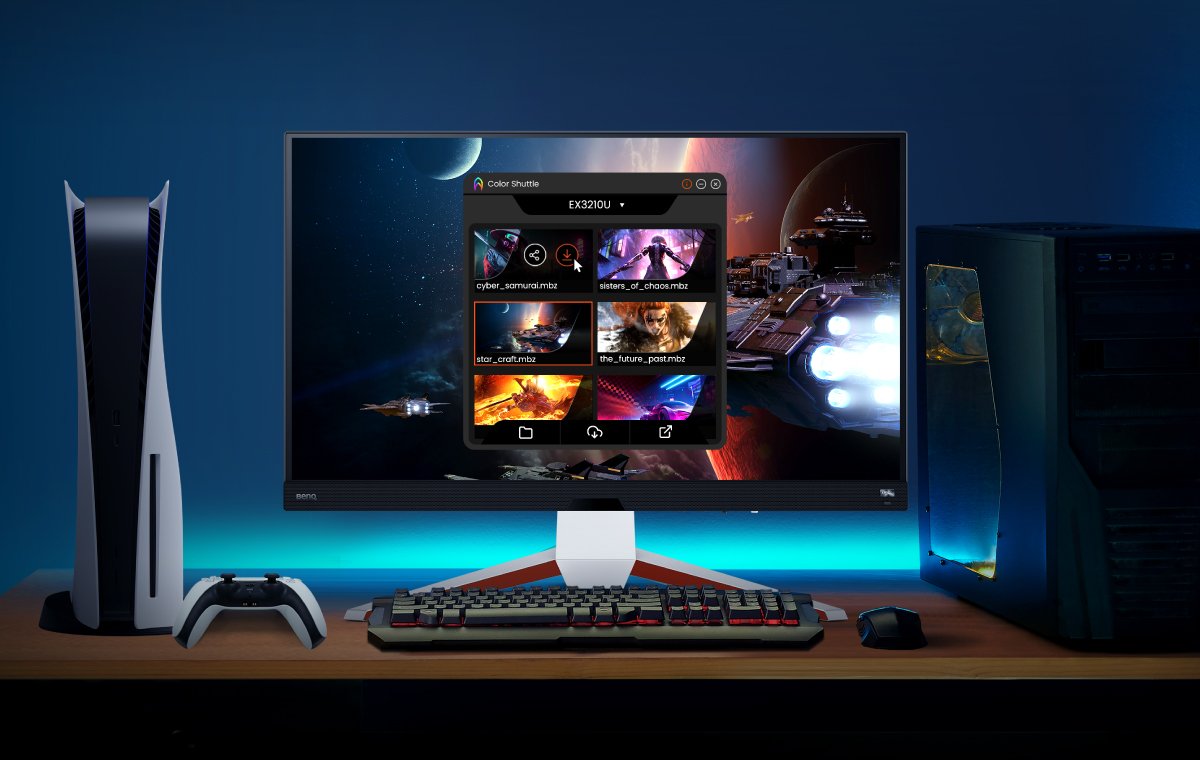
Want more? If you want to explore more monitor configurations, Color Shuttle is a software that simplifies the application of downloadable monitor settings for select MOBIUZ models.
Learn more about Color Shuttle
Recommended Products
{{item.productWordingTag}}
{{currency}}{{item.finalPrice| numberThousandsCommas | numberDecimalPoint}} Save {{currency}}{{item.saveAmount | numberThousandsCommas | numberDecimalPoint}} Save {{item.savePercent | numberThousandsCommas | numberDecimalPoint}}%
new device price{{currency}}{{item.regularPrice| numberThousandsCommas | numberDecimalPoint}}